∙
Cooper
∙
Reading time:
28 min

Repetitive notifications, scattered updates, and missed alerts can make Slack chaotic instead of helpful. Multi-tool syncing solves this by turning Slack into a central hub where critical updates - from tools like Jira, Salesforce, and Zendesk - flow into the right channels at the right time. Done right, this improves team productivity, speeds up decisions, and keeps everyone aligned.
Here’s what you need to know to make it work:
Focus on workflows, not tools: Map out what each team needs to see in Slack before setting up integrations.
Control notifications: Avoid overload by filtering updates to only the most important events.
Organize channels effectively: Use clear naming conventions and assign tools to specific channels based on their purpose.
Test before deploying: Use sandbox channels to refine settings and prevent unnecessary noise.
Secure your setup: Regularly audit integrations, limit permissions, and ensure compliance with security policies.
Use AI for knowledge gaps: Tools like Question Base connect Slack to trusted documentation, answering repetitive questions instantly.
Build a Slack AI Agent That Answers Questions (Step-by-Step Tutorial)
Planning Your Multi-Tool Integration Strategy
When setting up integrations in Slack, it’s crucial to avoid creating unnecessary noise, losing critical alerts, or overwhelming your team with muted notifications. The best way to do this? Start by focusing on your workflows and use cases instead of the tools themselves. Map out what each team needs to see and accomplish in Slack before enabling any integrations. Once that’s clear, pinpoint the workflows that are most important and identify the tools that play a key role in those processes.
Slack highlights three main ways integrations function: bringing information into Slack (like links, files, or updates), delivering real-time alerts (such as incident reports, build failures, or ticket escalations), and enabling actions in external tools directly from Slack (e.g., creating tasks, updating tickets, or approving requests). This framework helps you decide what each integration should achieve, steering teams away from adding tools "just because."
You’ll also need to decide how each tool will function in Slack: Will it serve as a notification channel? Allow two-way actions? Or act as a full workflow front end? These choices will shape how you configure each integration and determine which channels receive updates.
Selecting Tools to Sync with Slack
Start by taking inventory of your workflows. Break them down by team - engineering might focus on incident response, product teams on sprint management, support on ticket escalations, and sales on deal approvals. For each workflow, define the participants, the decisions being made, the external tools involved, and what needs to happen within Slack.
Next, identify the system of record for each function. For example:
Engineering and product teams may rely on Jira, Asana, Linear, GitHub, or GitLab.
Support teams often use Zendesk, Intercom, or ServiceNow.
Sales and customer success teams might use Salesforce, HubSpot, or Gainsight.
Documentation is typically stored in Notion, Confluence, Google Drive, or SharePoint.
Not every tool needs to integrate with Slack. Categorize tools into three groups: must integrate (critical for daily operations), nice to have (helpful but not essential), and do not integrate (likely to create more noise than value). For instance, a support team might mark Zendesk as "must integrate" for escalations, Salesforce as "nice to have" for account context, and internal wikis as "do not integrate" if they’re easier to access through search.
For workflows that rely heavily on knowledge, Question Base offers direct connections to platforms like Notion, Confluence, Salesforce, Google Drive, Zendesk, and Intercom. This allows teams to query these sources on-demand without cluttering Slack channels with constant notifications.
Assigning Tools to Specific Slack Channels
As mentioned earlier, organizing channels effectively is vital for managing multi-tool setups. Each integration should align with channels that reflect your team’s structure. For example:
Send updates from Asana or Jira to project channels like #proj-website or #proj-mobile-app.
Route Zendesk or Salesforce escalations to channels like #support-escalations or #sales-alerts.
Direct CI/CD or error alerts to #alerts-ci or #oncall.
Keep high-priority channels tightly focused. For instance, a channel like #alerts-prod should only receive production incidents - not routine deploys or low-severity warnings. Similarly, feature flag changes could go to #alerts-feature, while less urgent updates might belong in separate channels that team members can mute if needed.
Clear naming conventions make it easier for everyone to understand a channel’s purpose. Some common patterns include:
#proj-<name> for project updates
#alerts-<system> for monitoring and incident alerts
#support-<product> for customer support workflows
#sales-<region> for regional sales teams
Documenting channel purposes - whether in descriptions, pinned messages, or a Slack Canvas - helps new team members quickly grasp where tools post updates and what’s expected of them.
For cross-functional efforts, like a product launch involving engineering, marketing, and support, shared channels can be a game-changer. For example, a channel like #launch-q1 could host updates from GitHub, Asana, and Zendesk. To avoid overwhelming the channel, configure each integration to send only high-priority updates - such as pull requests awaiting review, tasks blocking the launch, or critical customer-reported bugs.
Hearst’s internal "HANS" bot offers a great example of how custom integrations can simplify Slack workflows. By pulling data from seven sources and delivering 40 customizable reports directly in Slack, HANS provides teams with a centralized view, eliminating the need to jump between dashboards.
When channels start multiplying across teams, products, and regions, Slack can quickly feel like a firehose of information - fast-moving and hard to manage. This is where Question Base’s per-channel settings shine. Teams can adjust the AI’s response style and sources to suit each channel’s context. For instance, one channel might pull answers from customer-facing help docs, while another retrieves runbooks or incident procedures, ensuring that only relevant information is shared.
With well-defined channel assignments, clear notification rules ensure that every update serves a purpose without overwhelming your team.
Defining Notification and Integration Rules
This step ties back to the planning phase. For each tool, decide which events should trigger Slack notifications. Not every update needs to be an alert. Configure integrations to focus on critical events - such as failed builds, high-severity incidents, tickets nearing SLA breaches, or deals exceeding a certain value.
You’ll also need to decide how updates are posted. Should they appear as standalone messages, threads grouped by entity, or triggers for workflow automation? Threads can keep channels cleaner by consolidating related updates, while automation can handle repetitive tasks like creating issues, assigning ownership, or scheduling follow-ups.
For workflows that require multiple steps, use tools like Slack’s Workflow Builder or platforms like Zapier or Make. For example, when a high-priority Zendesk ticket comes in, you could set up a workflow to post the ticket in #support-escalations, create a Jira issue, and notify the on-call engineer via direct message.
Choose the right integration method for each scenario:
Native Slack apps are ideal for standard workflows. For instance, the GitHub app allows repository or branch subscriptions, interactive buttons, and threading.
Automation platforms like Zapier or Make excel at multi-step workflows that involve syncing data between tools like Salesforce and Asana.
Custom Slack apps work best for real-time, two-way syncing with proprietary systems or when existing apps and automation platforms can’t handle your specific logic or performance needs.
While webhooks can technically integrate tools like GitHub with Slack, they’re often more complex to set up, lack built-in features, and require more maintenance compared to official apps or specialized connectors.
Before rolling out integrations to your main channels, test them in a sandbox workspace or private channels (e.g., #sandbox-github or #sandbox-zendesk). Trigger sample events to ensure notifications are well-formatted, scoped correctly, and include deep links to external tools. This testing phase minimizes surprises and helps refine settings to avoid unnecessary channel noise.
Installing and Configuring Tool Integrations
Once you've outlined your workflows, the next step is connecting your tools. Slack’s App Directory offers access to over 2,600 apps [2], making it a hub for integrating your favorite tools. However, getting these integrations up and running requires careful attention to permissions, notifications, and security to ensure a smooth setup.
Most integrations follow a standard process: set permissions, authenticate, and test before going live. Below, we’ll walk through the steps to install, configure, and test your integrations effectively.
Connecting Tools Through Slack's App Directory
To get started, head to Slack's App Directory. Navigate to Settings & administration in your workspace and select Manage apps. From there, you can browse or search for specific tools like Asana, Jira, GitHub, Zendesk, or Question Base.
Once you find the app you need, click Add or Install. Slack will display a list of permissions the app requests, such as channel access, the ability to post messages, or use of slash commands. Review these permissions carefully to ensure they align with your workspace policies.
Next, complete the OAuth or sign-in process for the external tool. This typically involves logging into your existing account (e.g., Jira or GitHub) and granting Slack access to specific projects, repositories, or ticket queues.
During setup, you’ll be prompted to configure initial settings - like choosing the default Slack channel for notifications, deciding which events trigger posts, and specifying which users can run commands. While these can be adjusted later, setting them up correctly from the start will save you time and effort.
For tools that integrate with internal knowledge bases, like Question Base, the process is straightforward. After installing the app from Slack’s marketplace, /invite @questionbase into relevant channels where your team needs access to documentation, runbooks, or SOPs. Then, connect your knowledge tools - such as Notion, Confluence, Google Drive, Zendesk, Intercom, or Salesforce - so the AI agent can deliver verified answers directly in Slack. You can fine-tune per-channel settings to match the context. For example, one channel might pull information from customer-facing help docs, while another retrieves internal operational procedures.
To maintain a clean and secure workspace, regularly review your installed apps in the Manage apps section. Remove unused integrations, reassess permissions, and confirm that access scopes remain appropriate.
Adjusting Tool Settings for Slack
After installation, configuring your tools ensures that updates reach the right channels, notifications stay relevant, and team members can act directly within Slack. While each tool has its own settings, the principles are consistent: map projects or queues to Slack channels, define event triggers, and enable interactive features.
Here’s how some popular tools can be set up:
Asana: Link your account, assign projects to Slack channels, and define events like task creation, completion, comments, or due date changes. Asana also lets you create or update tasks directly from Slack using shortcuts and message actions.
Jira: Connect Jira projects or filters to specific channels. For instance, route all new issues to one channel while sending updates for high-priority bugs to another. Jira’s Slack app also supports slash commands and message actions for creating tickets directly from Slack.
GitHub: Use
/github subscribe owner/repoto link specific repositories to Slack channels. Configure which events - such as pull requests, issues, releases, or CI check results - should appear in the channel.Zendesk: Map Zendesk groups or views to Slack channels, and decide which ticket events (e.g., creation, updates, or priority changes) should be displayed.
To reduce noise, filter events so that only the most important updates appear in primary team channels. Direct lower-priority notifications to secondary channels that team members can mute if needed.
Once your settings are configured, thorough testing will help ensure everything works as intended.
Testing and Verifying Integrations
Before rolling out an integration to production channels, test it in a controlled environment. Create a private test channel - such as #sandbox-integrations or #test-github - and configure the app there first.
Run test actions for each tool to confirm functionality:
Create a test Jira issue
Open a test Zendesk ticket
Push a test commit to GitHub
Create an Asana task
Check for the following:
Correct channel delivery: Ensure messages appear in the intended Slack channel.
Clear formatting: Verify that titles, links, and interactive elements display properly.
Threading and collapsing: Confirm that long messages are either collapsed or threaded to avoid clutter.
Also, test channel scoping by ensuring the app only posts in channels where it’s explicitly invited. It should not access restricted or sensitive channels without permission.
Permissions testing is equally important. Have users with different roles - such as admins, regular members, and guests - perform key actions like creating tasks, triggering workflows, or querying Question Base for internal documentation. Make sure permissions align with your workspace’s policies.
Finally, simulate errors to test how the app handles failures. For example, revoke access or temporarily disconnect the integration and observe how it reports errors in Slack. Ensure error messages are informative but do not expose sensitive data.
To evaluate performance under load, generate multiple events - such as test tickets, commits, or tasks - and monitor Slack’s response. If channels become too noisy, adjust filters, enable threading, or split notifications into separate channels. Document your findings and tweak settings as needed before deploying the integration to production channels.
Designing and Managing Notifications
Building on earlier strategies for integration and planning, managing notifications effectively ensures that Slack channels remain useful and focused. The challenge lies in designing alerts that reach the right people without overwhelming them. With tools like PagerDuty, Jira, GitHub, Zendesk, and various monitoring systems feeding into Slack, it’s easy for channels to become cluttered, making it harder to spot important messages.
To manage this, start by classifying notifications. Not every alert demands the same level of urgency - a production outage requires immediate attention, but a routine deployment summary can wait. Organize notifications by their importance (e.g., P1 incidents versus routine updates) and audience (e.g., on-call engineers, product managers, or executives). Then, assign each category to a dedicated channel with tailored notification settings. Below, we’ll explore strategies to create unified channels, standardize alerts, and integrate runbooks using Question Base.
Building Unified Notification Channels
Instead of organizing channels by individual tools, group them by workflows to reduce fragmentation. This approach allows teams to track the entire process - from alert to resolution - without switching between channels.
Set up channels like #incidents, #deployments, #security-alerts, and #customer-escalations. Configure integrations so alerts from PagerDuty, CloudWatch, and Jira incidents flow into #incidents, while deployment updates from GitHub Actions or Jenkins go to #deployments. This structure ensures that stakeholders can follow the progression of an incident or release in one place.
Within these channels, use clear threading practices. For example, when a P1 alert appears in #incidents, start a thread for all related updates, including findings, runbook links, and next steps. This keeps the main channel uncluttered. Once the issue is resolved, consider posting a brief summary back in the main channel for visibility.
Define notification policies for each channel. Decide which alerts are allowed (e.g., only P1–P2 incidents in a critical alerts channel), who can post automated messages, and how @mentions are handled. In high-priority channels, on-call staff might enable notifications for all messages, while broader status channels might default to "mentions only" to reduce interruptions.
Slack’s keyword-based notifications can also help filter out irrelevant noise. By setting custom keywords for service names, customer accounts, or ticket prefixes, users can ensure they’re notified about the messages that matter most, even in muted channels.
Using Automation to Standardize Alerts
Once alerts are centralized, standardizing their format ensures they’re easy to read and act on. Different tools often send alerts in inconsistent styles - some use plain text, others rich cards, and some just links. To make these alerts more scannable, adopt a common message format across all tools.
For example, use a structure like: [System] [Severity] [Event Type] – [Short Title], followed by key details in bullet points. Here’s a sample:
[Prod] [P1] [Incident] – API error rate spike
• Affected service: Payment API
• Start time: 2:14 PM PT
• Dashboard: [link]
• Responder: @engineer
Add visual cues like emojis to highlight severity (🔴 for P1, 🟡 for P2, 🟢 for resolved). Use Slack’s block kit formatting to make alerts consistent and clear, whether they originate from PagerDuty, Datadog, or custom integrations.
Slack Workflow Builder, included in most paid plans, can help standardize alerts by reformatting incoming webhook data. For complex scenarios - like normalizing alerts from multiple systems or creating workflows that post to Slack, create tickets, and update CRMs - tools like Zapier or Workato offer advanced options for data transformation and routing.
At the source level, configure tools like PagerDuty or Opsgenie to send only high-priority events (e.g., P1 and P2 incidents) to Slack, while routing lower-priority notifications to email or dashboards. Track metrics like daily alert volume per channel, median acknowledgment time, and the percentage of actionable alerts. Use this data to refine thresholds and reduce redundant alerts.
Using Question Base for Runbooks and SOPs
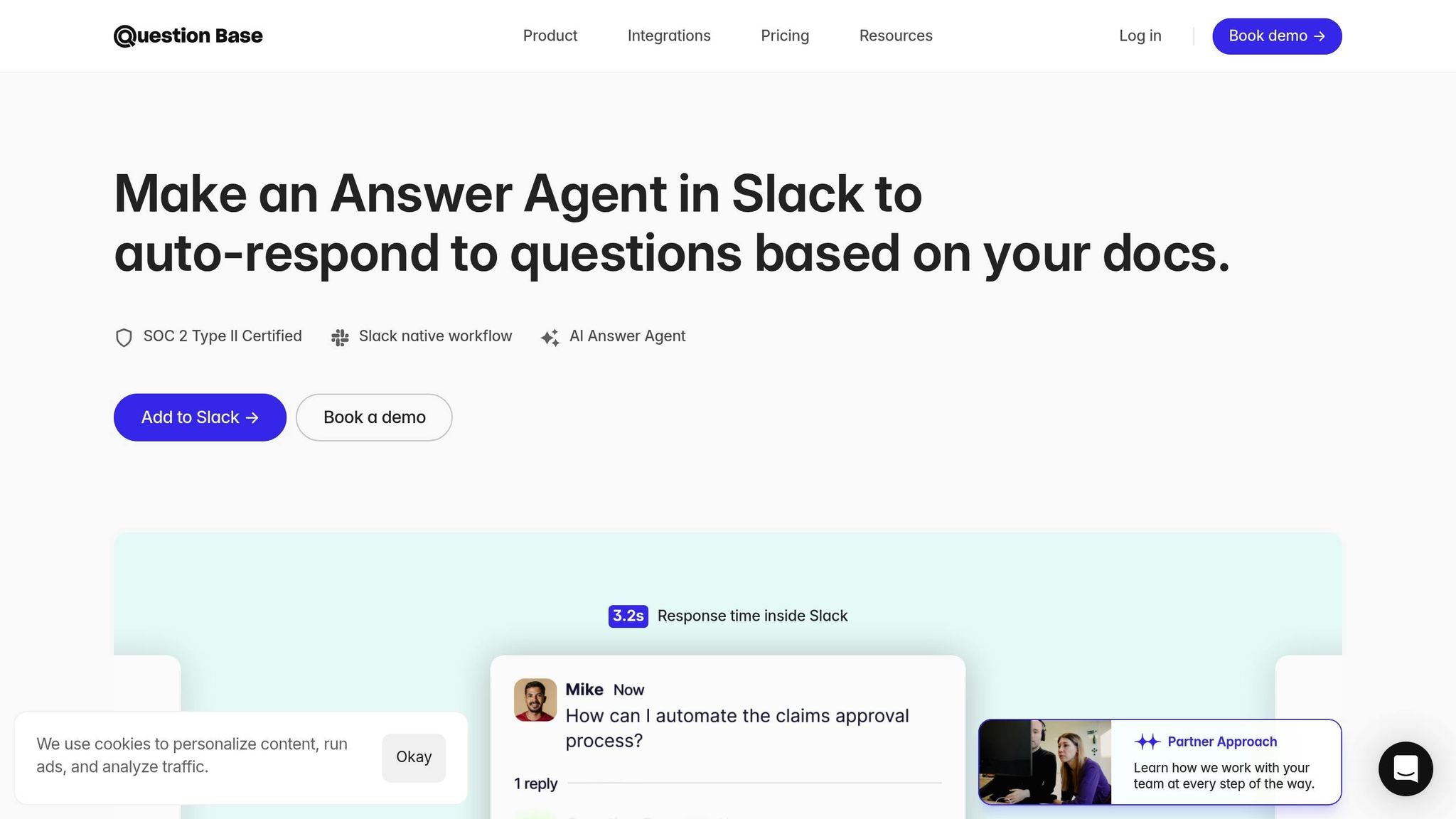
Once alerts are standardized, quick access to runbooks becomes essential. When an incident occurs, responders need step-by-step guides without leaving Slack or searching through tools like Confluence, Notion, or Google Drive.
Question Base integrates directly with your documentation tools, bringing verified, expert-reviewed answers into Slack. After installing it from the Slack App Marketplace, invite the bot into channels like #incidents, #deployments, or #it-helpdesk. Then, connect it to your knowledge sources, such as Notion, Confluence, Google Drive, Zendesk, or Salesforce.
When an alert triggers, responders can ask Question Base for relevant runbooks directly in the thread. For instance, if a P1 alert appears for an API error rate spike, an engineer might ask, "What’s the runbook for API 500 errors?" Question Base retrieves the appropriate guide and posts it in the thread, including instructions, dashboard links, and escalation paths.
Unlike Slack AI, which primarily pulls from past Slack messages, Question Base relies on trusted documentation maintained by your team. This ensures accuracy and control over responses. Teams can also review and refine AI-generated answers to address knowledge gaps, while Question Base tracks unresolved or escalated queries to help improve your documentation.
For internal support teams, Question Base captures valuable insights from Slack threads, allowing engineers to save and reuse solutions for similar issues in the future. This not only speeds up response times but also builds a stronger knowledge base over time.
Maintaining Security and Governance for Integrations
As your Slack workspace grows and accumulates integrations, securing these connections becomes increasingly critical. Each integration brings its own permissions, data access, and potential vulnerabilities. Without proper oversight, you risk exposing sensitive information, granting unnecessary permissions, and losing control over your workspace's security.
The challenge is finding the right balance between accessibility and control. While teams benefit from integrations that streamline workflows, security and compliance teams need to ensure that each connection follows strict least-privilege principles, adheres to regulatory standards, and aligns with internal policies. Below are actionable steps to manage permissions, conduct regular audits, and maintain secure knowledge sharing as your Slack environment scales.
Controlling Permissions and Access
Start by limiting app installations to workspace owners or designated admins. If any user can add apps from Slack’s App Directory, it opens the door to potential security and compliance issues. Use Slack's "Manage apps" settings to enforce an approval process for app installations.
When evaluating integrations, prioritize those that request only the permissions necessary for their function. For instance, a deployment notification bot should only post messages to specific channels, rather than accessing the entire channel history or file uploads. Regularly review OAuth scopes granted to apps and rotate tokens to reduce risk.
Assign integrations to channels based on their purpose and sensitivity. For example, tools handling financial data should post only in channels restricted to finance team members, while HR tools should use private channels with limited access. To streamline access management, align Slack user groups with your HR records or identity provider (like Okta or Azure AD), ensuring access is promptly revoked when employees leave or change roles.
Avoid sharing sensitive information - such as API keys, credentials, or access tokens - in Slack channels, even private ones. Instead, manage these securely through dedicated tools or programmatic access. For complex workflows, consider custom integrations that include server-side permission checks, role-based access controls tied to Slack roles, and detailed audit logging.
By implementing these measures, you establish a secure foundation for managing integrations effectively.
Auditing and Maintaining Integrations
Conducting regular audits is essential to keep your Slack integrations secure and compliant. Schedule reviews - quarterly or biannually - to evaluate each active integration. Confirm that every app serves a valid business purpose, complies with your security policies, and meets regulatory requirements.
Start by using Slack's "Manage apps" dashboard to generate a list of all installed apps. For each app, assess its purpose, ownership, permissions, data flows, and vendor compliance. Remove any redundant or unused apps. Slack recommends decommissioning unused integrations to reduce your attack surface and simplify compliance reporting. When removing an app, revoke its OAuth tokens, disconnect it from all channels, and document the change in your system of record.
For active integrations, document their purpose, data flows, and any unique configurations. Include this information in your change management process so that, as teams or tools evolve, ownership and permissions can be reassigned, runbooks updated, and continuity ensured.
With regular audits in place, you can maintain secure setups and integrate tools like Question Base to support controlled, verified knowledge sharing within Slack.
Question Base for Secure Knowledge Sharing
When integrating documentation tools like Notion, Confluence, Google Drive, Zendesk, or Salesforce into Slack, maintaining strong security and access controls is essential. These tools often handle sensitive documents and must respect the permission boundaries defined in their source systems.
Question Base is designed with security and governance in mind. It meets SOC 2 standards [1], encrypts data both at rest and in transit, and offers optional on-premise deployment for organizations with strict data residency requirements. After installing Question Base from the Slack App Marketplace, you can connect it to your approved documentation sources, ensuring that responses are generated from verified content rather than Slack chat history.
With fine-grained access controls, Question Base lets you control which documentation sources are accessible in each channel. For example, a public #general channel might display only public-facing FAQs and onboarding guides, while a private #finance-team channel could restrict access to sensitive financial policies and compliance documents. For organizations using Slack Enterprise Grid, Question Base supports multi-workspace setups, ensuring consistent governance and access policies across your entire organization.
Question Base doesn’t just manage access - it also tracks unanswered or escalated questions, helping knowledge managers identify gaps and update documentation. By securely integrating with tools like Salesforce, Zendesk, and Intercom, it creates a centralized hub for verified answers. For teams that require precise, audited responses rather than AI-generated interpretations of past conversations, Question Base is a governance-friendly solution tailored for support teams, HR, IT, and operational knowledge management.
Optimizing and Scaling Multi-Tool Syncing
Once your Slack integrations are live and secure, the real challenge begins: keeping them efficient, relevant, and aligned with your team’s workflows. As organizations grow - whether through new departments, offices, or product lines - an overload of integrations can start to hurt productivity. Without regular maintenance, you might find yourself dealing with unused apps, irrelevant notifications, and disconnected tools. Keeping integrations optimized ensures Slack remains a central hub for critical alerts and seamless knowledge sharing.
This isn’t a one-and-done task. It’s an ongoing effort to review, refine, and track how integrations are performing. By regularly examining your setup, you can spot inefficiencies, address workflow breakdowns, and close knowledge gaps. Below are actionable steps to keep your multi-tool syncing efficient and ready to scale.
Reviewing and Cleaning Up Integrations
Set a recurring reminder - monthly for fast-moving teams or quarterly for more stable ones - to audit your Slack integrations. Use Slack’s Manage apps page to pull a full list of installed apps, who added them, and where they’re active. This transparency often uncovers apps added for temporary projects that are no longer relevant.
For each app, ask these key questions: Does it meet a current business need? Is it actively used? Can it be consolidated with another tool? Removing unused apps reduces clutter, minimizes security risks, and simplifies maintenance.
Fine-tune notification settings to focus on high-priority updates and digest-style summaries. Slack’s notification settings and app-specific configurations allow you to cut down on unnecessary noise while keeping critical updates front and center.
Document your integration setup in a centralized knowledge base that’s searchable through Question Base. This ensures new team members can quickly grasp how tools are connected. Update this documentation whenever you add or remove integrations to keep it accurate and useful.
Once you've streamlined your integrations, shift focus to tracking their performance.
Tracking Metrics and Refining Workflows
A clean integration setup is just the start. To ensure your workflows are delivering value, measure their impact. Metrics offer a clear picture of whether your integrations are making teams more efficient. For example:
Incident response workflows: Track metrics like average acknowledgment and resolution times before and after you implement Slack-based automations.
Internal support: Monitor the volume of IT or HR requests weekly and assess how many are resolved through integrations or AI assistants versus requiring human intervention.
Time saved by automation: Estimate how much time is saved when automations eliminate redundant tasks, such as logging into multiple tools for a single request. Multiply the time saved per task by the volume of requests to quantify the impact.
Use these insights to identify areas for improvement. If incident resolution times aren’t improving, investigate whether alerts are being missed or if outdated runbooks are causing delays. If automation rates for support requests are stagnant, it could point to missing documentation or unclear workflows that need attention.
Slack’s marketplace offers over 2,600 apps, but more isn’t always better. Focus on connecting the right tools to the right channels, with notification rules that prioritize what matters most. Then, let your data guide ongoing refinements.
Using Question Base to Pinpoint Knowledge Gaps
To take efficiency further, leverage Question Base analytics to enhance your documentation. As your Slack workspace grows, so does the volume of questions your team asks. Many of these are repetitive, and this inefficiency can cost a 1,000-person company over $2 million annually.
Question Base tracks unanswered questions and unhelpful responses, providing a real-time view of where your documentation falls short. When the AI agent can’t resolve a query, it escalates the question to a human expert and logs it. These logs highlight exactly where your documentation is incomplete or missing. For instance, if the same question - like "How do I escalate a PagerDuty incident from Slack?" - keeps coming up, it’s a sign you need a runbook or SOP for that workflow.
Question Base also provides data on questions asked, resolution rates, automation rates, and where AI responses were marked unhelpful. If a specific integration, such as Jira or Salesforce, generates frequent questions but low resolution rates, it’s a signal that employees may not understand how to use it effectively within Slack. Update your guides, link them in the knowledge base, and let Question Base index them to ensure future queries are auto-answered.
"Before Question Base, we've been seeing repetitive questions all around our Slack channels." - Aleksandar Ginovski, Head of Product, Enhancv
One of Question Base’s standout features is its ability to learn from Slack conversations. When an expert answers a question, Question Base can capture that response with a single click and add it to the FAQ. This turns fleeting Slack chats into structured, searchable documentation, reducing the burden on experts and freeing up their time for more strategic tasks. On average, Question Base saves internal experts over 6 hours per week and auto-answers 35% of repetitive questions [1].
For teams working on quarterly planning or sprint retrospectives, Question Base’s content gap reports align perfectly with U.S. fiscal and planning calendars. Use these reports to identify which integrations need better documentation, which workflows require clearer runbooks, and where new automations or connections could eliminate bottlenecks. This data-driven approach ensures that as your organization grows, your Slack integrations enhance productivity rather than create confusion.
Conclusion: Mastering Multi-Tool Syncing in Slack
Getting the most out of multi-tool syncing in Slack takes thoughtful planning, careful configuration, and regular upkeep. The strategies outlined above provide a solid foundation for integrating your tools in a way that truly enhances your workflows.
Start by fine-tuning your setup. Adjust notification rules to focus on the alerts that matter most, sending them to dedicated channels like #incidents or #deployments. Regularly review your integrations - whether monthly or quarterly - to remove unused apps and keep everything up to date. This also means updating documentation so new team members can quickly understand how everything connects. For enterprise teams handling sensitive data, it’s crucial to choose integrations that meet SOC 2 Type II compliance standards, ensuring encryption both at rest and in transit.
Beyond integration and notification management, Question Base elevates your Slack ecosystem by linking trusted documents directly into Slack. While Slack excels in aggregating alerts and actions from tools like Jira, GitHub, and PagerDuty, employees often need quick access to verified information. Question Base bridges that gap by connecting platforms like Notion, Confluence, Google Drive, Zendesk, and Salesforce, offering instant, reliable answers without the need to switch contexts or repeatedly ping colleagues.
The benefits are tangible. By reducing repetitive questions, Question Base frees up your experts’ time and simplifies support processes. For example, if your team frequently asks, “How do I escalate a PagerDuty incident from Slack?”, you can create a runbook, index it with Question Base, and ensure it’s always available for future queries.
Once your integrations and knowledge base are in place, focus on measuring and scaling your workflow efficiency. The goal is to make Slack your central operations hub, where tools, automations, and AI-powered support converge seamlessly. Companies like Hearst have demonstrated this potential with HANS - a custom bot that pulls data from seven sources to generate 40 customizable reports for 1,500 users - all within Slack. [3] For most teams, Question Base offers a simpler, no-code way to achieve similar results: a unified knowledge layer that adapts as your organization grows, all while maintaining top-tier security.
To track your progress, monitor key metrics like support request volume, resolution times, and the percentage of queries automated through Question Base. Align these efforts with your quarterly planning cycles, using Question Base’s content gap reports to identify and address missing information in your documentation.
Treat Slack as your team’s central nervous system - a place where alerts are streamlined, actions happen immediately, and knowledge is always within reach. With proper planning, governance, and tools like Question Base, you can scale this system across teams, locations, and thousands of employees without losing efficiency or control.
FAQs
How can I manage Slack integrations to avoid overwhelming my team with notifications?
To keep Slack integrations from becoming a distraction, take control of notification settings for each tool. Most integrations let you decide which updates trigger alerts and where they show up. Prioritize sending only the most important updates to the appropriate channels or team members.
Encourage your team to take advantage of Slack’s built-in features, like muting channels or setting Do Not Disturb hours, to stay focused during critical tasks. It’s also a good idea to periodically review your integrations to ensure they still fit your team’s processes. Adjust settings as needed to keep notifications clear and purposeful.
What should I keep in mind to securely integrate multiple tools with Slack?
When connecting multiple tools to Slack, security and workflow efficiency should be top priorities. Always verify that integrations come from reliable sources and meet stringent security standards, like SOC 2 Type II compliance. Protect your data with encryption - both while it's stored and during transmission - and explore on-premise deployment options if your organization requires extra layers of control.
To manage content access effectively, customize permissions and channel settings to fit your team’s structure. Conduct regular audits of your integrations to ensure they still serve your team’s needs and remove any that are outdated or unused. These practices help reduce risks while maintaining a smooth and secure workflow between Slack and your other tools.
How does Question Base improve multi-tool syncing in Slack for better workflows?
Question Base simplifies the challenge of syncing multiple tools within Slack by integrating directly with platforms like Notion, Confluence, Salesforce, and others. This enables it to deliver expert-verified answers drawn from trusted sources, ensuring both accuracy and consistency every time.
While Slack AI mainly pulls information from chat history, Question Base takes a different path by connecting directly to your documentation tools. This ensures precise, auditable knowledge, reducing errors and keeping your team on the same page. It's a smart choice for HR, IT, and operations teams looking to streamline workflows and maintain alignment.