∙
Cooper
∙
Reading time:
21 min

Repetitive questions are draining your team’s productivity. If your Slack channels are filled with the same queries, it's time to explore AI-powered Slack agents. These tools connect to your trusted knowledge bases - like Notion, Confluence, or Salesforce - and deliver precise, verified answers in seconds.
Here’s why deploying a custom Slack agent on AWS or Azure makes sense:
Save time and money: Employees spend 20–30% of their week searching for information, costing companies millions annually. AI agents can cut response times to seconds.
Enterprise-grade infrastructure: AWS and Azure provide scalable, secure platforms with tools like Amazon Bedrock and Azure Functions to handle high traffic and complex workflows.
Streamline internal support: Automate repetitive tasks, from IT troubleshooting to HR onboarding, while maintaining accuracy and compliance.
This guide explains how to deploy a Slack agent on AWS or Azure, connect it to your knowledge bases, and fine-tune it for your team’s needs.
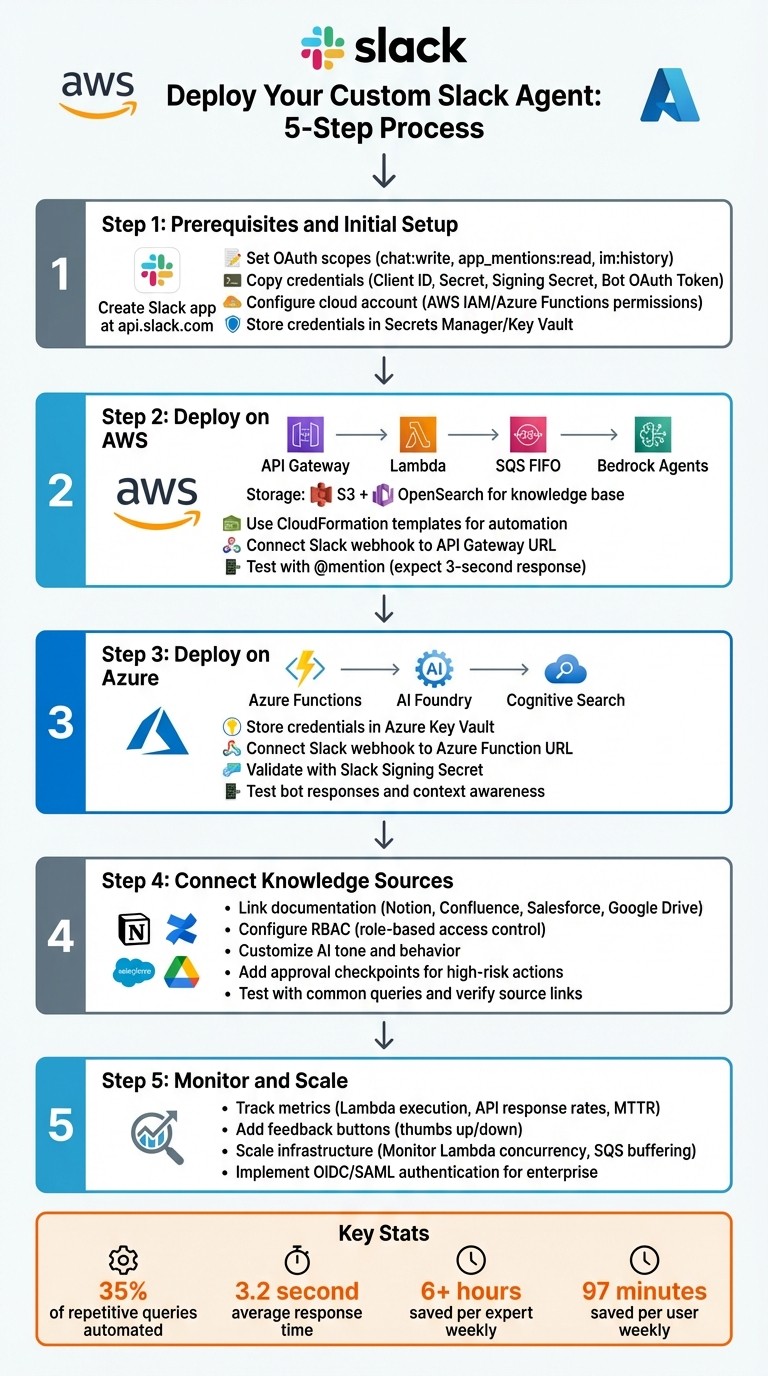
5-Step Process to Deploy Custom Slack Agent on AWS or Azure
Step 1: Prerequisites and Initial Setup
Create Your Slack App and Set Permissions
Start by visiting api.slack.com to create a new app. Once your app is set up, assign the necessary OAuth scopes based on what your agent will do. For a conversational bot, you'll need scopes like chat:write, app_mentions:read, im:history, and im:write. If you're building an Assistant interface, include assistant:write, chat:write, and im:history.
Next, go to Event Subscriptions and subscribe to the events your app will handle. For example:
message.imfor direct messagesapp_mentionfor mentions in channelsassistant_thread_startedandassistant_thread_context_changedfor Assistant-related threads
Enable the Messages Tab in the "App Home" settings to let users send messages from there.
Once configured, head to the Basic Information tab to copy your credentials. You'll need the Client ID, Client Secret, and Signing Secret. Additionally, retrieve the Bot User OAuth Token from the OAuth & Permissions tab. These credentials will be essential for connecting your Slack app to your cloud platform and verifying incoming requests.
Set Up Your Cloud Platform Account
If you're deploying on AWS, ensure your account has an IAM role or user with permissions to create Lambda functions, API Gateway endpoints, and access AWS Secrets Manager. In the Amazon Bedrock Console, enable access to foundation models like Anthropic Claude 3.5 Sonnet in the region where your agent will operate. Skipping this step could result in deployment issues with CloudFormation templates.
For Azure, configure your account to allow provisioning of Azure Functions, API Management, and Key Vault for securely storing secrets. Always store your Slack credentials in AWS Secrets Manager or Azure Key Vault instead of hardcoding them to maintain security best practices. Once permissions are set, you're ready to install the tools needed for managing your deployment.
Install Required Tools
Download and install the AWS or Azure CLI from their respective official websites. Set up a Python or TypeScript environment for writing any custom logic your agent may require. Use AWS CloudFormation (YAML/JSON) to automate the provisioning of serverless components.
To simplify your Slack app configuration, take advantage of the App Manifest (JSON) feature in the Slack API portal. This feature allows you to define all required scopes - like im:read, im:write, chat:write, and app_mention - in a single step, saving you time compared to adding them manually.
Step 2: Deploy the Slack Agent on AWS
Set Up AWS Infrastructure
Deploying on AWS involves configuring several services to work together seamlessly. API Gateway manages incoming webhook requests, while Lambda handles the core logic. FIFO SQS queues ensure Slack's strict 3-second timeout is respected. The Amazon Bedrock Agents manage AI workflows, with S3 and OpenSearch serving as storage and indexing solutions for documents. To keep sensitive data secure, store credentials in AWS Secrets Manager.
Here’s how the request flow operates: When a user @mentions your bot in Slack, Slack sends a webhook to API Gateway. This triggers a Lambda function that verifies the request using credentials from Secrets Manager. The task is then pushed to SQS, and a "Processing..." message is sent back to Slack. SQS activates another Lambda, which calls the Bedrock Agent to query your knowledge base. The agent retrieves the answer, and the Lambda updates the original Slack message with the AI-generated response.
To simplify the setup, use AWS CloudFormation templates (available in YAML or JSON). These templates automate the provisioning of resources, ensuring consistency and making updates or resource removal straightforward. During the initial setup, enable the SendAgentRationaleToSlack parameter. This setting allows you to view the agent's reasoning process directly in Slack threads, which can be invaluable for troubleshooting.
Once the infrastructure is ready, the next step is connecting your Slack app.
Connect Slack to AWS
Start by pasting your API Gateway Invoke URL into the Event Subscriptions section of your Slack app. Subscribe to the relevant events that your bot needs to handle. Configure your Lambda functions to fetch the Slack Signing Secret from Secrets Manager and validate incoming requests using the X-Slack-Signature header. Use an SQS FIFO queue keyed to Slack channel and thread IDs to ensure messages are processed in order.
For security, assign specific IAM roles to each Lambda function, adhering to the principle of least privilege. For instance, your verification Lambda only needs read access to Secrets Manager, while the worker Lambda requires permissions to invoke Bedrock and write to SQS. This granular access control bolsters security and simplifies auditing.
Once the Slack app is connected to AWS, test the entire flow to confirm everything is working as expected.
Test the Deployment
Send a test @mention or direct message to your bot in Slack. If you don’t see a "Processing your request..." message, check the API Gateway and Lambda CloudWatch logs for errors.
Enable Debug Mode during testing to view the agent's internal reasoning in a private thread. This can help you understand how the agent interprets questions and identifies which knowledge sources to query. Keep an eye on Lambda concurrency limits during testing, especially under heavy traffic. If scaling becomes an issue, consider combining the validation and processing functions or using Amazon EventBridge for more advanced event management.
After confirming your bot responds correctly, test its ability to retrieve information from your S3 and OpenSearch knowledge base. Ask questions that require specific document retrieval to ensure the integration is functioning end-to-end. If the responses seem off or overly generic, check that the Bedrock Agent has the correct permissions to access your knowledge base and verify that your documents are indexed properly.
Step 3: Deploy the Slack Agent on Azure
Configure Azure Services
To deploy your Slack Agent on Azure, you'll need to integrate several key services: Azure Functions for handling compute tasks, AI Foundry for conversational AI, and Cognitive Search for indexing your knowledge base.
Here’s how it works: When a user @mentions your bot in Slack, a webhook request is sent to your Azure Function endpoint. The function validates this request using your Slack Signing Secret, securely stored in Azure Key Vault. Once validated, the bot responds with a "Processing…" message. Behind the scenes, the function asynchronously calls Azure AI Foundry, which queries Cognitive Search for relevant documents, generates a response, and updates the Slack thread with the final answer.
To ensure security, follow standard Slack app configuration practices and store all credentials in Azure Key Vault. Avoid hardcoding sensitive information directly in your function code. For added protection in production environments, enable token rotation in Key Vault. This limits the risk of compromised credentials by reducing their lifespan [3].
Once your Azure services are configured, the next step is to connect your Slack app to this setup.
Connect Slack to Azure
Begin by copying your Azure Function URL into the Event Subscriptions section of your Slack app configuration. Your Azure Function should be set up to retrieve the Slack Signing Secret from Key Vault and validate the X-Slack-Signature included in incoming requests.
To test the connection, send a sample message to your bot in Slack. If the bot doesn’t acknowledge the message with a "Processing your request…" response within three seconds, check your Azure Function logs. Common issues to look for include insufficient Key Vault permissions, missing OAuth scopes in your Slack app, or delays caused by cold starts.
Test the Deployment
Once the connection is live, thoroughly test your deployment. Begin by sending specific queries to your bot that tap into your AI-powered Slack search tools. Verify that the bot provides source attribution - hyperlinks to the documents or knowledge base articles used to generate its responses. This transparency not only builds trust but also allows users to verify the information directly [3].
Next, evaluate the bot’s ability to maintain context in ongoing conversations. For example, ask a follow-up question in the same Slack thread and check if the bot references earlier messages appropriately. Context-aware responses are key to creating a seamless user experience [3][1]. Also, confirm that Markdown rendering works as expected - headings, lists, bold text, italics, and tables should display correctly in Slack [3].
If your knowledge base includes files like PDFs or Word documents, upload a test file and ask the bot to summarize it or answer specific questions about its content. This is a great way to ensure the bot can handle diverse formats effectively [3].
To gather user insights, integrate feedback buttons for capturing satisfaction levels. During testing, monitor these signals to identify areas where the bot excels and where it might need improvement. On average, organizations using Slack AI agents report response times of about 3.2 seconds and a 35% auto-answer rate for repetitive questions during pilot phases [2]. High-performing agents can achieve an impressive accuracy score of 4.8 out of 5 [2].
If the bot’s responses seem too generic, double-check that Cognitive Search is indexing documents correctly and that AI Foundry has the necessary query permissions. You can also enable debug mode (if available) to review the bot’s reasoning process. This can help you see which knowledge sources were consulted and how the question was interpreted [1].
Finally, consider this: For a company with 1,000 employees, the cost of lost productivity from searching for information in Slack can exceed $2 million annually [2]. Deploying a properly configured Slack Agent can significantly reduce that inefficiency, making your investment in this setup well worth it.
Step 4: Connect Knowledge Sources and Customize Settings
Connect Your Knowledge Base
With your Slack agent now running on AWS or Azure, the next step is to link it to your enterprise documentation systems.
For preconfigured agents like Question Base, head to the Slack App Marketplace. Select the agent, click "Add to Slack", and authenticate your documentation tools. You can connect platforms like Notion, Confluence, Salesforce, and Google Drive using OAuth. Once the connection is set, activate the agent in specific Slack channels by using the /invite @questionbase command. This ensures your team gets the support they need right where they work.
For those creating a custom agent, integration happens through developer APIs. Slack's Real-Time Search (RTS) API lets your agent interact with live conversational data while respecting user permissions. This approach avoids bulk content downloads, keeping your setup secure [4]. For more advanced configurations, the Model Context Protocol (MCP) allows your agent to stream live insights from external documentation systems directly into Slack threads. Additionally, Slack's native Enterprise Search provides connectors for Salesforce and Dropbox, with Notion integration expected by January 2026.
The real difference lies in the quality of the data sources. While Slack AI primarily relies on chat history, agents linked to verified documentation draw from accurate, human-reviewed sources. This distinction is critical when precision and accountability are necessary, such as for HR policies, IT processes, or compliance materials.
Once your knowledge sources are connected, you can move on to fine-tuning your agent's behavior and access controls.
Customize AI Behavior and Access Controls
After linking your documentation systems, it's time to tailor the agent to fit your team's specific workflows. Adjust the agent's tone, greetings, and response style to align with departmental needs [5][7]. You can also set up dynamic prompting - customizing responses based on the Slack channel or user profile - to ensure the agent provides relevant and trustworthy answers [5].
For security, implement role-based access control (RBAC). Assign roles like support_agent or hr_assistant with specific permissions, such as tickets:read or reports:generate, instead of using broad "superuser" credentials [6]. Configure the agent to operate within the user's existing permissions, ensuring it accesses only authorized data [6]. This setup is vital for meeting compliance standards like SOC 2 or GDPR.
"AI agents are too powerful to leave unchecked. Without strict permission management, they risk exposing sensitive data, violating compliance, or eroding user trust." - Maria Paktiti, WorkOS [6]
For high-risk actions, establish approval checkpoints. For example, before the agent modifies Salesforce records or restarts production clusters, require human approval and multi-factor authentication [6]. Additionally, set up clear handoff rules so the agent knows when to escalate a query to a human team member. This ensures all conversation context is passed along seamlessly [7].
For enterprise-grade deployments, prioritize security by using short-lived credentials and temporary access tokens rather than static API keys. Enable audit logging to track every action the agent performs, including details like the initiating user, accessed resources, and outcomes [6].
Finally, include a content disclaimer at the bottom of AI-generated messages to clarify that responses come from a language model. This transparency helps set user expectations and builds trust [5]. Use the Slack App Home tab as a central hub where users can review settings, usage guidelines, and the data sources being referenced [5].
Test Knowledge Base Connections
Before rolling out the agent, test its ability to provide accurate and reliable information. Start by sending common queries your team frequently asks, such as "What is the PTO policy?" or "How do I reset my VPN password?" Ensure the agent responds consistently and includes direct links to source documents [8][10].
Test different variations of these questions to confirm that the AI query understanding understands intent [8]. Check whether the agent maintains context in ongoing conversations by asking follow-up questions in the same thread. Verify it references earlier messages correctly.
Enable feedback buttons, like "thumbs up/down" or prompts asking, "Did you find what you were looking for?" This real-time feedback helps identify where the agent excels and where improvements are needed [8]. Use analytics tools to track unanswered questions or cases where the agent shows low confidence, highlighting gaps in your knowledge base [8][10].
Ensure knowledge freshness by testing updates. For example, edit a document in Google Drive or Confluence and confirm that the agent reflects the change immediately [10]. This step ensures the agent always pulls the most up-to-date information. On average, users save 97 minutes weekly by leveraging AI features like Slack channel recaps and AI-powered search answers [9]. However, this time-saving benefit depends on keeping the knowledge base well-organized and current.
Verification Method | Purpose | Stakeholder |
|---|---|---|
Feedback Buttons | Gather user input on response quality | End User |
Source Linking | Enable manual verification of AI responses | End User |
Gap Analytics | Identify missing knowledge base information | Admin/IT |
Semantic Testing | Confirm AI understands varied phrasings | Developer/Admin |
Step 5: Monitor, Optimize, and Scale
Monitor Performance and Track Issues
Once your Slack agent is operational, keeping a close eye on its performance is essential. Use AWS CloudWatch to monitor metrics like Lambda execution times, API Gateway response rates, and ECS task health. These indicators help you catch potential problems early on [11][13]. Set up alerts for error rates and latency spikes to address issues before they affect users. Additionally, configure automated tools to regularly test critical Slack endpoints, ensuring both connectivity and functionality remain intact [12].
For deeper insights, enable Agent Rationale (debug modes in Amazon Bedrock) to review the AI's step-by-step reasoning directly within Slack threads. This feature can help pinpoint logical breakdowns in the model's responses [1][14]. To stay ahead of potential disruptions, integrate the AWS Health Dashboard with Slack via Amazon EventBridge and Lambda. This setup provides real-time notifications about any service interruptions that might impact your agent's availability. Finally, track business-level KPIs like Mean Time to Resolution (MTTR) and first-call resolution rates to measure the agent's contribution to your team's productivity [1].
"By integrating AWS Chatbot with Slack, we've reduced the need to context switch and made it easier for teams who use Slack to monitor and interact with their AWS resources from within their Slack channels."
Kurt Kufeld, VP, AWS Platform [13]
Once monitoring is in place, focus on refining your agent's responses for maximum accuracy.
Improve AI Response Accuracy
Accuracy is key to building trust in your Slack agent. Always include direct links to source documents - whether stored in Notion, Confluence, or Salesforce - so users can verify the information themselves [2][3]. Fine-tune the agent's tone and behavior by using custom instructions, and implement safeguards like blocked word lists or toxicity filters to maintain professionalism [15].
To gather real-time feedback, add buttons (e.g., thumbs-up or thumbs-down) to responses, enabling users to rate their accuracy. Debug modes can also be activated to review the AI's reasoning for complex queries [3]. With these measures in place, your Slack agent can handle around 35% of repetitive internal queries with an average response time of just 3.2 seconds [2].
For error handling, set up Dead Letter Queues (DLQ) to capture failed message processing attempts. If you're using Amazon SQS, opt for FIFO (First-In-First-Out) queues to ensure messages are processed in the correct order and avoid duplicates [1].
As the agent's accuracy improves, ensure your infrastructure is ready to support a growing user base.
Scale for Enterprise Usage
A growing Slack agent user base requires a scalable infrastructure. Monitor AWS Lambda concurrency limits during peak periods, and use Amazon SQS to buffer incoming requests. You can also increase the desired task count in AWS ECS Fargate clusters to accommodate more simultaneous users [1][14].
For enterprise environments, implement robust authentication solutions like OIDC, SAML, or SCIM through providers such as Okta or IAM Identity Center. These measures ensure secure and scalable user access management [3]. To maintain long-thread context without compromising performance, store conversation metadata in Amazon DynamoDB with a Time to Live (TTL) setting [1].
Studies show that employees in large organizations spend 20–30% of their work week searching for information, costing a 1,000-person company over $2 million annually in lost productivity [2]. A properly scaled Slack agent can save experts more than 6 hours per week by reducing repetitive questions [2].
"Since we started using QB we haven't used our Google support docs. And if I go on vacation or sick leave, I feel comfortable that QB will just take over."
Linn Stokke, Online Events & Marketing Specialist, Ticketbutler [2]
Conclusion
Why Choose AWS or Azure for Deployment?
Deploying a custom Slack agent on platforms like AWS or Azure ensures operations that are secure, scalable, and tailored to your needs. With serverless architectures, these platforms automatically adjust to demand, keeping costs predictable through a pay-as-you-go model [1]. Beyond just Slack chat history, they allow seamless integration with enterprise data sources such as S3 buckets or Salesforce [1][3].
These platforms also bring enterprise-grade security features [1][3]. Plus, they enable you to track key metrics like Mean Time to Resolution (MTTR) and first-call resolution rates, offering clear insights into how your agent improves productivity [1]. With these tools, your Slack support system becomes not just functional but resilient.
Planning Your Next Move
With these advantages in mind, it’s time to make deployment decisions that suit your team’s infrastructure and security requirements. If you’re looking for a fast, hassle-free setup, Question Base is worth considering. It’s SOC 2 Type II certified, includes pre-built integrations with tools like Notion, Confluence, and Salesforce, and costs $8 per user per month - far less than Slack AI’s $18 [2].
While Slack AI is excellent for summarizing conversations and boosting general productivity, teams that rely on trusted answers from verified documents will find specialized tools more effective. For instance, Question Base can automatically handle about 35% of repetitive internal queries, with an average response time of just 3.2 seconds. This efficiency frees up over 6 hours per week for internal experts [2].
"Since we started using QB we haven't used our Google support docs. And if I go on vacation or sick leave, I feel comfortable that QB will just take over."
Linn Stokke, Online Events & Marketing Specialist, Ticketbutler [2]
Whether you build your own solution or opt for a ready-made tool, the focus should remain on linking your AI agent to verified knowledge sources and continuously improving its performance. Features like thumbs-up/down sentiment tracking can help you monitor user satisfaction and refine your knowledge base as your team’s needs evolve [3].
Build & Host Slack AI Agents on AWS
FAQs
What are the benefits of deploying a custom Slack AI agent on AWS or Azure?
Deploying a custom Slack-native AI agent on AWS or Azure brings several practical benefits, including scalability, security, and cost control. These cloud platforms are designed to handle growing workloads with elastic scaling, provide enterprise-level security to meet compliance standards, and offer pay-as-you-go pricing that adapts to your team's usage.
With AWS, teams can tap into services like Amazon Bedrock and QnABot to streamline workflows, deliver quick and precise answers, and reduce operational complexities. On the other hand, Azure equips users with tools such as Azure OpenAI and Azure Bot Service, ensuring dependable performance, secure data management, and seamless integration with tools like Notion, Confluence, and Salesforce.
By utilizing these cloud infrastructures, your team can prioritize enhancing internal support and knowledge-sharing processes without the hassle of server upkeep. This ensures your Slack agent stays accessible, compliant, and fully equipped to meet enterprise demands.
How can I securely manage my Slack agent's credentials on AWS or Azure?
To safeguard your Slack agent's credentials on cloud platforms, rely on a managed secret management service to securely store sensitive information like the Slack OAuth token or bot user token. For example, on AWS, you can use AWS Secrets Manager or Parameter Store and assign an IAM role to your application with only the permissions necessary to access the secret. Similarly, on Azure, leverage Azure Key Vault and grant your app’s managed identity the “get secret” permission. This approach ensures that sensitive tokens remain protected and are not exposed in your code or logs.
Adopt a least-privilege access policy by setting up dedicated roles - such as IAM roles on AWS or Service Principals on Azure - with narrowly defined permissions. Additionally, enable encryption at rest using tools like AWS KMS or Azure-managed keys, and ensure all API communications are secured with TLS encryption to protect data during transmission.
To further enhance security, establish a routine for credential rotation, such as updating tokens every 90 days, and keep a close eye on access activity by monitoring logs. Both AWS and Azure offer monitoring tools - such as CloudTrail and Azure Monitor - that can help you track and analyze secret access. By combining secure storage, limited access permissions, encryption, regular rotation, and vigilant monitoring, you can effectively protect your Slack agent’s credentials while leveraging the scalability of cloud infrastructure.
How do I connect my Slack agent to my knowledge bases?
To link your Question Base Slack agent with your team’s knowledge repositories, just follow these straightforward steps:
Install the Question Base app in Slack by clicking "Add to Slack" on the marketplace page. Make sure to grant the required permissions so the agent can access messages and post answers.
Access the Question Base dashboard and navigate to Settings → Integrations. From there, choose the knowledge bases you want to connect, such as Notion, Confluence, Salesforce, or Google Drive.
Authorize access by logging into each service and granting read-only permissions for the specific folders or spaces you'd like the agent to use.
Assign sources to Slack channels or set a global default to help the agent locate information relevant to each team.
(Optional)Activate advanced features like case tracking or duplicate detection to refine accuracy and enable the agent to learn from unanswered questions.
After completing the setup, test the integration by asking a question in a Slack channel. The agent will respond with an answer pulled from the connected knowledge base, ensuring your team gets reliable and accurate information.