∙
Cooper
∙
Reading time:
27 min

Repetitive tasks waste time. If your team spends hours in Slack managing manual processes like reminders, approvals, or task assignments, automation can fix that. Slack’s built-in tools - Workflow Builder, Slack AI, and third-party integrations - offer simple ways to cut down on busywork. Here’s how you can start automating today:
Use Workflow Builder: Create no-code workflows for reminders, onboarding, or approvals.
Leverage Slack AI: Describe your needs, and let AI build workflows for you.
Integrate Third-Party Tools: Connect platforms like Asana or Trello for advanced task management.
Build Conditional Workflows: Automate decision-making with multi-step logic.
Monitor and Improve: Use Slack analytics to track performance and refine automations.
How to automate your work with Slack

Step 1: Use Slack Workflow Builder
To save time and reduce repetitive tasks, start by leveraging Slack's Workflow Builder to automate your team's day-to-day processes.
Slack Workflow Builder empowers any team member to create automated workflows directly in Slack. Because it's designed for simplicity, even non-technical users can build the exact automations they need - no waiting on IT or developers. This flexibility ensures that the people closest to the work can design solutions tailored to their needs.
What makes Workflow Builder especially practical is its no-code interface. You can create anything from simple, single-step workflows to more advanced processes with conditional logic capable of handling up to 10 conditions [4]. By transforming Slack into a hub for automation, teams can cut down on repetitive tasks and focus their energy on more meaningful work.
Set Up Workflow Triggers
Every automation in Slack starts with a trigger - the action or event that sets your workflow in motion. Workflow Builder offers several trigger types, giving you the flexibility to design workflows that fit your team’s needs.
Automatic triggers: These run workflows at specific times or dates, making them perfect for recurring tasks like daily standup reminders, weekly report requests, or monthly check-ins. Once set, these workflows run without any manual input.
Action-based triggers: These are activated when someone performs a specific action, such as selecting a workflow from the shortcuts menu or joining a Slack channel. For example, you can use this trigger to manage time-off requests, report issues, or automatically share onboarding materials with new team members.
Message-based triggers: These respond to keywords or emoji reactions in Slack channels. For instance, if someone posts a message containing the word "urgent" or reacts with a specific emoji, the workflow could initiate a task or alert the appropriate team.
Webhook triggers: These allow workflows to be triggered by external apps, expanding possibilities beyond Slack itself. This is ideal for scenarios where external systems need to interact with your Slack automations.
Once you've chosen the right trigger, you can move on to designing a workflow that aligns with your team's specific needs.
Create Your First Workflow
After setting up a trigger, it’s time to build your workflow. Start small and focus on a specific task that could benefit from automation.
To get started, open Workflow Builder in Slack and select the trigger type that fits your use case. For example:
Use a message-based trigger in a support channel to streamline help desk requests.
Set up a "person joins channel" trigger to automate onboarding tasks.
Choose scheduled triggers for regular tasks like sending reminders or collecting weekly updates.
Next, add steps to define how the workflow functions. These steps might include sending messages, displaying forms, or integrating with other tools. The form builder is especially handy - it lets you collect information directly in Slack without sending users to external websites.
Some common workflows to consider include:
Routing IT support tickets to the right team members.
Automating the creation and distribution of meeting agendas.
Sending onboarding materials to new hires.
Workflow Builder also integrates with Airtable, offering basic search capabilities [3]. This can be used to pull data from Airtable into your workflows, such as routing tasks based on specific criteria or sending targeted messages.
Once your workflow is live, monitor its performance and make adjustments as needed. Slack makes it easy to share workflows with your team and assign managers to oversee and refine automations.
The best way to get started is to keep it simple. Build a workflow that solves one clear problem, like automating status updates or streamlining approval requests. Test it with a small group, gather feedback, and refine it before rolling it out more broadly. Once you see the time savings from even a single automation, you'll likely spot other opportunities to streamline your processes.
As your workflows evolve, think about how AI could expand their capabilities - we'll dive into that in the next step.
Step 2: Use AI to Generate Workflows
Slack's AI-powered Workflow Builder transforms automation by allowing you to describe your needs in plain language. The AI interprets your instructions and automatically creates workflows. Available on Pro plans and above, this feature eliminates the need to learn complex workflow logic, making automation accessible to everyone.
This approach builds on the foundational features of Workflow Builder, taking task automation to the next level.
What sets this tool apart is its ability to break down technical barriers. For example, a support team lead can create a ticket routing system, an HR manager can automate onboarding tasks, and a project coordinator can set up workflows for status updates - all without relying on IT or coding skills.
Write Clear Prompts
Once the AI generates a basic workflow, your role is to refine it with clear, detailed prompts.
The success of your AI-generated workflow depends heavily on how well you articulate your needs. A good prompt should include three key elements: the trigger (what starts the workflow), the actions (what the workflow does), and the desired outcome.
For instance, instead of a vague prompt like, "automate task creation", provide a more detailed request: "When a support request is submitted using a specific keyword, create a task, assign it to the support team lead, and send a confirmation message to the requester." This level of specificity ensures the AI understands your goals.
Consider the entire process you're automating. If you're managing IT support tickets, a clear prompt might be: "When someone posts a message with 'tech issue' in the #help channel, collect details through a form, assign the ticket based on urgency, and send updates to both the requester and the assigned technician."
Providing detailed context, such as timing, routing logic, and required information, helps the AI create workflows that align closely with your team's needs, reducing the need for manual adjustments later.
Review and Adjust AI-Generated Workflows
After the AI generates a workflow, take time to review and refine it before deploying. This ensures the automation aligns with your team's practical needs and avoids unnecessary complications.
Test the workflow thoroughly, including triggers, steps, and any conditional logic. Slack workflows allow up to 10 conditions for complex routing, so if your workflow includes branching logic, double-check each path. For example, if you're routing support tickets by urgency, verify that high-priority tickets are assigned correctly while standard requests follow the normal queue.
You can easily tweak AI-generated workflows in Slack's interface without starting from scratch. Common adjustments include adding or removing steps, altering routing logic to handle tasks differently, and refining conditional branches. For instance, you might add a branch to prioritize urgent requests separately or adjust message templates to include more detailed information.
If your workflow integrates with external tools like Airtable, test these connections to ensure data flows smoothly. Slack's Workflow Builder allows you to incorporate such integrations, making workflows more dynamic and tailored to your needs.
Before rolling out the workflow to your entire team, test it in a controlled setting with a small group. Simulate the entire process to confirm everything works as expected. This validation step ensures the automation delivers real benefits rather than introducing new challenges.
Once you're confident in the workflow's performance, share it with your team and assign managers to oversee its use. Encourage feedback and refine the automation as your team's processes evolve. The goal is to create workflows that simplify work rather than complicate it.
As you build more workflows, you'll gain a better understanding of what makes prompts effective and which adjustments are commonly needed. Over time, this experience will help you create more advanced automations, saving even more time and effort for your team.
Step 3: Connect Third-Party Task Management Tools
Slack's native tools are great for handling everyday automation, but when it comes to managing complex projects, third-party integrations step in to fill the gaps. By connecting external task management platforms, you can unlock advanced project tracking, intricate assignment workflows, and detailed reporting capabilities that go beyond Slack's built-in features.
These integrations turn Slack into a centralized hub where messages, tasks, and project updates flow effortlessly between systems. Your team can create tasks, update statuses, and receive notifications - all without leaving Slack.
Setting Up External Platforms
The process of integrating task management tools with Slack is straightforward thanks to pre-built options in the Slack App Marketplace. To get started, head to the marketplace and search for the tool you want to connect - whether it’s Asana, Trello, Monday.com, or another platform. Click Add to Slack, follow the setup prompts, and grant admin permissions when required.
Once installed, you can configure which Slack channels will receive updates from your task management tool. For instance, you might connect an Asana project board to your #product-team channel. This way, when tasks are created or completed in Asana, the updates will appear automatically in Slack.
Many integrations offer two-way workflows. For example, with Trello, you can create new cards directly from Slack messages using commands like /trello add. The integration pulls the message content, creates a card on the specified board, and confirms the action in Slack.
These connections use OAuth for authentication, allowing Slack to access your task management account securely without sharing passwords. The connection remains active until you revoke it through Slack’s settings.
After the integration is live, take time to customize notification preferences to keep your channels manageable. Most tools allow you to filter which events trigger Slack updates. For example, you might enable notifications for high-priority tasks while muting minor status changes.
Some platforms, like Monday.com, even let you automate actions based on specific triggers. For example, if a task's status changes to "Blocked", the integration can post an alert in a specific Slack channel and tag the project manager.
These integrations provide a foundation for leveraging advanced features, which we’ll explore further.
When External Tools Make Sense
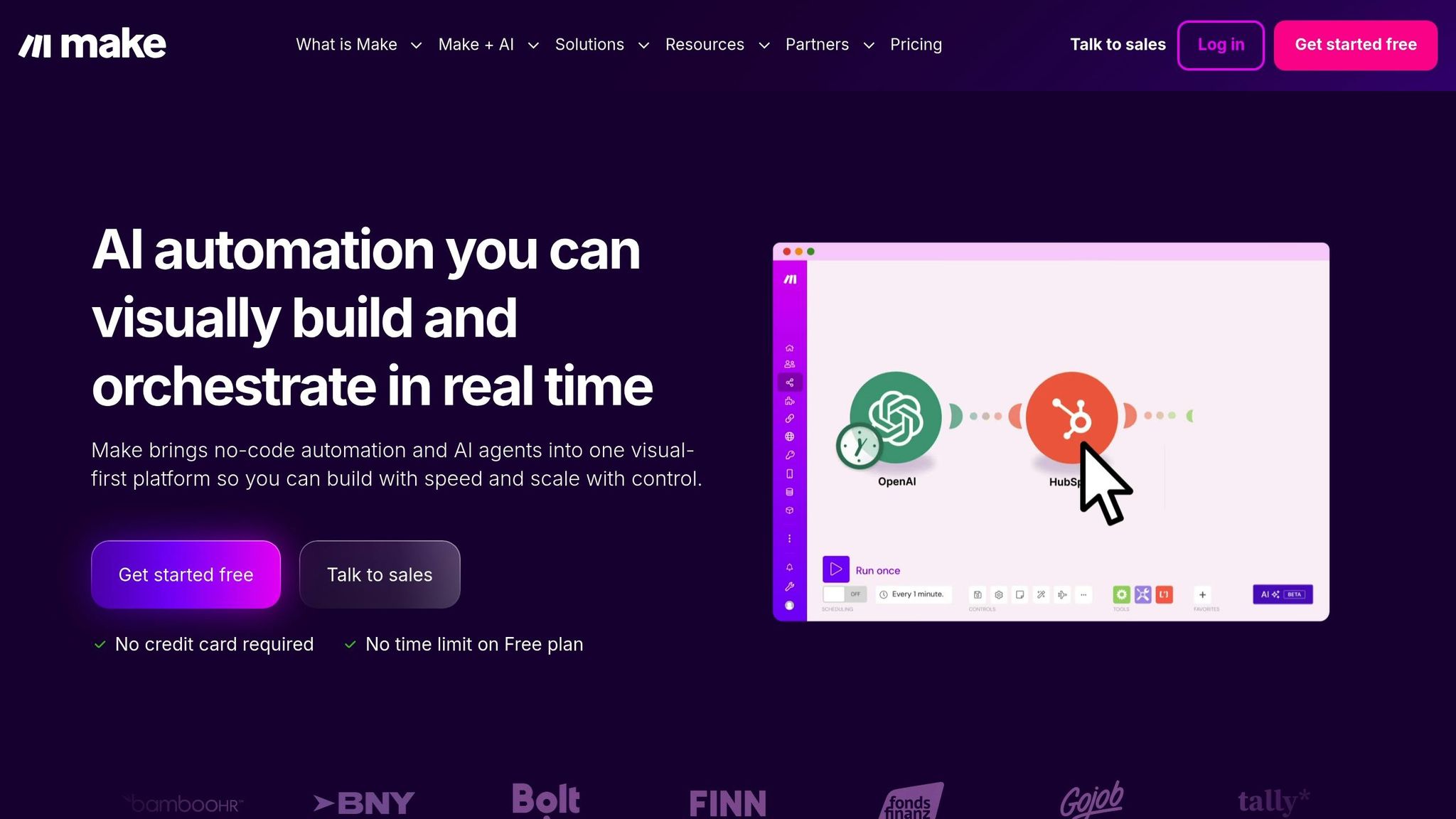
Once you've set up third-party integrations, it's important to know when they add the most value. While Slack's native workflows handle simple automations well, external task management tools shine in scenarios that demand more specialized capabilities.
Handling complex projects is one of the most common reasons to integrate external tools. For projects with multiple phases, interdependent tasks, and resource management across teams, platforms like Asana or Trello offer powerful visualization and tracking options. For example, a marketing team planning a product launch might use Asana to map out the campaign timeline while using Slack for real-time updates and discussions.
Coordinating across multiple teams becomes much smoother with integrations. Imagine your engineering team uses Jira for sprint planning, while the design team relies on Trello for creative workflows. By connecting both tools to Slack, you create a unified system where updates flow seamlessly. For instance, when a developer marks a feature as ready for design review in Jira, the integration can notify the design team in Slack and create a corresponding Trello card.
Enhanced reporting and analytics is another advantage. While Slack offers basic analytics for workflows, tools like Asana provide detailed dashboards that track task completion rates, time spent on projects, workload distribution, and bottlenecks. These insights help managers fine-tune processes and allocate resources more effectively.
Custom field needs often necessitate external platforms. If your workflows require capturing specific data like budget codes, client names, or priority levels, task management tools provide structured fields that Slack’s native forms don’t support. For example, a consulting firm might use Monday.com to track billable hours and project codes, with Slack serving as the interface for team members to log their time.
Managing long-term tasks is another area where dedicated platforms excel. Slack is ideal for real-time communication, but information can quickly get buried in fast-moving conversations. For tasks that span weeks or months, using tools like Asana or Trello ensures they remain visible and actionable. The Slack integration keeps these tasks top of mind without cluttering your workspace.
Finally, compliance and audit requirements often drive the need for third-party tools. These platforms log every change, comment, and status update with timestamps and user details, creating a reliable audit trail. This is especially crucial in regulated industries where documenting every decision is mandatory.
The decision to integrate external tools should weigh the benefits of added functionality against the potential for increased complexity. If your team’s needs extend beyond simple task creation and notifications, these integrations can provide a significant boost. However, if Slack’s native features already meet your requirements, additional tools might not be necessary.
Step 4: Build Multi-Step and Conditional Workflows
Take your Slack automations to the next level by creating multi-step, conditional workflows. These workflows adapt to specific criteria, enabling smarter processes that reduce manual effort. By automating decision points, you can make Slack a more powerful tool for your team.
Conditional workflows evaluate set criteria to decide which path to follow. For example, in a support ticket workflow, if an issue is marked as "urgent", it can be automatically escalated to a senior team member. Meanwhile, routine tickets can be routed to standard support channels. This adaptability allows one workflow to manage multiple scenarios, eliminating the need for constant manual adjustments. Let’s explore how adding conditions can make these workflows even more efficient.
Add Conditional Logic
Conditional logic introduces branching paths, enabling workflows to respond to specific conditions. Slack Workflow Builder supports up to 10 conditions in a single workflow[4], making it versatile enough to handle most business needs without requiring any coding expertise.
With "if-then" logic, workflows evaluate conditions at branch points and follow the corresponding path. This feature is especially useful for approvals, task routing, and incident management.
Approval routing: Automatically route requests based on value thresholds. For instance, high-value approvals can go directly to senior management, while smaller requests are handled by team leads.
Incident triage: Streamline technical issue handling by assessing severity. Critical incidents can notify on-call engineers and generate high-priority tickets, while routine issues are queued for later.
Department-based task assignment: Simplify onboarding or project workflows. For example, assign tailored task lists to new hires based on their department - technical setup for engineering or CRM training for sales.
Form-driven routing: Slack’s form builder collects input directly within Slack, avoiding external URLs[3]. Responses can act as variables to guide workflows. For instance, if a form asks for a task’s priority level, high-priority tasks can be routed to one channel while low-priority ones go to another.
For even more dynamic workflows, integrate external tools to assign tasks based on live data.
When designing these workflows, start by identifying key decision points. Outline the conditions that need evaluation and define the actions for each scenario. Keeping your logic clear and well-documented ensures workflows are easier to update as your needs evolve. After setting up conditions, test each branch thoroughly to confirm smooth execution.
Test and Troubleshoot Workflows
Testing is a crucial step to ensure your workflows operate as intended. Misrouted tasks or silent failures can create more problems than they solve.
Begin by manually triggering the workflow. Test every possible path to confirm that all steps execute correctly and conditional branches function as expected. If your workflow includes multiple conditions, test each one individually to verify the logic holds up.
Workflow activity logs: These logs provide a detailed breakdown of each execution, showing which steps succeeded and where failures occurred[5]. Use them to pinpoint issues, such as misrouted conditions or errors in external integrations.
Common troubleshooting tips: Double-check your logic syntax if conditions aren’t evaluating properly. Confirm you're comparing the correct variables. For integration errors, ensure OAuth connections are active and APIs haven’t changed.
Edge case testing: For workflows with forms, test different response combinations to ensure all scenarios are handled correctly.
To avoid disrupting active teams, use staging environments. Test workflows in a separate channel or workspace before deploying them to production - especially for complex workflows that trigger multiple actions or interact with critical systems.
Slack allows you to edit workflows without taking them offline[5]. You can adjust triggers, steps, and logic on the fly. However, for significant changes, consider creating a new version instead of overwriting the existing one. This way, you’ll have a fallback option if the updated workflow doesn’t perform as expected.
Document each workflow, detailing its purpose, how it operates, and what conditions trigger its paths. Assign workflow managers who understand your processes to maintain consistency across automations[5]. Regularly audit workflows to identify outdated ones and ensure your automations remain effective.
For teams building more intricate systems that involve multiple applications, Slack’s built-in capabilities - while powerful - might not be enough. Although the platform supports up to 10 conditions per workflow[4], complex scenarios may benefit from tools like Zapier, Make, or Pipedream[3]. For common tasks such as approval routing, ticket triage, and task assignments, Slack’s native logic provides ample flexibility. Pair these workflows with AI-powered tools to create a more responsive and efficient Slack environment.
Step 5: Monitor and Improve Your Automation
Creating workflows is just the beginning. To ensure they remain effective, you need to monitor their performance and make adjustments as your processes evolve. Without regular oversight, you risk missing opportunities to save time or eliminate bottlenecks. A structured review process helps keep your workflows aligned with your business needs.
Use Slack Analytics to Track Performance
Slack’s workflow activity logs provide detailed insights into how your workflows are functioning. These logs show metrics like how often workflows are triggered, how many users interact with them, and whether they complete successfully[5]. This data is your foundation for identifying strengths and areas for improvement.
Key metrics to monitor include:
Completion rates: Are workflows running to completion without issues?
Trigger frequency: How often are workflows being used? Low usage may indicate misalignment with team needs.
Error rates: High error rates could signal technical problems or unclear instructions.
Time savings: Compare the time taken for manual processes versus automated ones. For instance, cutting an onboarding process from 2 hours to 15 minutes saves 1 hour and 45 minutes per employee[1].
Beyond usage stats, focus on the business impact of your workflows. Measure outcomes like faster support ticket resolutions, quicker approvals, or reclaimed hours from routine tasks. For example, if a ticket routing workflow reduces response times from 2 hours to 30 minutes, it directly boosts productivity and employee satisfaction.
Set a regular review schedule, such as quarterly or semi-annually, to ensure workflows still align with your current processes[1]. Business needs change over time, and workflows that were effective six months ago may no longer fit. During reviews, verify whether connected tools have changed. For example, switching from Trello to Asana would require updating task management workflows[2].
Gather feedback from users through surveys or conversations. Ask if the workflow addresses the problem it was designed for, whether the steps are clear, or if it lacks critical functionality. Common issues include overly complex workflows, unclear instructions, or poor integration with essential tools.
When workflows underperform, refine them. Simplify steps, add clearer instructions, or tweak conditional logic to improve routing[5]. Test any updates with a small group before rolling them out across your organization.
Take the example of a helpdesk ticket routing workflow. If data shows slow response times and lost tickets, and user feedback highlights the need for specialized routing, you can add conditional logic. This adjustment might direct password resets to one team, hardware issues to another, and software problems to a third. Such changes reduce response times and improve resolution rates[4].
Always include a human review step for critical workflows. For instance, in approval workflows, ensure a person reviews requests before finalizing them. Set up alerts to flag unusual patterns, like a sudden spike in approval requests, or errors that need immediate attention.
Scale Automation for Larger Teams
Once you’ve fine-tuned your workflows, you can expand automation to support growing team demands. Scaling requires careful planning to maintain consistency and effectiveness.
Assign workflow managers: Designate individuals to oversee and update workflows. This prevents workflows from becoming neglected as roles change[5].
Document workflows: Clearly outline each workflow’s purpose, triggers, conditions, and last update date. This documentation is vital for onboarding new team members and troubleshooting issues.
Analyze adoption patterns: Use Slack analytics to see which teams are using workflows effectively and identify those that might need additional training or customizations[1].
For larger organizations, a centralized dashboard can help track efficiency gains. For example, integrating Slack with tools like Salesforce allows you to pull workflow data into reporting systems, letting you measure outcomes like reduced sales cycle times or improved customer support response rates[1].
Celebrate successes by sharing performance metrics with your team. Highlighting wins, like a workflow saving 10 hours per week, motivates further adoption and encourages teams to explore additional automation opportunities.
While Slack Workflow Builder is excellent for managing Slack-based tasks with up to 10 conditions[4], growing teams may require more advanced solutions. Platforms like Zapier, Make, and Pipedream offer greater scalability, extensive integration options, and robust testing capabilities[3]. These tools are especially useful for organizations managing complex, multi-system processes.
Slack also supports webhook triggers and external connectivity, enabling workflows to interact with tools like Airtable[3]. For highly specific needs, custom API integrations or scripting solutions can connect Slack with internal systems.
Deciding between Slack Workflow Builder and more advanced platforms depends on your team’s requirements. If you’re handling simple tasks like approvals or basic routing, Workflow Builder is sufficient. However, for orchestrating intricate processes across multiple systems, enterprise-grade platforms are a better fit.
Regularly audit workflows to ensure they comply with company policies and security standards, especially when handling sensitive data or financial transactions. Look out for unintended consequences, like duplicate messages from an automated workflow or uneven workload distribution from a task assignment process.
Keep refining your workflows and pair them with AI-powered knowledge management tools to create a streamlined support ecosystem. Next, we’ll explore how to integrate these tools to further enhance your automation strategy.
Add AI-Powered Knowledge Management
Pairing task automation in Slack with AI-driven knowledge management takes efficiency to a whole new level. While Slack’s Workflow Builder is excellent for routing tasks and triggering actions, it doesn’t provide the context needed for deeper problem-solving. Slack AI helps by surfacing relevant information to lighten the cognitive load[1]. However, teams that rely on verified, documented answers need a more specialized solution, which is where Question Base comes in.
Question Base integrates seamlessly with Slack to deliver accurate, verified answers right where your team works.
How Question Base Works with Slack
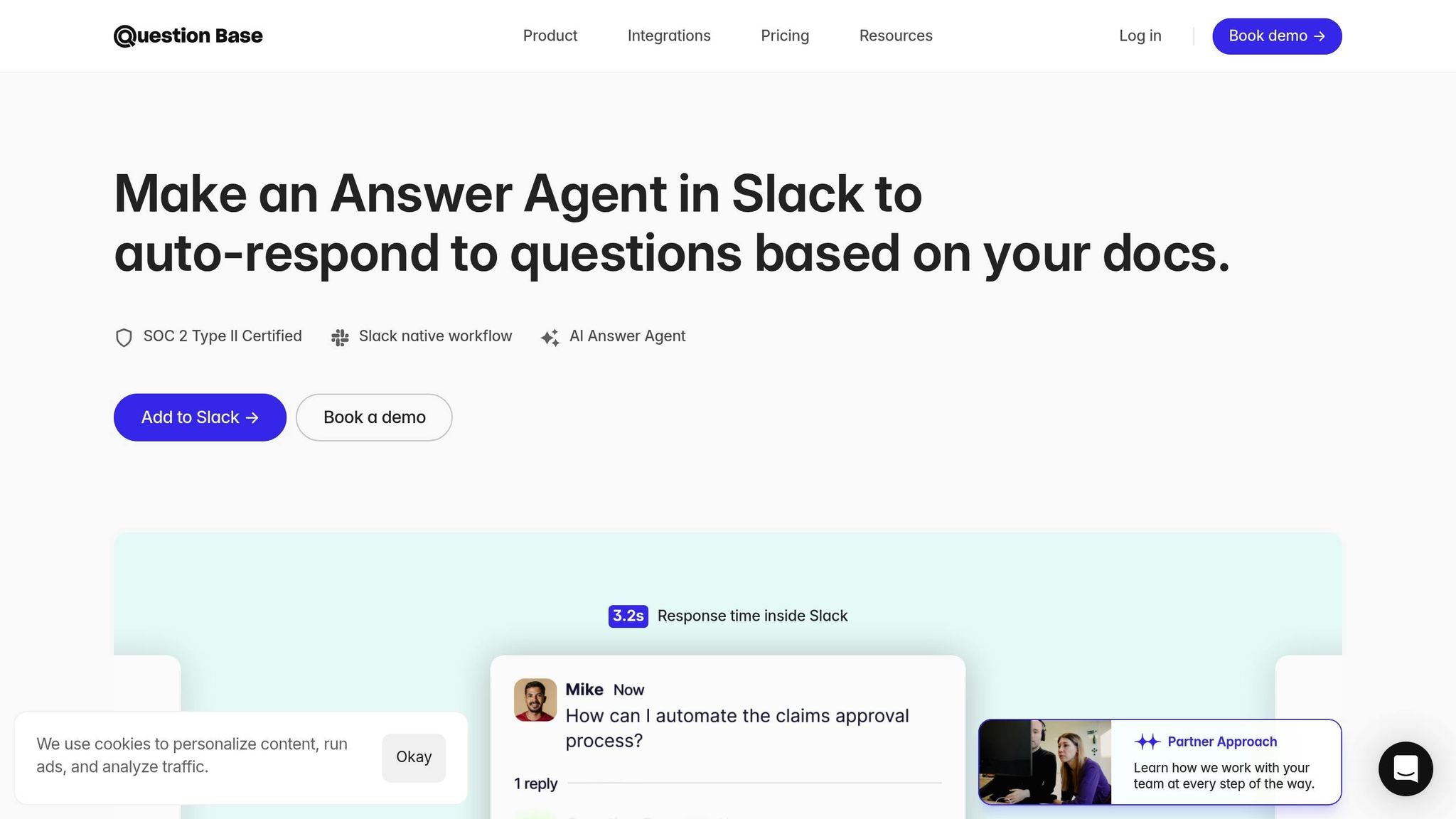
Question Base is a plug-and-play AI answer agent designed to integrate directly into Slack without requiring any engineering setup. You can install it from the Slack App Marketplace, invite it to your workspace using /invite @questionbase, and connect it to your documentation tools. Once linked, it immediately starts providing answers within Slack.
What sets Question Base apart from general-purpose AI tools is its ability to pull verified information directly from your enterprise knowledge sources. Whether it’s Notion, Confluence, Google Drive, Zendesk, Intercom, Salesforce, or Dropbox, Question Base ensures that the information it provides is accurate and up-to-date. Unlike other AI tools that may rely on chat history or generalized data, Question Base directly accesses your trusted documentation. This means that when an automated workflow needs to handle a support request or create a task, it can surface relevant documentation or past solutions instantly, providing full context and eliminating the need for back-and-forth clarifications.
For example, in a helpdesk routing workflow, Question Base can check Zendesk or Confluence for a verified answer before escalating a ticket. If it finds a solution, the employee gets immediate help without needing to open a ticket. If no verified answer exists, Question Base escalates the inquiry to the appropriate team member through customizable workflows and logs the question as unresolved. This not only helps resolve issues faster but also identifies gaps in your documentation.
By speeding up access to internal knowledge, Question Base reduces repetitive inquiries and frees up your team’s time. IT teams, for instance, no longer need to repeatedly answer the same questions - Question Base handles those routine queries automatically, allowing your team to focus on more complex issues that require human expertise.
The platform is highly customizable, giving you control over what content is accessible, how the AI responds, and how escalation flows are handled. For enterprise organizations, it also supports SOC 2 Type II compliance, encryption (both at rest and in transit), and optional on-premise deployment - critical features for managing sensitive information.
This integration not only simplifies access to information but also sets the stage for several practical benefits.
Benefits of Combining Task Automation and Knowledge Management
When Slack automation is paired with verified knowledge management, the result is a system that’s both efficient and smart. Workflow Builder takes care of task routing and action triggers, while Question Base ensures that every automated action is informed by accurate, up-to-date company knowledge.
Here’s what this combination brings to the table:
Reduces repetitive tasks: By answering questions with existing documentation, Question Base minimizes redundant task creation, lightens the support workload, and speeds up resolutions.
Transforms Slack conversations into structured knowledge: Question Base captures valuable Slack exchanges and converts them into searchable, reusable documentation. For instance, if someone asks a question in a Slack channel and gets a helpful answer, you can save that exchange to your knowledge base with a single click. Over time, this builds a living FAQ that evolves with your team’s needs.
Identifies and addresses content gaps: Question Base tracks unresolved or frequently asked questions, providing reports that highlight areas where your documentation could improve. These insights can guide content audits or align with sprint cycles and quarterly planning, ensuring your resources stay relevant.
While Slack AI is great for general productivity, like summarizing conversations, Question Base is specifically designed for teams that need reliable, verified knowledge at scale. Slack AI often relies on chat history, which can sometimes include outdated or incorrect information. In contrast, Question Base connects directly to trusted documents, ensuring that workflows only access approved and accurate data.
For organizations managing complex support operations across HR, IT, and operations, this integration turns Slack into more than just a communication tool. It becomes a dynamic support ecosystem where workflows don’t just move tasks - they resolve issues, capture valuable knowledge, and improve over time through actionable insights.
The best part? Question Base’s plug-and-play design means it’s easy to implement, regardless of your team’s size. It integrates quickly without disrupting existing processes or requiring heavy IT involvement, making it a practical solution for enhancing Slack automation with verified knowledge management.
Conclusion
Automating tasks within Slack reshapes how teams operate by eliminating repetitive work and keeping everyone aligned in one centralized platform. By following these five steps - using Workflow Builder for straightforward automations, integrating AI to create workflows, connecting third-party task management tools, designing multi-step conditional workflows, and keeping an eye on performance - you can build an automation framework that grows alongside your organization’s needs. These strategies serve as a foundation for creating a more cohesive and efficient operational system.
The most effective automation setups combine multiple tools and methods. Slack's Workflow Builder is perfect for handling basic tasks like onboarding, scheduling, and approvals - all without requiring code. For more advanced processes that involve multiple systems, tools like Zapier, Make, and Pipedream provide scalability and the testing capabilities that larger organizations rely on.
To take automation further, adding an AI-driven knowledge management layer is a game-changer. While Workflow Builder ensures tasks are routed efficiently, employees still need quick access to documentation, policies, and past answers to complete their work. This is where tools like Question Base come into play. At just $8 per user per month - less than half the cost of Slack AI - Question Base pulls verified answers directly from trusted sources such as Notion, Confluence, Google Drive, and Zendesk. Companies using Question Base report auto-answering 35% of repetitive questions, with an average response time of just 3.2 seconds, saving experts over six hours each week.
Combining task automation with AI-powered knowledge management creates a seamless operational system. While workflows handle execution, employees gain instant access to the context they need to make informed decisions - all without leaving Slack. For organizations juggling complex support operations across HR, IT, and other departments, this integration minimizes bottlenecks and reduces the 20–30% of time employees typically spend searching for information.
When automation and verified knowledge management intersect, the results are transformative. Start by addressing your team’s immediate pain points with high-impact automations, use Slack’s analytics to track progress, and gradually expand to more intricate workflows as your team gains confidence. Whether you’re a small startup or a large enterprise with thousands of employees, the right mix of Slack’s native tools, third-party integrations, and AI-driven solutions turns Slack into a smart operations hub - keeping your team productive, informed, and focused on what matters most.
FAQs
How can I keep my automated workflows in Slack running smoothly and efficiently?
To keep your automated Slack workflows running smoothly, it’s important to review and test them regularly. This helps ensure they’re performing as expected. Stay informed about any updates to Slack or changes to integrations that might affect how your workflows operate. For third-party tools, double-check that they remain connected and up-to-date to prevent interruptions.
When using advanced tools like Question Base, you can simplify internal knowledge sharing and automate tasks while maintaining precision and efficiency. By auditing your workflows and using analytics from tools like Question Base, you can spot inefficiencies or gaps and make ongoing improvements to refine your processes.
What are the benefits of using third-party task management tools with Slack for managing complex projects?
Integrating third-party task management tools with Slack helps simplify project management by bringing communication and workflows into one place. With these integrations, teams can create, assign, and monitor tasks directly within Slack, cutting down on the hassle of toggling between different platforms.
Here’s why it works so well:
Better collaboration: Team members can discuss tasks in real-time, with updates instantly tied to the relevant projects, keeping everyone on the same page.
Boosted efficiency: Automated task updates and notifications keep the team informed without the need for constant manual follow-ups.
Organized workflows: Popular tools like Asana, Trello, and Jira sync effortlessly with Slack, offering structured project tracking alongside Slack’s communication features.
By pairing Slack’s messaging strengths with the advanced functionality of task management platforms, teams can tackle even the most intricate projects with clarity and focus.
How does Question Base improve task automation in Slack, especially for managing accurate knowledge and support requests?
Question Base transforms task automation in Slack by delivering expert-approved answers directly from reliable platforms like Notion, Confluence, and Salesforce, rather than pulling solely from Slack chat history. With features such as case tracking, duplicate detection, and per-channel settings, it ensures responses are both precise and consistent.
Built with enterprises in mind, Question Base keeps teams on the same page by structuring internal knowledge, minimizing repetitive questions, and simplifying support workflows - all while offering robust security measures and customization options tailored to enterprise needs.