∙
Cooper
∙
Reading time:
18 min

Slack integration problems can disrupt workflows, delay notifications, and impact productivity. Whether it's missed alerts, broken connections, or expired tokens, most issues can be resolved with a systematic approach. Here's a quick guide to fixing common Slack integration challenges:
Start with Basics: Check email alignment, permissions, and connection status. Test notifications to identify simple errors.
Verify Permissions: Ensure the app has the required access in Slack, including OAuth scopes and event subscriptions.
Inspect Network Settings: Firewalls, VPNs, or browser blockers might interfere with Slack's functionality. Test on different networks or adjust settings.
Recheck Authentication: Tokens, signing secrets, and webhook URLs must match exactly between Slack and your integration platform.
Address Notification Failures: Enable notifications, adjust DM privacy settings, and ensure bots are added to private channels.
For persistent problems, dive deeper into API configurations, WebSocket stability, and diagnostic logs. Regular audits, updated documentation, and monitoring tools can prevent future disruptions. Need faster answers? Tools like Question Base can streamline troubleshooting by delivering instant, verified responses directly in Slack.
Connect Slack to n8n the Right Way (2025)

Basic Diagnostics for Slack Integration Problems
Slack integration issues often boil down to a few common problems that can be identified quickly with a systematic approach. Instead of diving into complex troubleshooting right away, start with the basics. For instance, mismatched email addresses between Slack and the integrated app are a frequent issue, followed by permission and authentication errors. These straightforward checks can save you time and effort.[1]
Here’s a quick checklist: confirm the connection status, ensure notifications are enabled, verify email alignment, and send a test message. If all these steps pass, your integration should function as expected. If not, you’ll have a clear starting point for further investigation. Let’s break down these steps in detail.
Check Slack Workspace and App Permissions
Permissions within your Slack workspace often determine whether integrations will work. To begin, make sure you’re using an owner or admin account to review app settings.
To check permissions, click your workspace name in the top-left corner of Slack, then go to Workspace Settings → Apps and Integrations. Locate your integration app in the list and review its permissions. If you see any "permission denied" messages, it means the app lacks the access it needs.
If permissions are missing, either grant the required access or reinstall the app to reset its configuration. Keep in mind that guest accounts in Slack usually can’t receive direct messages from integration apps. If this is the issue, ask an admin to upgrade the guest account to a full member or adjust notification settings on their behalf.
Another important setting to review is Slack’s direct message privacy controls. Go to Preferences → Privacy and Safety and ensure the "Who can DM me" option allows messages from everyone. Also, check the necessary OAuth scopes in your app’s configuration at api.slack.com/apps under the OAuth & Permissions tab. If your integration requires access to private channels, you’ll need to manually add the bot to each one.
Test Network Connectivity and Firewall Rules
Once permissions are verified, the next step is to check your network settings. Network-related issues, especially in corporate environments with strict firewalls, can often mimic integration problems. Start by ensuring your device can connect to Slack’s servers. The Slack desktop app has a diagnostic tool for this - navigate to Help → Troubleshooting → Run Connection Test to confirm a stable connection.
In enterprise networks, firewall rules might block specific IP ranges or API endpoints that Slack integrations rely on. If the integration works on your home network but not on your company’s, ask your network administrator to whitelist Slack’s IP ranges and allow API traffic.
Browser settings can also cause problems. For example, pop-up blockers might prevent the Slack authorization window from appearing when connecting an integration. If clicking "Connect to Slack" doesn’t work, adjust your browser’s pop-up settings to allow the integration platform’s domain. Additionally, corporate proxy settings or VPNs might interfere with Slack’s WebSocket connections, which are essential for real-time notifications. If you notice delays or missing notifications while connected to a VPN, try disconnecting temporarily to see if that resolves the issue.
If network issues persist, restart your device and test Slack on a different network. Switching from Wi-Fi to a mobile hotspot, for instance, can help isolate the problem. Finally, check Slack’s status page to rule out any service-wide outages.
Confirm Authentication and Tokens
Authentication credentials are the backbone of Slack integrations. Even minor mismatches can cause significant issues. Tokens, signing secrets, and OAuth credentials must align perfectly between Slack and your integration platform.
Start by locating your integration’s credentials in Slack. Visit api.slack.com/apps, open your app, and find the App ID and Signing Secret under the Basic Information section. Then, go to the OAuth & Permissions tab to retrieve your Bot User OAuth Token. Ensure these tokens and secrets match exactly between Slack and your integration platform.
Pay close attention to signing secrets, as they’re easy to overlook. If someone regenerates the signing secret in your Slack app settings without updating the integration platform, the integration will stop processing events even if it looks connected.
If you suspect a mismatch or expired credentials, regenerate the tokens and re-enter them manually. Sometimes, even if tokens appear correct, re-entering them can resolve hidden formatting or encoding issues.
Use the integration’s test feature to verify your credentials. Most platforms include a "Send a test message" option in their Slack settings. If the test message is delivered successfully, your authentication setup is correct. If it fails, you’ve pinpointed a credential problem. For further troubleshooting, check your integration platform’s event subscription settings. Ensure that "Enable Events" is turned on and that required events like app_mention are subscribed. Without these settings, even proper authentication won’t allow the integration to receive Slack notifications.
Check | Location | What to Verify |
|---|---|---|
Connection Status | Settings → Slack | "Connected to Slack" status appears |
Email Match | Settings → Personal Info vs. Slack Profile | Emails match exactly, including domain |
Bot Token | Integration Settings & api.slack.com/apps | Tokens are identical in both locations |
Signing Secret | Slack App Config & Integration Platform | Secrets match character-for-character |
Event Subscriptions | Slack App Settings → Event Subscriptions | "Enable Events" is on; required events are subscribed |
Test Message | Settings → Slack | Test notification successfully delivers |
If all these steps check out but the integration still doesn’t work, the problem may lie in more advanced areas like webhook configurations or API endpoint settings, which will require deeper investigation.
Fixing Connection and Notification Problems
After addressing basic permission and authentication issues, the next step is tackling more complex challenges like connection stability and notification delivery. These problems can be tricky since they often seem random - notifications might work one moment and fail the next, or connections drop without a clear error. Understanding the root causes can help you fix these issues efficiently. The following steps focus on resolving deeper problems with Slack connections and notifications.
Resolve WebSocket Connection Failures
Slack's real-time messaging relies on WebSocket connections, which are more sensitive than standard HTTP connections. These connections need a continuous, two-way channel to stay active. When that channel breaks, your integration might appear connected but stop receiving updates.
One common culprit is browser pop-up blockers. These can disrupt the authorization handshake, even if the integration was previously connected. Some platforms require re-authorization periodically, so check your browser’s pop-up settings and allow your integration platform’s domain. This prevents silent authorization failures that mimic connection issues.
Another issue is expired or mismatched tokens, which can silently cause WebSocket connections to drop. Unlike permission errors that trigger clear warnings, token mismatches often fail without notice. The connection may seem fine initially but will fail when Slack attempts to verify credentials. To address this, go to api.slack.com/apps, open your app, and locate the Bot User OAuth Token under OAuth & Permissions. Compare it carefully with the token in your integration platform’s settings - every character matters.
If tokens are correct but the problem persists, check your app's event subscriptions. WebSocket connections depend on specific bot events like app_mention to function. In your Slack app settings, navigate to Event Subscriptions and ensure "Enable Events" is turned on. Verify that all necessary events are listed under "Subscribe to bot events." Without these subscriptions, the WebSocket connection has nothing to monitor and may time out.
If these steps don’t resolve the issue, try refreshing Slack’s installation or clearing your browser cache. Corrupted files can sometimes interfere with WebSocket stability.
Fix Notification Delays or Failures
Notification issues are often tied to configuration problems rather than technical errors. Start by ensuring the email address in your integration settings matches the one in your Slack profile. Misaligned emails can block message delivery. To check this, open your integration platform’s settings and note the registered email. Then, in Slack, click your profile icon in the top-right corner and confirm the email matches. If needed, update the "Email for Slack" field in your integration platform.
Next, enable Slack notifications by navigating to Settings → Notifications and selecting the "Receive notifications in Slack" checkbox. This setting is often disabled by default. Verify your connection status under Settings → Slack, where "Connected to Slack" should appear.
Direct message (DM) privacy settings can also block notifications. If your privacy settings restrict who can DM you, the bot’s messages won’t get through. Go to Slack → Preferences → Privacy and Safety and set "Who can DM me" to "Allow from everyone."
Guest accounts in Slack are another limitation. Guest users can’t receive bot notifications, even if settings appear correct. If you’re using a guest account, ask your workspace admin to upgrade your account to a full team member or configure notifications on your behalf.
For private channels, bots need to be explicitly added before they can send notifications. Slack bots don’t automatically access private channels, even with proper permissions. A workspace admin must manually invite the bot to each private channel.
If notifications suddenly stop, re-authorization might be required. Go to Settings → Slack, disconnect, and then reconnect by clicking "Connect to Slack." After reconnecting, ensure the "Receive notifications in Slack" checkbox is enabled again.
Issue | Primary Cause | Solution |
|---|---|---|
No notifications received | Email mismatch | Ensure the email in integration settings matches your Slack profile. |
Notifications disabled | Settings not configured | Enable "Receive notifications in Slack" in Settings → Notifications. |
DM privacy blocking | Restricted message settings | Set "Who can DM me" to "Allow from everyone" in Slack preferences. |
Guest user restrictions | Account type limitation | Ask your admin to convert your account to a full team member. |
Private channel failures | Bot not in channel | Manually add the bot to private channels. |
Sudden notification loss | Permissions revoked | Reconnect Slack in Settings → Slack and re-enable notifications. |
If these checks don’t resolve the issue, workspace-level app governance policies could be the problem. Some organizations require admin approval for third-party apps. Contact your workspace admin to confirm that the integration app has been approved.
Advanced Troubleshooting Methods
If basic fixes aren’t cutting it for your Slack integration issues, it’s time to dive deeper into the technical details. Persistent problems - like unresponsive commands, integrations that seem connected but don’t work, or inconsistent notifications - often stem from issues with OAuth permissions, API configurations, or diagnostic logging. By focusing on these areas, you can pinpoint and resolve stubborn problems.
Adjust OAuth Scopes and Bot Settings
OAuth scopes define what your integration is allowed to do within Slack. If these are incorrectly configured or missing, your integration might connect but fail to perform specific tasks. For example, common scopes like chat:write (sending messages), app_mention (responding to mentions), and channels:read (accessing channel details) are essential for most Slack apps [2].
Start by verifying your bot's permissions. Go to your Slack workspace settings, locate Apps and integrations, and find your app. Check the listed permissions - if any are incomplete or revoked, the integration won’t function as expected. For instance, if notifications aren’t being sent, the absence of the chat:write scope could be the culprit.
To fix this, head to the Slack API dashboard at https://api.slack.com/apps. Select your app, navigate to the OAuth & Permissions tab, and compare the Bot User OAuth Token with the one stored in your integration settings. Even a tiny mismatch can cause authentication problems. If you need to add a new scope, update the Scopes section under Bot Token Scopes, then reinstall the app to apply the changes.
Don’t forget to check event subscriptions. Ensure "Enable Events" is active in your app’s Event Subscriptions settings, and confirm that necessary events like app_mention are subscribed. For private channels, manually invite the bot using /invite @botname, as bots don’t automatically gain access even with correct OAuth scopes.
Verify API Endpoints and Webhooks
Even small errors in webhook URLs or API endpoint configurations can disrupt your integration. Double-check that the webhook URL in your integration settings matches what’s configured in Slack, down to the last character. Differences like an extra slash or using http instead of https can cause failures.
If your bot isn’t added to a private channel, you might see a "Channel was not found" error despite having the correct webhook URL. For integrations that use the Integration Mappings API, ensure the partner_item parameter is set correctly - either slack_org_id for organization-wide installations or slack_workspace_id for workspace-specific setups. Using the wrong identifier will lead to rejected requests.
To test your webhook, send a test message from your integration’s settings panel. If it doesn’t appear in Slack, the issue likely lies with the webhook configuration. Additionally, check service account permissions. Errors referencing specific email addresses often mean the service account lacks the necessary co-owner or folder-level permissions. Use error messages from the Integration Mappings API to identify what needs adjustment. Once API and webhook settings are confirmed, review logs for any hidden errors.
Configuration Element | Purpose | Common Issues |
|---|---|---|
Bot Token | Authenticates bot actions in Slack | Token mismatches; expired tokens |
OAuth Scopes | Defines bot permissions (e.g., | Missing or insufficient scopes |
Signing Secret | Verifies webhook authenticity | Incorrect values; not updated after reinstall |
Event Subscriptions | Enables bot to receive specific events | Disabled settings; missing required events |
Service Account Email | Identifies automation user for API operations | Missing permissions; not added as co-owner |
Collect and Review Logs
Logs are your best friend when troubleshooting complex integration issues. Enable detailed logging in your integration’s admin settings. Opt for options like "Log to file" and set the log level to "Info and above" to capture useful details without overwhelming noise.
Once logging is enabled, recreate the issue by triggering the problematic command or action. Note the exact time - it’ll help you quickly locate relevant log entries.
Look for timestamps and error messages in the logs. Slack-specific issues might appear with entries like:
{"Level":"INFO","Message":"One Step Log - [Slackbot - TIMESTAMP]:"}
These entries often provide diagnostic details. If you spot errors related to signing secrets or missing event configurations, revisit the OAuth and bot settings discussed earlier. After making changes, check the logs again to ensure updates have resolved the problem. Seeing Slack message entries in your logs typically means communication is working; their absence suggests further configuration issues.
Preventing Future Integration Problems
Once Slack integration issues are resolved, the next step is to ensure they don't happen again. In enterprise settings, challenges like managing multiple teams, handling frequent configuration changes, and keeping up with evolving security needs can lead to integration failures. A proactive approach not only saves time but also keeps workflows uninterrupted. Start by making sure your documentation reflects the most recent updates.
Keep Documentation Updated
Accurate and up-to-date documentation is critical. Record key details like API endpoints, OAuth token requirements, bot scopes, and email matching rules. Conduct quarterly audits of email records and track any changes to Slack's API. Since mismatched email addresses are a frequent cause of integration issues, schedule regular checks to compare Slack profile emails with those in your integration platform. Update fields such as "Email for Slack" as needed, and maintain a centralized record to ensure consistency. If your organization uses single sign-on (SSO), double-check that the email attribute mapped to Slack aligns with the email used in your integration platform. This simple practice can prevent many common problems. [1]
Use Question Base for Faster Troubleshooting
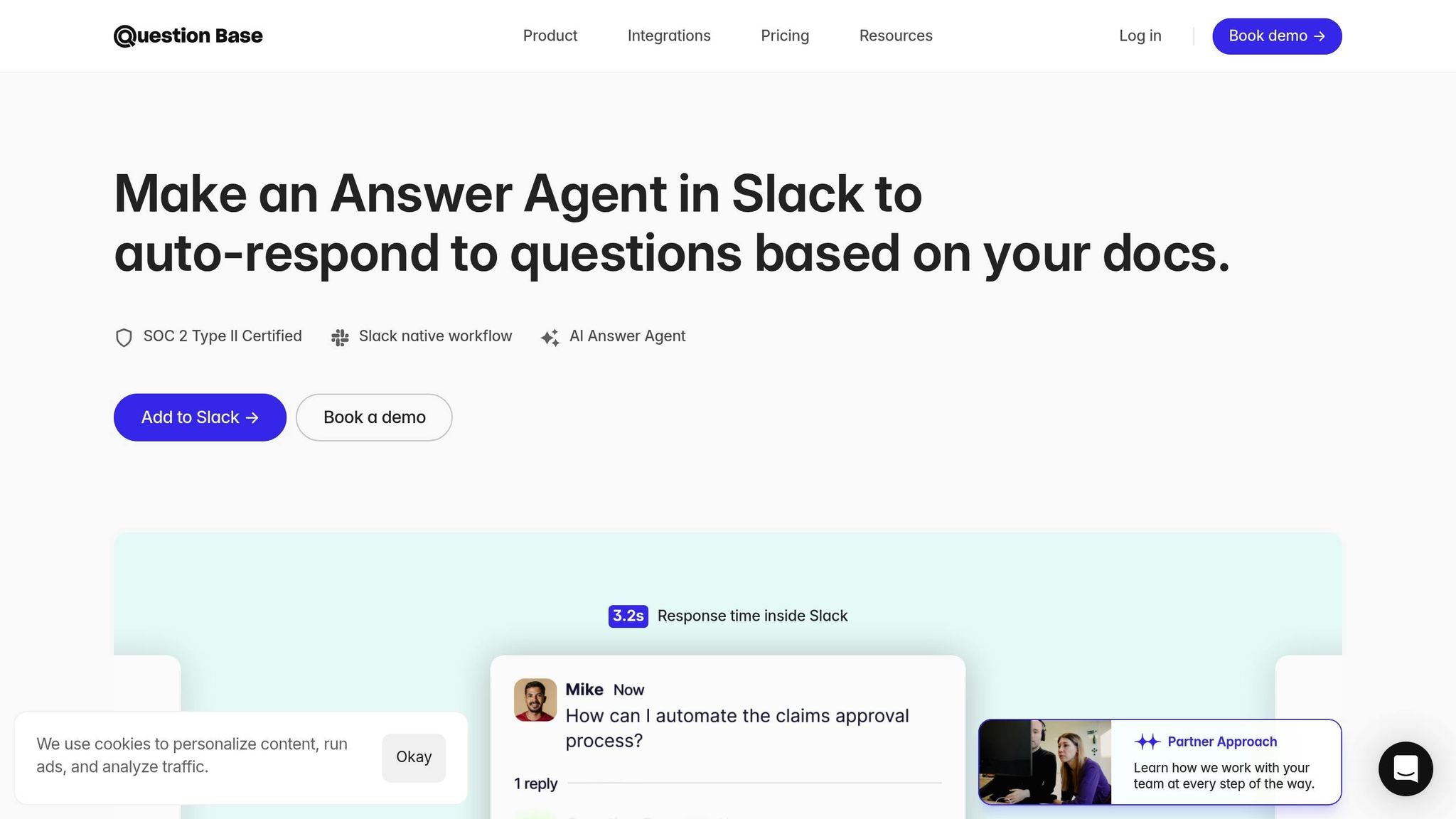
For quicker issue resolution, consider using Question Base, an AI answer agent that integrates seamlessly into Slack. Unlike Slack AI, which depends on chat history, Question Base pulls directly from your trusted documentation sources. By linking it to tools like Notion, Confluence, Google Drive, Zendesk, or Intercom, you can deliver instant, verified answers right in Slack channels. When a problem arises, team members can simply call the bot using /invite @questionbase, avoiding the need to wait for support or sift through multiple resources. Its dynamic FAQ evolves as new questions come up, ensuring your team stays aligned and productive.
Set Up Monitoring and Alerts
Proactive monitoring is essential for catching issues before they disrupt operations. Set up multi-layered monitoring systems to track WebSocket connections, notification delays, API response times, token expiration, and permission changes. Automate alerts for anomalies like failed test messages or connection issues. Regularly schedule test messages and maintain a detailed log of token rotation and permission updates. Use Slack’s analytics to monitor usage patterns and identify potential red flags.
To stay ahead, enforce a 90-day token rotation policy, with reminders set 30 days in advance. Document all changes in Slack’s "Workspace Settings → Apps and integrations" section. Create a quarterly maintenance schedule that includes testing active integrations, updating documentation, and auditing email records. After each Slack platform update, revalidate integration functionality by scheduling tests during low-usage periods and notifying users in advance. These steps will help keep your integrations running smoothly. [1]
Conclusion
Slack integration problems can stall workflows and delay notifications, but many of these hiccups can be resolved with a clear troubleshooting process. Start with the basics - simple diagnostics often resolve most issues without diving into complex technical fixes[1]. If that doesn’t work, take a closer look at permissions and authentication settings.
For persistent issues, check permissions carefully and re-authorize OAuth scopes. If the problem runs deeper, investigate WebSocket connections, review API endpoints, and gather detailed logs, including timestamps and error codes. Following this systematic approach can save time and prevent unnecessary complications.
To minimize future disruptions, adopt proactive measures like keeping documentation up to date, scheduling regular system audits, and implementing monitoring tools that alert you to connection issues or token expirations.
When your team needs quick, reliable answers, Question Base can simplify troubleshooting. Unlike Slack AI, which depends on chat history, Question Base connects directly to trusted sources like Notion, Confluence, and Google Drive. This means your team can ask targeted questions and get accurate responses instantly - no more sifting through endless resources or waiting for support. Plus, with SOC 2 Type II compliance and enterprise-grade security, it’s a solid choice for organizations with strict security standards. Its dynamic FAQ feature also evolves to address new troubleshooting scenarios as they arise.
FAQs
What network issues can disrupt Slack integrations, and how can I fix them?
Network hiccups can occasionally interfere with Slack integrations, leading to delays or missed notifications. Here’s how to address these issues:
Check your firewall settings: Make sure Slack’s required domains and ports (typically 443 and 80) aren’t being blocked by your firewall.
Test your internet connection: An unstable or slow connection can disrupt integration performance. Run a quick test and address any connectivity problems.
Review proxy settings: If your organization uses a proxy, confirm it’s configured to allow traffic to and from Slack’s servers.
Keep software updated: Compatibility issues can arise from outdated Slack or integration apps. Double-check that everything is running the latest version.
If these steps don’t resolve the problem, reach out to your IT team or consult Slack’s official troubleshooting resources for more detailed help.
How do I verify that my Slack app has the correct OAuth scopes and permissions?
To keep your Slack app running smoothly, it's crucial to verify that it has the right OAuth scopes and permissions. Head over to your app's settings in the Slack API dashboard and navigate to the OAuth & Permissions section. Make sure the listed scopes align with the features your app requires, whether that's sending messages, accessing specific data, or other functions.
If something isn’t working as expected, double-check that the app is installed in the appropriate workspace. Also, ensure the permissions granted during installation match what the app is designed to do. If adjustments are necessary, update the scopes and reauthorize the app to activate the new permissions.
What should I do if Slack integration stops sending notifications or messages?
If your Slack integration isn’t working as expected or notifications are delayed, here’s a step-by-step guide to help you troubleshoot:
Check Slack’s status: Start by visiting Slack’s status page to see if there are any reported outages or disruptions that could be affecting your integration.
Verify integration settings: Double-check that the integration is correctly set up. This includes reviewing API keys, permissions, and any connected accounts to ensure everything is in order.
Review recent changes: Consider any updates or modifications made to your Slack workspace, connected tools, or integration settings. These changes might be the root of the issue.
Test the connection: Reconnect the integration and try sending a test notification. This simple step can often reveal whether the issue has been resolved.
Contact support: If you’re still facing problems, don’t hesitate to reach out to the integration provider or Slack support for expert assistance.
By carefully working through these steps, you’ll be well-equipped to pinpoint and resolve most Slack integration issues efficiently.