∙
Cooper
∙
Reading time:
10 min

Searching across platforms like Notion, Confluence, and Google Drive can waste time and disrupt workflows. Federated search eliminates this by allowing users to query multiple tools simultaneously, without transferring or duplicating data. When integrated with Slack, it turns the app into a centralized hub where teams can access external knowledge - like documentation, tickets, and files - all while maintaining data security and respecting platform permissions.
Key Points:
What is Federated Search? Queries multiple platforms in real time using APIs, without storing data in a single index.
Why Slack? Slack’s native search is limited to internal messages and files. Federated search connects external tools like Google Drive, Salesforce, and Confluence, solving information silos.
How to Set It Up: Requires Slack Business+ or Enterprise Grid plans, admin permissions, and API access for external tools.
Best Tool for Slack: Tools like Question Base simplify integration, offering verified answers from trusted sources, analytics, and enterprise-grade security.
Next Steps: Install a federated search tool (e.g., Question Base) via the Slack App Marketplace, link your documentation tools, and test with high-traffic teams like IT or HR. Monitoring search insights and resolution rates ensures your system delivers accurate, secure answers while improving team productivity.
Slack is evolving into a work operating system
Prerequisites for Integration
To ensure a smooth federated search experience in Slack, your team must use either Slack Business+ or Enterprise Grid and have admin rights on both Slack and the external platforms you plan to integrate.
Slack Plan and Permissions
Federated search integrations are supported exclusively on Slack's Business+ and Enterprise Grid plans. These plans allow custom app installations and provide the necessary API access. Unfortunately, the Free and Pro plans do not include these capabilities.
To proceed with the installation, you'll need Workspace Owner or Workspace Admin permissions. Additionally, scope approvals such as search:read, channels:read, and, if file access is needed, files:read are required. With Question Base, this process is streamlined - simply approve the requested scopes during the app installation.
Once Slack is set up, the next step is configuring API access for each external platform.
External Tool Requirements
Each external platform you wish to integrate needs proper API access and authentication. Here's a quick guide for some common tools:
Notion: Use Notion's developer portal to create an internal integration and generate an API key.
Confluence: Log in to your Atlassian account settings with admin access to create an API token.
Google Drive: Set up OAuth 2.0 credentials through the Google Cloud Console.
Most federated search tools, including Question Base, simplify this process by guiding you through the connection steps. Typically, you'll paste API keys or complete OAuth flows directly within the tool's interface. Keep in mind that admin-level access is required to generate credentials or grant permissions for the search tool to access your organization's data. The tool will respect existing permissions, ensuring users only see search results they are authorized to view.
How to Integrate Federated Search with Slack
Connecting Third-Party Federated Search Tools
Federated search in Slack simplifies how teams access knowledge stored across various platforms. Start by creating a Slack app through the Slack API console to generate your Client ID and Client Secret. These credentials act as the connection between Slack and your federated search tool.
Next, configure the required OAuth scopes, such as search:read, channels:read, channels:history, and groups:history. Enter these credentials into the federated search tool's dashboard and complete the OAuth process by clicking Authorize.
To maintain security, permission-based access ensures users only see content they are allowed to access. For instance, if you're integrating GitHub, you'll need to provide your organization name and app installation details. For Confluence or Jira Cloud, input your cloud subdomain (e.g., yourcompany.atlassian.net).
If this process feels too technical, you might want to explore the simpler integration option offered by Question Base.
Setting Up Question Base for Federated Search

Question Base provides a much simpler way to integrate federated search with Slack, cutting down on setup time and avoiding the need for complex API configurations.
To get started, install Question Base from the Slack App Marketplace. Invite the bot to your workspace using the command /invite @questionbase. Then, use the guided OAuth flows in the Question Base dashboard to link your documentation sources, such as Notion, Google Drive, Confluence, Zendesk, Intercom, Salesforce, Dropbox, and more.
Unlike Slack AI, which focuses on searching past Slack conversations, Question Base pulls verified answers directly from trusted documents. It also tracks unanswered questions and offers enterprise-grade security features like SOC 2 Type II compliance, encryption, and on-premise deployment options.
Comparing Federated Search Tools for Slack
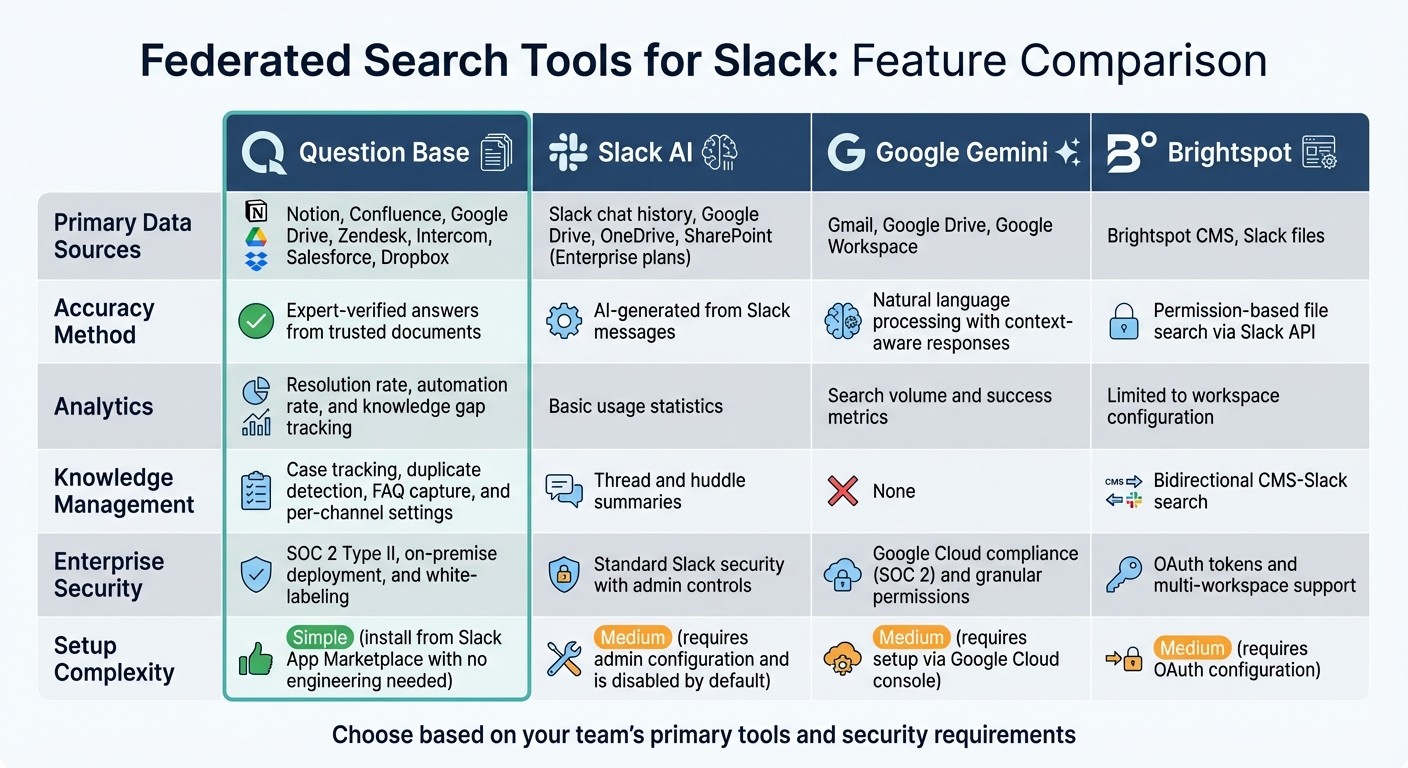
Federated Search Tools for Slack: Feature Comparison Guide
Feature Comparison Table
When comparing federated search tools for Slack, it’s clear that the options differ significantly in terms of data sources, accuracy, analytics, and enterprise-level capabilities. For instance, Slack AI focuses on summarizing conversations and primarily searches Slack chat history, while other tools expand their reach to external platforms and offer more specialized features.
Feature | Question Base | Slack AI | ||
|---|---|---|---|---|
Primary Data Sources | Notion, Confluence, Google Drive, Zendesk, Intercom, Salesforce, Dropbox | Slack chat history, Google Drive, OneDrive, SharePoint (Enterprise plans) | Gmail, Google Drive, Google Workspace | Brightspot CMS, Slack files |
Accuracy Method | Expert-verified answers from trusted documents | AI-generated from Slack messages | Natural language processing with context-aware responses | Permission-based file search via Slack API |
Analytics | Resolution rate, automation rate, and knowledge gap tracking | Basic usage statistics | Search volume and success metrics | Limited to workspace configuration |
Knowledge Management | Case tracking, duplicate detection, FAQ capture, and per-channel settings | Thread and huddle summaries | None | Bidirectional CMS-Slack search |
Enterprise Security | SOC 2 Type II, on-premise deployment, and white-labeling | Standard Slack security with admin controls | Google Cloud compliance (SOC 2) and granular permissions | OAuth tokens and multi-workspace support |
Setup Complexity | Simple (install from Slack App Marketplace with no engineering needed) | Medium (requires admin configuration and is disabled by default) | Medium (requires setup via Google Cloud console) | Medium (requires OAuth configuration) |
This breakdown highlights the strengths and limitations of each tool, helping you identify which one aligns with your team’s needs.
Choosing the Right Tool for Your Team
If your team relies heavily on Google Workspace, Google Gemini Enterprise integrates seamlessly with Gmail and Drive. However, it requires setup through the Google Cloud console and functions best within Google's ecosystem, making it a natural fit for organizations already embedded in that environment.
For content teams working with CMS platforms, Brightspot offers a bidirectional search that connects Slack with CMS files and notifications. This feature simplifies access to content stored in Brightspot while supporting Slack-based workflows.
For teams that require verified and auditable answers, such as HR, IT, or operations, Question Base stands out. It connects Slack to trusted sources like Notion, Confluence, and Salesforce while tracking unanswered questions to pinpoint knowledge gaps. These features transform Slack into a powerful knowledge assistant that doesn’t just answer questions but improves over time.
Additionally, Question Base provides enterprise-grade security with SOC 2 Type II compliance, optional on-premise deployment, and white-labeling. Its multi-workspace support makes it a great choice for large organizations looking for a customizable and secure integration.
Testing and Troubleshooting Your Integration
Thorough testing and quick troubleshooting play a key role in getting the most out of your federated search setup within Slack.
Testing Query Performance
Once your federated search tool is connected to Slack, it's time to test how well it handles actual queries. Use realistic examples, such as "What is our remote work policy?" to ensure the system understands the intent and provides accurate results.
It's also important to test queries across various user roles. This ensures that search results respect access permissions. For instance, if someone lacks permission to view a Salesforce report or a specific Confluence space, those documents should not appear in their search results.
Keep an eye on response times and errors during high-volume tests. This helps identify potential API rate limits early on. For example, standard methods might cap at 50 requests per minute, while Enterprise Grid plans allow higher limits. If you're using Question Base, the admin dashboard lets you adjust query frequency to stay within Tier 3 limits of 1,000 requests per minute.
Should performance issues arise, the troubleshooting steps below can help you address them effectively.
Resolving Common Integration Issues
Authorization errors are a common hurdle during setup. If users encounter a "Not authorized" message, the Slack admin must first approve the app in Slack's App Management settings. Then, users need to click "Authorize" within the search tab or tool console. Once scopes like chat:write and search:read are approved, allow up to 10 minutes for the tokens to propagate.
API rate limit errors can lead to slow responses or even timeouts. To fix this, check your current limits in Slack's API documentation. You can implement exponential backoff for retries or consider upgrading to an enterprise plan. When using Question Base, you can manage query frequency in the admin dashboard and monitor analytics to avoid exceeding rate caps.
Permission mismatches arise when users don't see expected results, even though they have access to the source documents. To resolve this, double-check the data source settings to include the correct IDP groups and validate configurations, such as the correct Confluence subdomain. If the problem persists, try toggling the "Include in traditional search results" and "Use as source in AI search answers" options to refresh the connection.
Conclusion
Key Takeaways
Integrating federated search with Slack transforms how enterprises access knowledge by allowing a single query to retrieve information across multiple platforms, all while maintaining existing access permissions for security. This streamlined approach reduces redundant questions and interruptions, giving HR, IT, and operations teams more time to focus on their priorities. By bringing diverse platforms together within Slack, teams can eliminate information silos.
With tools like Question Base, Slack becomes a centralized knowledge hub. Its simple setup connects documentation sources like Google Drive, Salesforce, Zendesk, and Confluence without requiring engineering resources. The result? Instant answers delivered directly in Slack channels, all while adhering to enterprise security standards. Additionally, Question Base organizes Slack conversations into structured, searchable documentation, and its built-in analytics track resolution metrics and uncover content gaps. This data helps teams align knowledge updates with sprint cycles or quarterly goals.
Organizations using federated search integrations report quicker access to information and less time wasted navigating disconnected systems. Question Base ensures accuracy by pulling verified answers directly from trusted documentation, rather than relying on interpretations of chat history - critical for delivering reliable information when it counts.
With these advantages in mind, here’s how you can take the next steps to implement a federated search solution.
Next Steps
Ready to get started? Begin by reviewing query logs to identify knowledge gaps and pinpoint recurring questions. This baseline will help measure the impact of your new system after implementation.
Install Question Base through the Slack App Marketplace and connect your primary documentation tools. Start with a pilot program involving one or two high-traffic teams, such as IT or HR, for 4–8 weeks. During this phase, monitor automation rates and resolution metrics to evaluate performance before expanding across the organization.
Set up workflows to escalate unresolved questions to the right department automatically. Assign subject matter experts to review AI-generated answers to ensure trust and accuracy. Finally, conduct quarterly audits of your most accessed resources. Use duplicate detection to merge overlapping content, ensuring your knowledge base stays clean and up to date.
FAQs
Does federated search store our data?
Federated search tools, including Question Base, don't hold onto your data. Instead, they establish secure connections to your trusted platforms - like Notion, Confluence, and Salesforce - to pull information directly from these sources. This approach ensures your data stays safely stored in its original location.
Can users see results they shouldn’t?
If permissions and access controls aren’t set up correctly, users might encounter results they shouldn’t have access to. To address this, Question Base provides enterprise-level security measures, including role-based access controls and encryption. These features ensure that only the right users can view specific content, keeping your information secure.
How long does setup usually take?
Setting up usually takes under 10 minutes. The steps are simple: connect your tools, provide the necessary access permissions, and adjust the settings to fit your needs. It’s designed to be fast and hassle-free.