∙
Cooper
∙
Reading time:
16 min

Repetitive tasks slow teams down. Slack slash commands offer a fast way to automate these tasks directly within Slack, reducing the need to switch between apps. By typing simple commands like /remind or /ticket, you can set reminders, create support tickets, or trigger workflows instantly. Custom slash commands take this further, allowing businesses to tailor automation to their specific needs - be it IT ticketing, HR workflows, or real-time data retrieval.
Why It Matters:
Save time: Automation can reclaim up to 30% of your workweek.
Reduce errors: Standardized commands ensure consistency.
Minimize context switching: Perform tasks without leaving Slack.
Scale operations: Handle growing workloads efficiently.
Key Uses:
Notifications & Reminders: Automate follow-ups or team reminders.
Tickets & Workflows: Create IT, HR, or project tickets directly from Slack.
Data Retrieval: Pull reports or metrics instantly with simple commands.
Setting Up Slash Commands:
Define commands via a Slack app.
Configure endpoints to process requests.
Test commands before rolling them out.
Security Best Practices:
Restrict sensitive commands to specific teams.
Encrypt communication using HTTPS.
Use audit logs to track command usage.
Slash commands are an easy way to boost productivity, streamline workflows, and reduce manual effort - all within Slack. For enterprises, tools like Question Base can complement these commands by managing repetitive questions and providing instant, accurate answers sourced from trusted documentation.
Build Slack Commands in under 10 minutes
How to Set Up and Customize Slack Slash Commands
Setting up custom Slack slash commands combines functionality with security. While the process involves a few technical steps, automation platforms make it easier to implement and manage.
Creating and Configuring Slash Commands
To start, create a Slack app in your workspace. This app acts as the foundation for your slash command, managing permissions and integrations. Once set up, you’ll define the command’s parameters, which dictate how users interact with it.
Choose a clear and memorable command name along with a concise description. For example, a command like /create-ticket could generate an IT support ticket, while a description such as "Create an IT support ticket with issue details" provides users with guidance. The name should be intuitive enough that team members can use it without constantly referencing documentation.
Next, configure the request URL endpoint. This endpoint processes POST payloads from Slack within three seconds. For instance, if a user types /create-ticket printer not working, Slack sends a payload - including the user ID, channel ID, and command text - to your specified endpoint[2][3].
The endpoint can then trigger workflows through automation tools like Torq or Tray.io, create tickets in an IT system, or execute custom scripts based on the command’s input parameters[1][2][3]. Before rolling out the command, test it in a private or controlled Slack channel to ensure everything works as expected.
Command Customization Tips
A well-designed slash command does more than just perform basic tasks. Thoughtful customization can make commands more powerful and user-friendly:
Parameter handling: Allow commands to accept detailed inputs. For example,
/remind @john to submit report at 3pmcan parse user mentions, timing, and task details automatically[2][3].Escape channels, users, and links: Ensure Slack mentions like
@johnare converted into internal IDs. This ensures that automation processes the correct user or channel, improving reliability[3].Dynamic responses: Adapt responses based on user roles or context. For example, a
/create-ticketcommand might route IT issues differently from HR requests, or offer tailored options depending on the user’s department or permissions.Usage hints and examples: Include clear usage instructions in your command descriptions. For instance, instead of just describing what a command does, provide examples like: "Usage:
/remind [who] [what] [when]. Example:/remind @sarah to review budget tomorrow at 9am."
Once your commands are functional and user-friendly, the next step is ensuring they meet enterprise security standards.
Enterprise Security Requirements
Custom slash commands can streamline workflows, but they must also be secure. Begin by restricting high-priority commands to specific teams, such as IT or HR, while allowing general commands like reminders to remain accessible to all employees[3].
Data encryption is essential for protecting communication between Slack and your endpoints. Use HTTPS for all request URLs and validate incoming requests with Slack’s signing secrets to confirm authenticity. This prevents unauthorized access to your commands or sensitive data[3].
For organizations with strict compliance needs, SOC 2 Type II certification is worth considering when choosing third-party tools to integrate with your commands. Solutions like Question Base meet these standards, ensuring secure automation with features like encryption at rest and in transit, as well as optional on-premise deployment for sensitive workflows[4].
To maintain accountability, implement audit logging. This tracks details such as who triggered a command, when it was used, and what parameters were included. Logs can help with compliance reviews and identifying potential misuse or security gaps[3].
Finally, conduct regular permission reviews. As employees change roles or leave the company, their access to specific commands should be updated to align with current security policies. This ensures that only authorized personnel can use sensitive commands[3].
Common Ways to Automate Tasks with Slash Commands
Once your slash commands are set up with the right security measures, they can become powerful tools for eliminating the repetitive tasks that drain your team’s time. Enterprise teams often use these commands for notifications, ticket workflows, and data retrieval. While each serves a unique purpose, together they help reduce manual effort across departments and pave the way for more advanced automation.
Automating Notifications and Reminders
One of Slack’s most popular built-in features is the /remind command. It’s perfect for handling follow-ups, deadlines, and routine tasks that would otherwise require constant manual tracking. For instance, you can set reminders for yourself, team members, or even entire channels. Imagine typing:
/remind @marketing "Submit Q4 report" at 3pm tomorrow
This creates a targeted reminder that pops up in your teammate’s Slack notifications, keeping everything centralized within Slack.
Recurring reminders are great for daily or weekly team rituals. For example:
/remind #standup "Daily standup in 5 minutes" every weekday at 9:55am
This ensures no one forgets the morning sync, eliminating the need for a dedicated organizer to send reminders manually.
Custom commands can also handle more specific notifications. For instance, you could create a /deploy-reminder to alert engineers about upcoming deployment windows or a /compliance-check to nudge the legal team about quarterly reviews. These commands ensure that critical updates reach the right people at the right time.
Creating Tickets and Triggering Workflows
Generating tickets directly from Slack is one of the most practical uses of slash commands. Instead of toggling between Slack and external tools, employees can create support requests, HR tickets, or project tasks right from their conversations. For example:
/ticket "Laptop not working"
This command could integrate with systems like ServiceNow, Jira, or Zendesk to create a support ticket. It captures key details - like the user’s information and a timestamp - and notifies the appropriate team instantly.
Platforms like Zapier and Tray.io make it easy to connect these commands to various systems without requiring heavy engineering work. For instance, a /hr-leave command could trigger an approval workflow for vacation requests, routing them through managers and updating payroll systems. Similarly, a /onboard command could kick off new hire processes, such as setting up accounts, scheduling training, and assigning equipment.
What makes these commands so effective is their ability to keep everything in context. If a problem arises in a Slack channel, it can be turned into an actionable ticket without losing any of the surrounding discussion, ensuring nothing gets overlooked.
Getting Reports and Data
Slash commands can also save time by pulling real-time data directly into Slack, eliminating the need to log into separate systems. With a command like:
/sales-report today
you could instantly fetch pipeline updates, closed deals, or revenue metrics from your CRM. Marketing teams might use similar commands to pull campaign data, while operations teams could retrieve system health stats or inventory levels.
This instant access to data speeds up decision-making. For example, during a strategy meeting, typing:
/pipeline Q3
could bring up key sales figures for the quarter, providing the context needed to guide the discussion.
Use Case | Example Command | Automation Outcome |
|---|---|---|
Schedule team reminders |
| Sends a reminder to the team at 3pm |
Create IT support ticket |
| Opens a support ticket and notifies the IT team |
Trigger HR workflow |
| Submits a leave request through the HR system |
Fetch sales data |
| Retrieves Q3 sales data from the CRM |
Initiate automated workflow |
| Triggers an onboarding workflow via an integration tool |
To get the most out of these commands, make sure they’re well-documented and easy for your team to understand. Clear documentation ensures everyone knows how to use them effectively, maximizing their impact.
Adding Knowledge Agents: Question Base vs. Slack AI
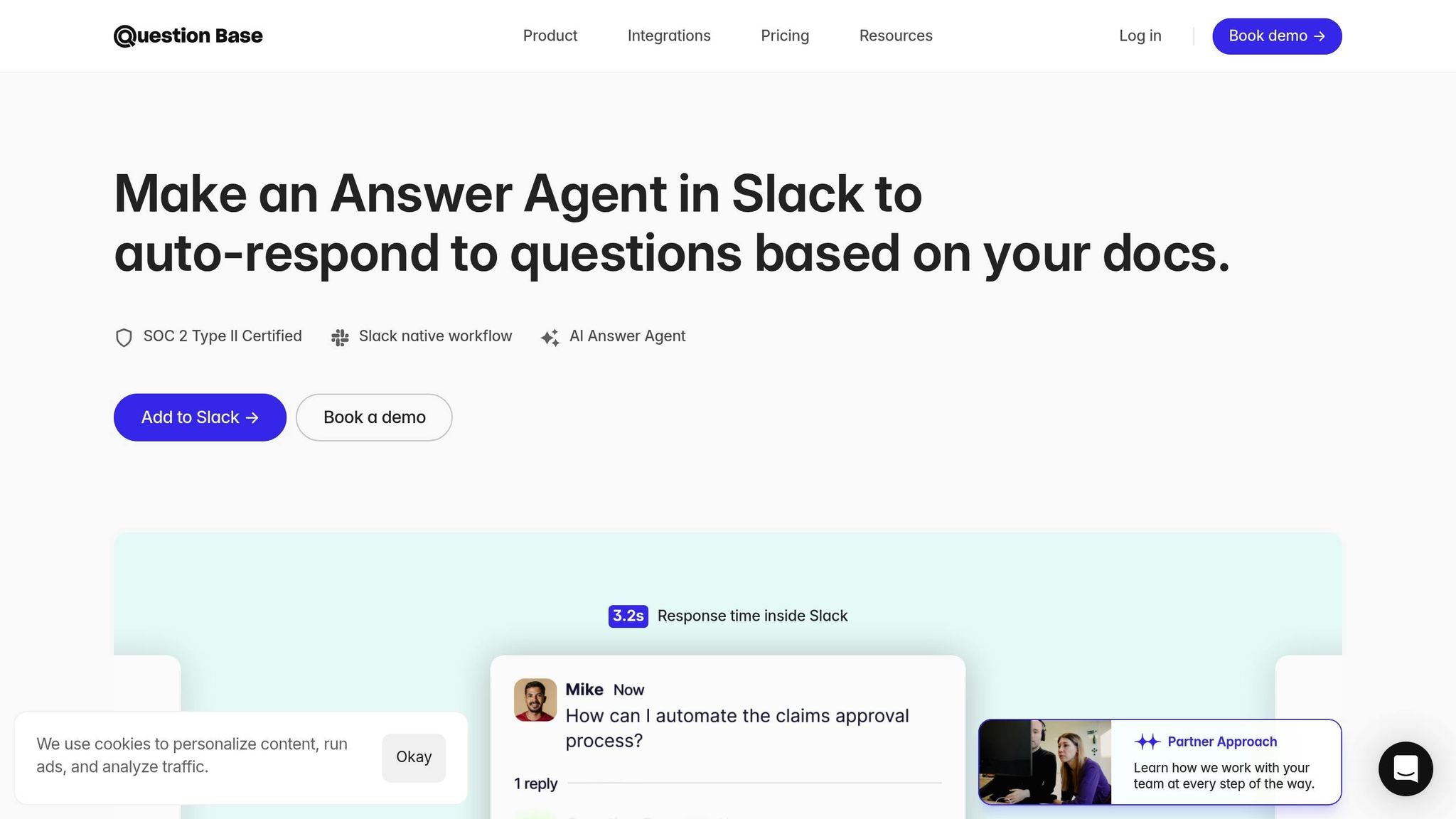
Enterprises are increasingly adopting AI-powered knowledge agents to manage the overwhelming flow of internal questions that flood Slack channels. These tools help employees save time by quickly finding answers and allow experts to focus on high-value tasks instead of repeatedly addressing the same queries. However, not all solutions are created equal when it comes to integration and accuracy. Let’s dive into how Question Base transforms knowledge management within Slack.
How Question Base Works with Slack Automation
Question Base goes beyond simple commands that trigger isolated tasks. It integrates seamlessly with platforms like Notion, Confluence, and Salesforce to unify and streamline internal knowledge across your workflow. Once installed from the Slack App Marketplace, you can invite it to your workspace using /invite @questionbase. From there, it starts pulling information from your connected documentation to provide instant, contextually relevant answers to employee questions.
A key feature of Question Base is its human-in-the-loop process, which ensures ongoing improvement in response accuracy. While the AI generates initial answers, knowledge experts step in to review and refine them. This creates a feedback loop where the system continuously learns and improves over time.
Another standout capability is how Question Base organizes Slack threads. When valuable insights are shared in conversations, the platform captures and transforms these fleeting discussions into structured, searchable documentation. This prevents critical knowledge from disappearing into Slack’s chat history, making it accessible for future use.
For organizations with stringent security requirements, Question Base offers SOC 2 Type II compliance, encryption, and optional on-premise deployment. Teams retain full control over what content is accessible, how the AI responds, and how escalation to human support is handled.
Question Base vs. Slack AI Comparison
While Slack AI provides general productivity tools like conversation summaries and chat-based searches, Question Base is designed specifically for enterprise knowledge management and internal support workflows. Here’s a closer look at their differences:
Feature | Question Base | Slack AI |
|---|---|---|
Accuracy | Expert-reviewed answers from trusted sources | AI-generated based on Slack messages |
Data Sources | Integrates with Notion, Confluence, Salesforce, OneDrive, Google Drive, Zendesk, Intercom, Dropbox | Primarily Slack chat; external sources limited to enterprise plans |
Knowledge Management | Includes case tracking, per-channel settings, duplicate detection, and AI learning from gaps | Not available |
Analytics | Tracks resolution rates, unhelpful answers, automation rates, and content gaps | Basic usage statistics |
Enterprise Focus | Built for HR, IT, and Ops with SOC 2 compliance and customization options | General-purpose AI tool |
Pricing | $8/user/month | $18/user/month |
The distinction in data sources is especially critical. Slack AI relies mainly on past Slack conversations, which can be incomplete or outdated. In contrast, Question Base connects directly to authoritative knowledge repositories, ensuring answers are accurate and up to date.
"Since we started using QB we haven't used our Google support docs. And if I go on vacation or sick leave, I feel comfortable that QB will just take over." – Linn Stokke, Online Events & Marketing Specialist, Ticketbutler
For teams that require reliable, verified knowledge at scale rather than general AI tools, Question Base delivers the enterprise-grade solution Slack AI wasn’t designed to provide. While Slack AI is great for individual productivity, Question Base ensures team-wide alignment by offering access to consistent, authoritative information. Its combination of advanced AI integration and strict security measures equips enterprises to move beyond basic automation and achieve seamless knowledge management.
Best Practices for Slash Command Automation
To make the most of slash command automation, it’s essential to focus on thoughtful design, regular updates, and measurable outcomes. These elements ensure commands are user-friendly, stay relevant, and deliver real results.
Designing Clear and Scalable Commands
The foundation of effective slash command automation lies in using clear, descriptive names. Commands like /remind, /ticket, or /report immediately convey their purpose, making them intuitive for teams to use. Avoid abbreviations or internal jargon that could confuse team members or collaborators from other departments.
Consistency in naming and structure is equally important. Descriptive names that clearly align with a command’s function - along with organization-specific prefixes like /acme-ticket - can prevent conflicts with existing Slack or third-party integrations.
Transparency is key to building trust in automation. Commands should provide confirmation messages after execution, explaining what happened and outlining any next steps. This reduces the need for follow-up questions and boosts confidence in the system.
Flexibility in handling parameters is another important feature. Commands should support user mentions, channel references, and various input formats. Enhancements like automatic mention and link formatting further ensure reliability when commands interact with users or channels.
Lastly, don’t underestimate the importance of thorough documentation and onboarding. A centralized resource with all available commands and usage examples allows team members to quickly find the information they need, encouraging wider adoption.
Updating and Maintaining Workflows
Once commands are up and running, keeping them aligned with evolving team needs is critical. Regular maintenance ensures commands remain effective as workflows and business processes change.
User feedback is invaluable for identifying outdated or ineffective commands. Implementing version control and maintaining change logs when updating commands streamlines troubleshooting and keeps everyone informed about new features or adjustments. Periodic audits can help identify underused or obsolete commands, ensuring the command library stays focused and manageable.
As organizations grow, workflows often become more complex. Designing modular commands that can adapt to new tools or processes ensures your automation efforts continue to deliver value over time.
Tracking Automation Results
Measuring the impact of slash command automation is essential for refining workflows and demonstrating value. Analytics provide insights into how automation improves productivity and streamlines operations.
For example, Question Base analytics revealed that during a 30-day pilot, 35% of repetitive questions were answered automatically in just 3.2 seconds on average, saving over 6 hours per expert each week[4]. This kind of data highlights the real-world benefits of well-executed automation.
Key metrics to monitor include automation rate, resolution rate, user adoption, error rates, and unanswered cases. These figures can uncover areas for improvement and guide future enhancements.
Establishing regular reporting cycles, such as monthly usage reports and quarterly reviews, helps track trends and supports strategic decisions about expanding or refining automation. Pairing these reports with employee satisfaction surveys provides a well-rounded view of both the efficiency and user experience of your automation efforts.
Conclusion: Using Slack Slash Commands to Boost Enterprise Productivity
Slack slash commands transform quick inputs into powerful, automated workflows, cutting down on inefficiencies and smoothing out daily operations for enterprise teams.
Consider this: employees can spend as much as 20–30% of their workweek hunting for internal information [4]. To make matters worse, about 40% of internal questions in large companies are repetitive [4]. For a business with 1,000 employees, this endless cycle of searching and re-answering can drain over $2 million in productivity annually [4]. These numbers highlight just how much room there is for improvement in enterprise communication.
By pairing automation techniques like those discussed earlier with strategic integrations, Slack evolves from a simple messaging tool into a full-fledged productivity powerhouse. When enterprises combine slash command automation with AI-driven tools like Question Base, they unlock immediate access to verified answers sourced from trusted platforms like Notion, Confluence, and Salesforce. While Slack AI is excellent for general productivity tasks, Question Base goes a step further by pulling directly from an organization’s most reliable documentation.
This setup provides enterprise-grade features such as SOC 2 Type II compliance, on-premise deployment options, and advanced customization capabilities - critical for large-scale organizations. Best of all, there’s no need for engineering support. Simply install the app, connect your tools, and start receiving accurate answers instantly.
To make the most of slash command automation, organizations need to approach it with intention. This means designing clear command structures, regularly updating workflows, and tracking performance through analytics. Teams that view automation as a dynamic, evolving process - not just a one-time setup - achieve the highest productivity gains and see stronger user adoption over time.
FAQs
How do I ensure that custom Slack slash commands remain secure and accessible only to authorized team members?
To make sure your custom Slack slash commands stay secure and are only accessible to the right people, here are some practical tips to follow:
Set clear permissions: Use Slack's built-in permission tools to control who can run specific commands. This way, only the right team members or roles have access.
Verify incoming requests: When setting up slash commands, ensure your backend checks the
tokenin the request payload to confirm it’s genuinely from Slack.Secure your endpoints: Always use HTTPS for your slash command endpoints to keep data encrypted during transmission.
Restrict sensitive actions: Avoid linking slash commands to critical operations unless you add extra confirmation steps to prevent accidental or unauthorized use.
By keeping these measures in place, you can maintain the functionality of your slash commands while ensuring they remain secure for your team.
What are some tips for creating effective and user-friendly Slack slash commands?
To design Slack slash commands that are both helpful and easy to use, focus on keeping them clear, simple, and functional. Choose short, intuitive names that immediately convey their purpose, like /schedule or /approve. Steer clear of complicated or vague names that could leave users scratching their heads.
Make sure to provide clear guidance when a command is executed. For instance, if the command requires extra details, include a prompt like, "Please specify a date and time." The goal is to reduce unnecessary steps and simplify repetitive tasks, allowing users to complete actions quickly and efficiently.
Lastly, test your commands with actual users to see how they work in practice. Feedback from your team can highlight areas for improvement, ensuring the commands are practical, easy to understand, and widely adopted.
How does Question Base improve Slack slash commands for enterprise knowledge management?
Question Base takes Slack slash commands to the next level, turning them into a powerful knowledge management tool for enterprises. It delivers expert-verified answers by pulling information directly from trusted platforms like Notion, Confluence, and Salesforce. Unlike systems that rely solely on AI-generated responses from previous chats, Question Base connects to your organization’s documentation to provide precise, dependable answers.
By integrating seamlessly with Slack, it simplifies workflows, cuts down on repetitive questions, and ensures teams can quickly access the information they need. This means HR, IT, and operations teams save valuable time while boosting overall productivity.