∙
Cooper
∙
Reading time:
13 min

Slack is more than a messaging tool - it can also be a central hub for your team’s knowledge. By integrating cloud storage platforms like Google Drive, OneDrive, Dropbox, or SharePoint, you can make document access faster and more efficient. Here’s why this matters:
Save time: Employees can search for files directly in Slack without switching between apps.
Stay organized: Slack becomes a single access point for company documents, reducing scattered searches.
Maintain security: Integrations respect existing permissions, so only authorized users can view files.
Boost productivity: Features like live document previews and real-time collaboration streamline workflows.
For even greater efficiency, AI tools like Question Base can deliver instant answers to employee questions by pulling data directly from your connected cloud storage. This reduces repetitive queries and keeps your team focused on their work.
Slack integrations combined with AI tools transform your workspace into a smarter, more efficient system for managing knowledge and collaboration.
How to Connect Google Drive to Slack – Share, Search & Notifications
How Cloud Storage Powers Slack's Knowledge System
Integrating cloud storage services like Google Drive, Dropbox, OneDrive, or SharePoint with Slack creates a streamlined workspace where documents and conversations coexist. Instead of toggling between browser tabs to locate a file, employees can now access, preview, and collaborate on documents directly within Slack. This eliminates the need for constant "context switching", a common productivity killer that disrupts focus and workflow[1]. With this setup, file-sharing becomes a smoother and more intuitive process.
The real game-changer lies in how these integrations enhance file sharing. When someone pastes a Google Drive or Dropbox link into a Slack channel, it doesn’t just show up as a plain URL. Slack generates rich, interactive previews - known as "Work Objects" - that provide immediate context for the document, allowing team members to quickly grasp its purpose without leaving the conversation.
"Slack apps connect tools and services with Slack, so you can use them without leaving your workspace. Apps make it easy to quickly find, share, and act on information across your tech stack by creating one central place to stay focused and get work done." – Slack[1]
These integrations also respect your existing security protocols. For instance, when you connect Google Drive or OneDrive to Slack, the integration automatically mirrors the original permissions from your cloud storage. This ensures that employees can only access files they’re authorized to view, sparing IT teams from managing separate access controls[1].
Slack’s Marketplace offers over 2,600 apps, with more than 550,000 custom apps in daily use across workspaces. For enterprises using Business+ or Enterprise Grid plans, there’s no cap on the number of integrations you can add. In contrast, Free plans allow three integrations, while Pro plans permit up to ten[1]. These integrations create a seamless document-sharing ecosystem that simplifies collaboration across the board.
Single Access Point for Company Documents
Cloud storage integrations turn Slack into a centralized hub for all company documents. Instead of trying to recall whether the Q1 budget is in Google Drive, the onboarding checklist is in Dropbox, or the product roadmap is stored in OneDrive, employees can search and retrieve everything from Slack’s unified interface. This consolidation saves significant time that would otherwise be spent hunting for files across various platforms.
Files remain stored within their original cloud services, ensuring scalable access to your entire document library without consuming Slack’s storage. For instance, a compliance manual stored in SharePoint can be shared in Slack, appearing instantly with proper permissions and full context.
Administrative tasks are simplified too. File permissions and access rights can be updated directly within Slack, removing the need to open a browser window and navigate to the storage provider’s settings[1].
Better Search and File Discovery
Slack’s native search is already robust for finding past conversations, but integrating cloud storage takes it to another level. These integrations enable a federated search experience, allowing you to query both Slack messages and connected third-party apps from one search bar. For example, typing "expense policy" into Slack’s search might pull up relevant conversations alongside the actual policy document stored in Google Drive - all in one place.
This unified search functionality is a game-changer for teams managing large document libraries. Engineers can quickly pull up technical specs, HR teams can locate onboarding materials in seconds, and sales teams can retrieve the latest pitch deck while chatting with prospects.
Live Document Collaboration
These integrations don’t just make files easier to find - they also elevate collaboration. When a Google Doc or OneDrive file is shared in a Slack channel, team members can co-edit the document in real time, ensuring everyone works from the most current version.
"Cloud-based storage improves accessibility, allowing employees to view, edit, and share documents securely from anywhere with an internet connection to improve productivity." – Slack[2]
Automatic version control is another standout feature. Cloud providers handle version history behind the scenes, so if a mistake is made or an earlier draft is needed, reverting is easy and doesn’t require sifting through old messages or emails. This functionality is especially valuable for fast-moving projects where alignment is critical.
Slack’s Workflow Builder further enhances collaboration by automating repetitive tasks. For example, you can configure a workflow to automatically add a row to a Google Sheet whenever a specific action - such as logging a customer request or tracking a bug - occurs in Slack[1]. These integrations transform Slack into a dynamic workspace where conversations and documents seamlessly interact.
How to Connect Cloud Storage to Slack
To link your cloud storage to Slack, start by visiting the Slack App Directory. Search for your preferred cloud service and click "Add to Slack." Choose your workspace and complete the OAuth authorization process to securely connect your files. Importantly, all files stay within their original cloud provider, ensuring storage limits and security measures remain unaffected. This setup simplifies file access and makes collaboration more efficient for your team.
For enterprise users, admins can manage data access by role during the integration process. These include restricting access, defining read/write scopes, and managing audit logs through admin dashboards.
Once connected, you can invite the app to specific channels using commands like /invite @google-drive or /invite @dropbox. Let’s explore how each cloud service works within Slack.
Setting Up Google Drive with Slack
Google Drive is one of the most popular cloud storage integrations for Slack, transforming the platform into a central hub for document sharing and collaboration. After installing the Google Drive app from the Slack App Directory and authorizing your Google account, you can share Drive links directly in Slack channels. These links create dynamic previews and allow real-time co-editing, all within Slack.
You can also configure notifications to post file updates in designated channels, keeping everyone informed of changes. Existing Google Drive permissions remain in place, so if someone lacks access to a shared file, they won’t be able to view it in Slack - even in public channels.
Connecting Dropbox to Slack
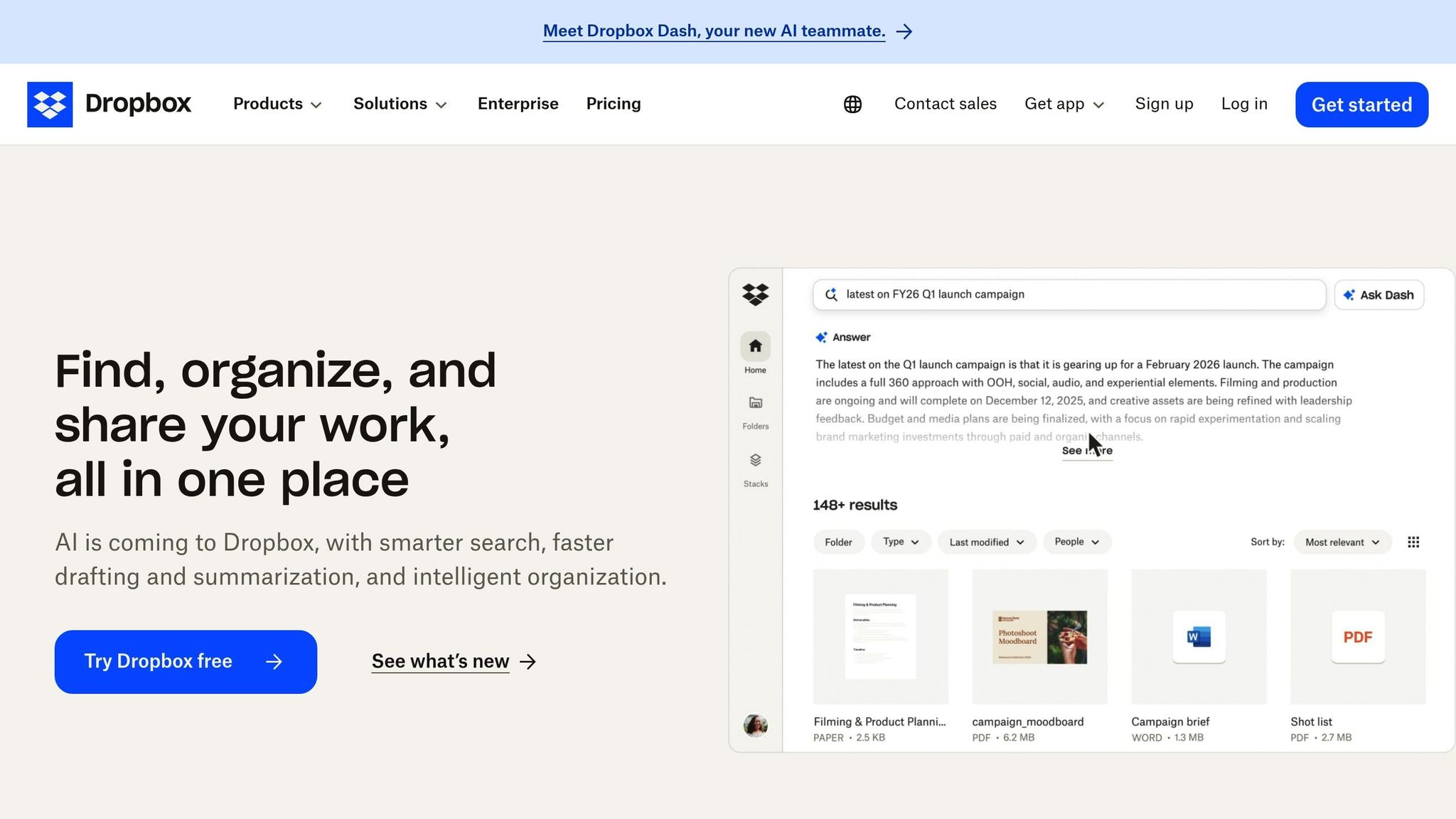
Dropbox's Slack integration offers a seamless way to manage file sharing and access. After installing the Dropbox app and authorizing your account, you can use the /dropbox command to quickly share files or folders. The integration allows for precise control over sharing settings, ensuring only the right people can access specific files.
Additionally, Dropbox file updates can trigger notifications in Slack channels, making it easier to track changes in shared project folders or client files.
OneDrive and SharePoint Integration
For teams using Microsoft 365, the OneDrive and SharePoint app provides a secure and compliance-focused integration with Slack. After installing the app from the Slack Marketplace and authorizing your Microsoft account, you can connect specific SharePoint sites or OneDrive folders. This gives you control over which documents are accessible through Slack.
Files shared from OneDrive or SharePoint appear as previews in Slack, while the documents remain securely stored in Microsoft’s cloud. This setup ensures data encryption and supports compliance with enterprise standards like SAML SSO, available on Slack Plus plans. Advanced security features, such as conditional access policies and audit logs, offer additional safeguards for organizations in regulated industries, complementing Slack’s role as a centralized knowledge-sharing platform.
Using AI Tools to Improve Slack's Knowledge Hub
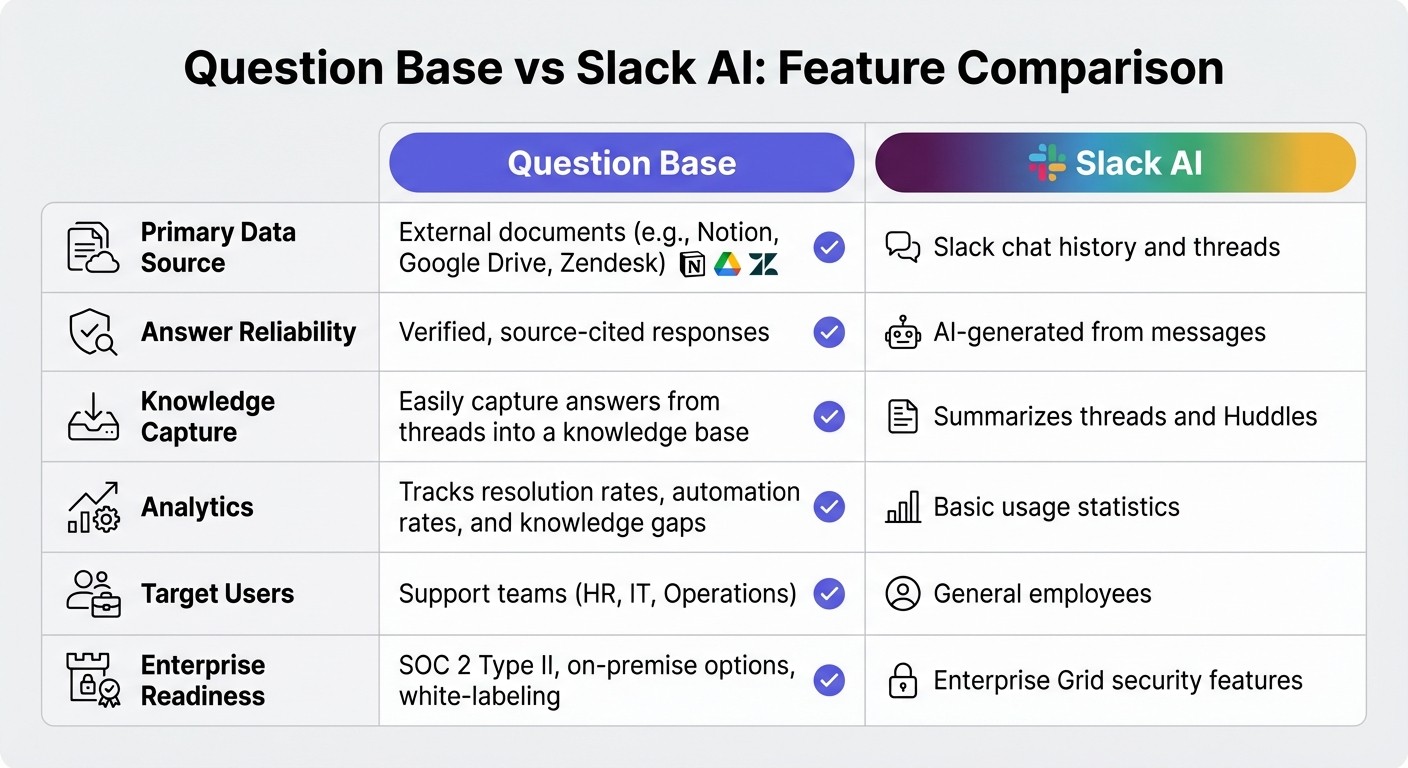
Question Base vs Slack AI Feature Comparison
Once you’ve connected your cloud storage to Slack, the next step is to make that information genuinely useful. While cloud integrations allow for file previews and basic search, AI tools take things a step further by directly answering questions using your connected documents. This eliminates the need for employees to sift through multiple channels. Let’s dive into how AI tools like Question Base enhance Slack’s knowledge hub.
What Is Question Base?
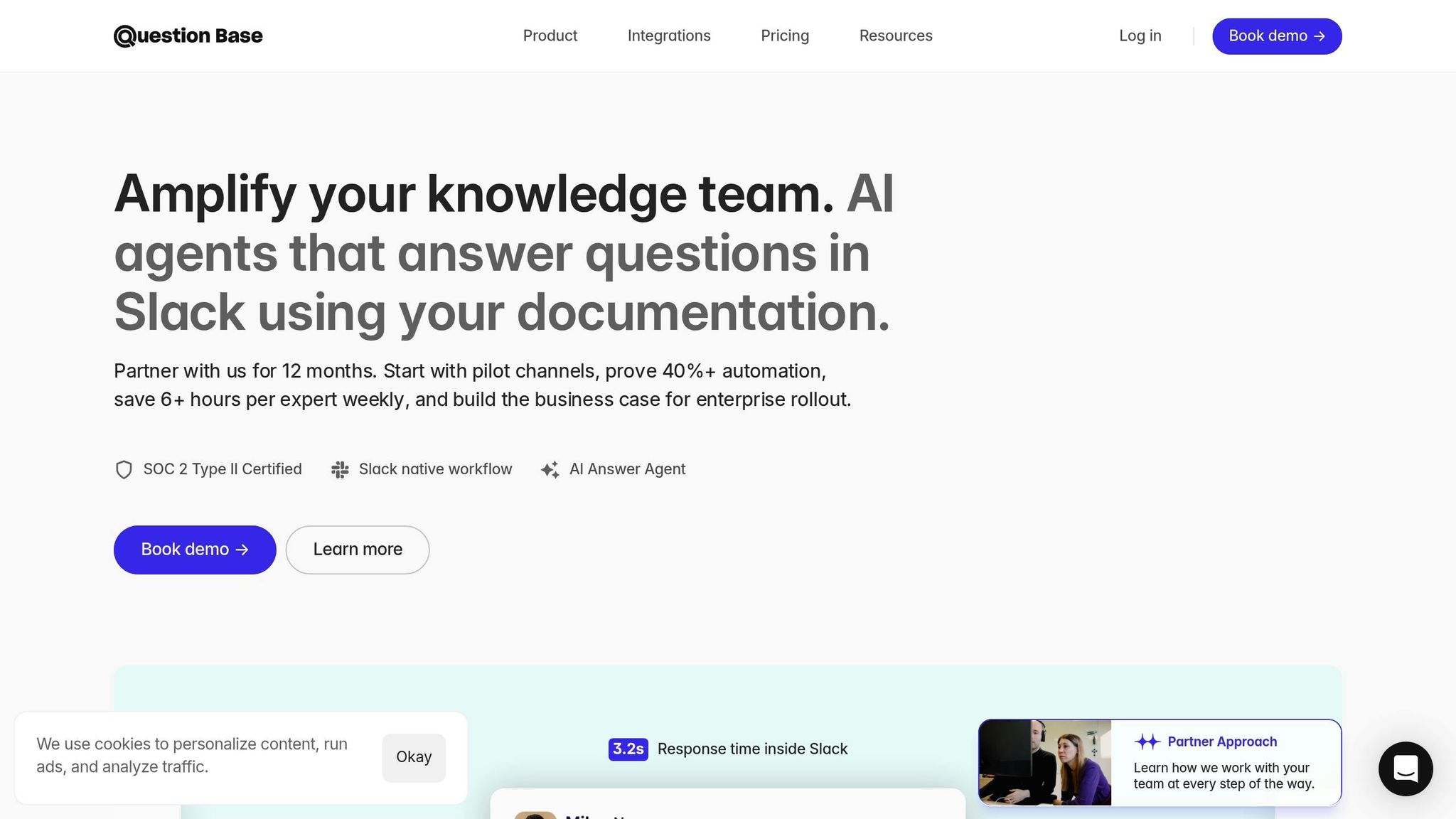
Question Base is an AI-powered agent tailored for Slack, designed to integrate seamlessly with your enterprise documentation tools. You can install it directly from the Slack App Marketplace, invite it to channels using /invite @questionbase, and connect platforms such as Notion, Confluence, Google Drive, Zendesk, Intercom, Salesforce, or Dropbox.
The tool pulls information from these linked sources, ensuring that Slack users receive accurate, verified answers directly from official documentation. Built with SOC 2 Type II compliance and encryption (both at rest and in transit), Question Base also offers on-premise deployment options for organizations requiring stricter data control. Teams can customize the AI’s tone, determine which content it accesses, and set up escalation workflows to route complex questions to human experts when needed.
Question Base vs. Slack AI
Slack AI is a great tool for general productivity tasks like summarizing conversations, catching up on missed threads, or drafting messages based on chat history. However, when the goal is delivering reliable, verified knowledge at scale, Question Base offers a distinct advantage. Unlike Slack AI, which learns from your workspace’s message history, Question Base connects directly to trusted documentation.
Here’s a comparison of their key features:
Feature | Question Base | Slack AI |
|---|---|---|
Primary Data Source | External documents (e.g., Notion, Google Drive, Zendesk) | Slack chat history and threads |
Answer Reliability | Verified, source-cited responses | AI-generated from messages |
Knowledge Capture | Easily capture answers from threads into a knowledge base | Summarizes threads and Huddles |
Analytics | Tracks resolution rates, automation rates, and knowledge gaps | Basic usage statistics |
Target Users | Support teams (HR, IT, Operations) | General employees |
Enterprise Readiness | SOC 2 Type II, on-premise options, white-labeling | Enterprise Grid security features |
For teams managing critical, audited knowledge, Question Base extends Slack’s functionality by maintaining a single source of truth for policies, procedures, and documentation. Slack AI is great for speeding up individual tasks, but Question Base ensures entire teams stay aligned and productive.
Benefits of AI Answer Agents
AI tools like Question Base go beyond simple integrations by reducing repetitive questions and providing instant, reliable answers directly from your connected knowledge repositories. For example, instead of employees repeatedly asking the same HR question in Slack channels, the AI can deliver the answer from your Google Drive or Confluence files - freeing up experts to focus on more complex problems.
When important answers surface in Slack threads, you can capture them with just one click, adding them to your knowledge base. Over time, this builds a dynamic FAQ that evolves alongside your team’s workflows and needs. Question Base also identifies content gaps, tracking which questions go unanswered, so you can align documentation updates with your team’s sprint cycles or quarterly plans.
These AI-driven features transform Slack into more than just a communication platform - it becomes a fully functional knowledge hub, keeping your team organized and ready to tackle challenges as they arise. By combining instant answers with evolving documentation, Question Base helps enterprises stay agile and efficient.
Best Practices for Managing a Slack Knowledge Hub
Keeping a Slack knowledge hub effective requires regular maintenance. Without it, outdated files and inactive channels can pile up, making it harder for employees to find the information they need.
Once you've integrated cloud storage and AI tools, the next step is maintaining organization.
Clear and Logical Channel Structure
Set up dedicated channels for each knowledge area, using straightforward naming conventions. For instance, channels like #kb-hr-policies can house HR documentation, while #kb-it-support can focus on technical troubleshooting guides. Pin key cloud storage links to these channels for easy access. Public channels can hold general resources, while private ones can safeguard sensitive materials. To keep things tidy, archive inactive channels regularly to streamline navigation.
Routine Content Updates and Audits
Schedule quarterly audits to remove outdated documents. Assign department leaders as "knowledge owners" to oversee updates in their respective areas - HR can manage policy changes, while IT handles technical guides. Automate workflows through your cloud storage integrations to notify teams about file updates and ensure new links are repinned in Slack. Slack's /remind command can flag files that haven't been accessed in 90 days, prompting reviews to keep content relevant and reliable.
Using analytics to monitor these updates ensures your hub stays efficient and useful.
Leveraging Analytics for Insights
Slack analytics can pinpoint what's working and what needs improvement in your knowledge hub. With tools like Question Base, you can track metrics such as resolution rates, automation percentages, and unanswered questions. For example, if "HR policies" are searched 50 times a week but only 20% of those queries are resolved [3], it's clear that area needs attention. Metrics like search failures, file downloads, and channel engagement can highlight underused resources or areas requiring updates. Aligning these insights with your team's sprint cycles or quarterly plans can turn your Slack workspace into a dynamic, ever-improving knowledge system.
Wrapping It Up
Integrating cloud storage solutions like Google Drive, Dropbox, and OneDrive turns Slack into more than just a messaging platform - it becomes a centralized hub for knowledge. These tools make it easy to access documents, reduce clutter by keeping files stored externally, and maintain security through existing access controls.
Adding AI tools like Question Base takes this setup to the next level. While Slack AI can summarize past conversations, Question Base goes further by connecting directly to trusted sources like Google Drive, Confluence, Notion, and Salesforce. It transforms fleeting Slack discussions into structured, searchable knowledge, identifies gaps in your content using analytics, and keeps an evolving FAQ that adapts to your team's needs.
For large enterprises with thousands of employees, this combination offers SOC 2 Type II–compliant security, support for multiple workspaces, and even optional on-premise deployment. Question Base provides insights into automation performance and resolution rates, helping knowledge managers pinpoint documentation gaps and align audits with business priorities. Together with cloud storage integrations, it prevents repetitive questions and ensures your team operates from a single, reliable source of truth.
FAQs
Does Slack store my cloud files?
Slack doesn’t directly store your cloud files. Instead, it connects with tools like Google Drive, Notion, Confluence, and Salesforce to access and manage your content. Your files stay securely stored within their original cloud platforms.
Can people see files they don’t have access to?
No, people cannot view files they don’t have permission to access because file system permissions control visibility based on user rights. However, if the disk is not encrypted or if permissions are bypassed, files might still be present in raw form, making them vulnerable to attackers who bypass operating system restrictions.
How does Question Base answer questions from documents?
Question Base links Slack to reliable platforms like Notion, Confluence, and Salesforce, pulling precise, expert-approved answers directly from these sources. By tapping into structured content like policies, FAQs, and documentation, it guarantees responses are both accurate and current. Unlike Slack AI, which primarily relies on chat history, Question Base creates a dedicated answer layer - automating FAQs, identifying content gaps, and structuring knowledge for fast, consistent responses.