∙
Cooper
∙
Reading time:
12 min

Integrating Slack with Confluence bridges the gap between real-time conversations and stored documentation, saving teams up to 4 hours per week spent switching between apps. This setup allows employees to search, share, and access Confluence pages directly in Slack, streamlining workflows and reducing repetitive questions. Here's what you need to know:
Why it matters: Teams often waste time toggling between Slack and Confluence to find vital information. This integration keeps everything accessible in one place.
Key benefits: Search and share pages, get real-time notifications, and automate repetitive queries with tools like Question Base.
Setup essentials: Admin permissions for Slack and Confluence, compatible platforms, and proper configurations for notifications and commands.
AI-powered boost: Tools like Question Base deliver verified answers in 3.2 seconds, cutting down on expert workload and improving efficiency.
Integrate your work streams with Confluence | Atlassian
What You Need Before Starting
To successfully integrate Slack and Confluence, you need to ensure you have the right accounts, permissions, and compatible platform versions. Skipping these steps can lead to setup issues and missed notifications. Here's what to double-check before diving in.
Account Access and Permissions
Both Slack and Confluence require active accounts with specific admin roles to enable integration. Here's what you'll need:
Slack: A Workspace Admin role is necessary to install apps, manage channel access, and adjust workspace-wide settings.
Confluence: A Confluence Administrator role is required to install apps from the Atlassian Marketplace[3], while a Space Administrator handles space-level subscriptions and notifications [4].
Additionally, make sure to manually add the "Chat Notification" system user to your Confluence space permissions under Space access > Users. Without this setup, notifications won’t function properly [4]. For those working within Atlassian Government Cloud, both Atlassian Site Admin and Slack Admin roles are required to complete the FedRAMP-compliant setup [4].
Role Level | Required Permissions | Key Capabilities |
|---|---|---|
Slack Workspace | Workspace Admin | Install apps, manage channel access, configure data policies |
Confluence Site | Confluence Admin | Install Marketplace apps, enable/disable site-wide integration |
Confluence Space | Space Admin | Add/edit space subscriptions, manage space-level notifications |
Atlassian Gov | Site Admin + Slack Admin | FedRAMP-compliant setup, Forge app installation |
Compatible Platforms and Tools
The integration works natively with Confluence Cloud [4]. If your organization uses Confluence Data Center, you’ll need a third-party app such as Docs+ for Confluence, which supports both Cloud and Data Center versions [3]. For government agencies, the "Confluence (Government)" app is available in the Slack marketplace and is tailored for FedRAMP Moderate-compliant environments [4].
Keep in mind that Slack disables notifications and link previews for Confluence content with viewing or editing restrictions [4]. If you're using AI-powered tools like Question Base alongside this integration, the system syncs published pages every four hours, but it does not include content in "draft" status [1].
How to Connect Slack and Confluence
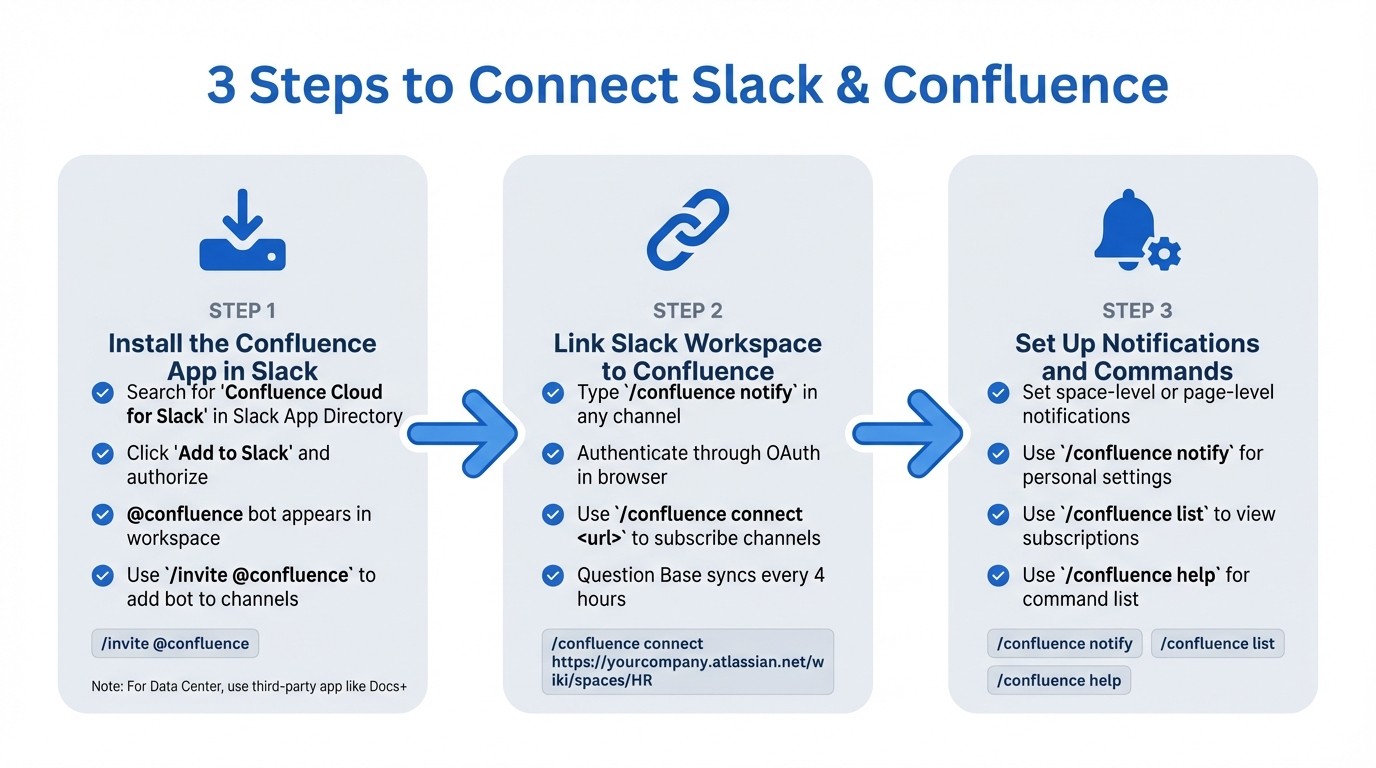
How to Connect Slack and Confluence: 3-Step Integration Guide
To integrate Slack and Confluence effectively, follow these steps: install the app, link your workspace to Confluence, and configure notifications and commands. Before starting, ensure you have the necessary permissions and verified platforms.
Install the Confluence App in Slack
Begin by navigating to Slack's App Directory. If you're using Confluence Cloud, search for "Confluence Cloud for Slack", or if you're working in an Atlassian Government Cloud environment, look for "Confluence (Government)". Click Add to Slack and follow the prompts to authorize the app. Permissions will include posting messages, accessing user details, and reading channel content.
Once installed, the @confluence bot will appear in your Slack workspace. To enable interactive features, such as using emoji reactions (e.g., 👍 to like a page or ⭐ to save it), invite the bot to specific channels with /invite @confluence.
If you're using Confluence Data Center, you'll need a compatible third-party app, such as Docs+ for Confluence, to complete the integration.
Link Your Slack Workspace to Confluence
To connect Slack to your Confluence site, type /confluence notify in any Slack channel. This command will prompt you to authenticate through OAuth, redirecting you to a browser where you can log in to Confluence and approve the connection. This step ensures that team members can access verified Confluence content directly from Slack.
To subscribe a specific Slack channel to a Confluence page or space, use /confluence connect <url>. For example, if your HR team needs updates from the "Employee Handbook" space, they would enter /confluence connect https://yourcompany.atlassian.net/wiki/spaces/HR in their Slack channel.
For teams using Question Base, you can link Confluence through the "Knowledge Sources" settings. Question Base securely syncs published pages, blog posts, and whiteboards every four hours, ensuring your team always has up-to-date content [1].
Set Up Notifications and Slash Commands
Notifications help your team stay informed about Confluence updates without leaving Slack. You can set these at the space level (to receive updates from an entire space) or the page level (for individual pages or blog posts). To customize personal notifications, such as mentions or updates to watched content, type /confluence notify in Slack.
To view or manage all active subscriptions for a channel, use /confluence list. This command shows which Confluence pages or spaces are linked and allows you to remove outdated subscriptions. If you need a quick guide to available commands, type /confluence help for a full list of options.
Command | Function |
|---|---|
| Link accounts and configure personal notifications |
| Subscribe a Slack channel to a Confluence page or space |
| View and manage active subscriptions for the channel |
| Display a list of available commands |
Using AI Tools to Improve the Integration
AI tools take the hassle out of manual searches by delivering verified answers right when you need them. With tools like Question Base, your team can access accurate information instantly within Slack, pulling directly from your connected documentation in real time.
How Question Base Works with Confluence
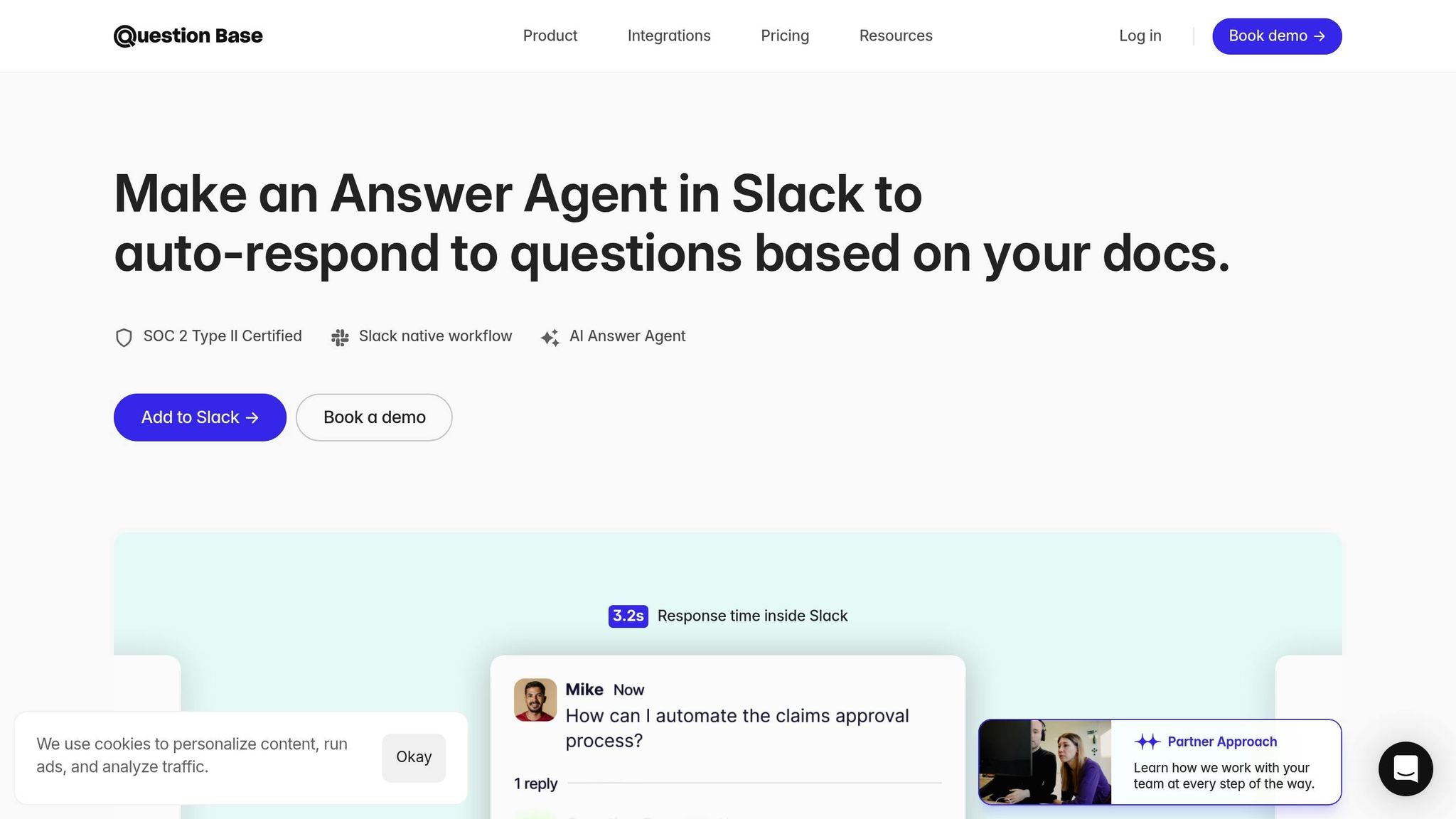
Getting started with Question Base is straightforward. After installing the app from Slack's App Marketplace and inviting the bot to your channels using /invite @questionbase, you'll link your Confluence account through the Knowledge Sources page at questionbase.ai/questions. Once connected, the platform indexes your published Confluence content - such as pages, blog posts, whiteboards, and databases - and refreshes this data every four hours to ensure accuracy [1].
When a team member asks a question in Slack, Question Base scans the indexed Confluence content and provides an answer in just 3.2 seconds [5]. Each response includes a direct link to the original Confluence page, making it easy for users to verify details or dive deeper into the context.
Monica Limanto, CEO of Petsy, shared: "The tool exceeded expectations by allowing staff to get answers in seconds rather than waiting on busy managers" [5].
Unlike Question Base vs Slack AI, where the latter relies on chat history to formulate responses, Question Base pulls answers directly from trusted sources - your Confluence pages. This approach is particularly important for teams in HR, IT, or operations where accuracy and reliability are non-negotiable.
Maria Jensen, UX Lead at Ticketbutler, remarked: "Since we started using Question Base, we don't spend any time looking up our procedures in a support manual... QB finds the relevant answers in a few seconds" [5].
This rapid, reliable search function creates a foundation for more efficient workflows, especially for support teams.
Question Base Features for Support Teams
Support teams often deal with repetitive questions, and Question Base's AI capabilities are designed to tackle this head-on, saving time and improving resolution rates. The platform includes analytics dashboards that track metrics like resolution rates, automation rates, and unanswered questions. This last feature is particularly useful for knowledge managers - it highlights gaps in your Confluence documentation. For instance, if employees repeatedly ask about "new product specs" and the AI can't provide an answer, it signals the need to create or update a relevant page.
On average, enterprise teams experience a 35% automation rate for repetitive questions within the first 30 days of using Question Base [5].
The platform also offers per-channel customization, allowing you to tailor the AI's tone and behavior to suit different departments. By automating routine queries, internal experts save over six hours per week on average. For a company with 1,000 employees, this level of efficiency can prevent more than $2 million in lost productivity annually [5].
Testing and Fixing Common Problems
After completing the configuration steps, the next priority is to thoroughly test the integration to ensure everything runs smoothly.
Test Notifications and Commands
Start by asking a question in any active Slack channel. The AI should respond within 3.2 seconds [5], pulling relevant information from your Confluence content. Each response should include source references that link directly back to the original Confluence page [1].
Check the "last sync" timestamp in your settings menu. This timestamp shows when the system last updated its connection to your Confluence spaces, which happens automatically every four hours [1]. If responses seem delayed or outdated, this timestamp can help you determine if the sync process is working as it should.
Fix Common Setup Issues
If notifications or commands aren't functioning, confirm that all necessary permissions and admin-level installations are in place [3]. A Confluence administrator must install the companion apps from the Atlassian Marketplace to unlock the integration's full functionality. Also, test Slack slash commands to ensure the app is responding as expected.
Make sure that only published content is being synced. If certain information seems to be missing, check whether the relevant pages are still in draft status. The integration only syncs published Confluence pages, blog posts, whiteboards, and databases - drafts are excluded from search results [1]. Additionally, verify that your subscription plan supports advanced integration features. For instance, connecting Confluence as a knowledge source generally requires the Pro Plan, which costs $8 per user per month [2][5].
If attachments or specific file types aren’t showing up, confirm they are supported by the integration. Use the integration dashboard’s "last sync" timestamp to pinpoint potential connection issues [1].
Thorough testing ensures tools like Question Base can consistently deliver accurate, source-linked answers within your Slack workflows. Address any setup issues before moving on to further optimization steps.
Summary
Integrating Slack with Confluence eliminates the constant app-switching that can waste up to 4 hours per week [3]. This connection allows team members to search, share, and access verified documentation directly within Slack, streamlining workflows and reducing distractions. For departments like internal support, HR, IT, or operations, the benefits are amplified when paired with AI tools tailored for knowledge management. This setup not only simplifies access but also sets the stage for smarter, AI-driven support systems.
By adding an intelligent layer, Question Base transforms this integration into more than just a connection - it becomes a source of instant, verified answers. While Slack AI can summarize past conversations, Question Base delivers precise, up-to-date responses in just 3.2 seconds, all at a competitive cost. This distinction is crucial for teams where accuracy and compliance are non-negotiable. Continuous synchronization ensures every answer is current, with direct links to its source, saving experts from repeatedly addressing the same questions. For a company of 1,000 employees, this efficiency can reclaim over $2 million annually in productive time [5].
The integration also includes analytics dashboards that highlight unanswered questions and identify knowledge gaps. This helps managers pinpoint which Confluence pages need updates, ensuring documentation stays relevant.
"Since we started using QB we haven't used our Google support docs. And if I go on vacation or sick leave, I feel comfortable that QB will just take over." - Linn Stokke, Online Events & Marketing Specialist, Ticketbutler [5]
Enterprise teams benefit further with SOC 2 Type II compliance, expert verification, and the ability to turn Slack discussions into verified answers with a single click. This integration turns fleeting Slack conversations into structured, searchable documentation that grows and evolves alongside your organization.
FAQs
What are the benefits of connecting Slack with Confluence?
Integrating Slack with Confluence can transform how teams manage their workflows by allowing Confluence pages, blogs, and files to be easily searched and accessed directly within Slack. This eliminates the constant back-and-forth between tools, saving time and improving overall efficiency.
This setup also supports real-time updates, meaning any changes made in Confluence are immediately visible in Slack channels. Teams can also document key Slack messages or decisions directly into Confluence, cutting down on manual work while keeping critical information organized in one central hub.
With robust security and compliance measures in place, this integration ensures that sensitive information is shared safely. It’s a game-changer for support, HR, IT, and operations teams aiming to enhance collaboration and keep their knowledge base unified.
How does Question Base make teams more efficient compared to Slack AI?
Question Base boosts team efficiency by delivering instant, expert-verified answers directly in Slack, cutting out the hassle of digging through platforms like Confluence, Notion, or Salesforce. It keeps your information up-to-date by automatically syncing knowledge from these tools, so your team spends less time switching between systems and more time getting things done.
Beyond just quick answers, Question Base includes features like case tracking, duplicate question detection, and analytics to pinpoint recurring knowledge gaps and streamline knowledge management. These tools not only reduce repetitive questions but also free up your experts to focus on higher-value tasks. Unlike Slack AI, which is centered on summarizing chat history, Question Base goes a step further by supporting proactive knowledge creation.
With its simple, no-code setup, teams can link multiple data sources in just minutes. This makes it easy for HR, IT, and Ops teams to access reliable, traceable knowledge at scale. By simplifying workflows and keeping everyone on the same page, Question Base helps teams save time and achieve better results.
What permissions do I need to set up the Slack and Confluence integration?
To set up the Slack and Confluence integration, admin access is generally needed for both platforms. This access allows you to authorize the connection and adjust the integration settings as necessary. Since exact permissions may vary, it’s a good idea to check with your organization's admin or review the official integration documentation from Slack or Confluence for more detailed guidance.