∙
Cooper
∙
Reading time:
12 min

If your team juggles Slack for conversations and Notion for documentation, you’ve probably faced the challenge of losing key insights buried in Slack threads or manually updating Notion. Connecting Slack and Notion fixes this by creating a two-way sync: Slack discussions can be saved directly to Notion, while Notion updates trigger Slack notifications. This integration reduces app-switching and keeps everyone informed effortlessly.
Key Benefits:
Save Slack messages directly to Notion: Turn important discussions into organized Notion entries.
Get Slack alerts for Notion updates: Stay updated on task changes, new entries, or mentions.
Streamline workflows: Use message shortcuts or database automations to cut down repetitive tasks.
Who It’s For:
HR Teams: Share verified policies and FAQs in Slack without re-answering questions.
IT & Engineering: Log bugs, track fixes, and update workflows seamlessly.
Customer Success: Centralize feedback and manage roadmaps efficiently.
Setting up is quick and requires the right permissions. Advanced features, like Notion AI connectors, need a Business or Enterprise plan. For more robust automation, tools like Zapier or Slack Workflow Builder can extend functionality. This integration simplifies workflows and ensures your team’s knowledge is always accessible and up-to-date.
How to Connect Notion to Slack - Easy Integration Tutorial
How to Connect Slack and Notion
How to Connect Slack and Notion: Step-by-Step Setup Guide
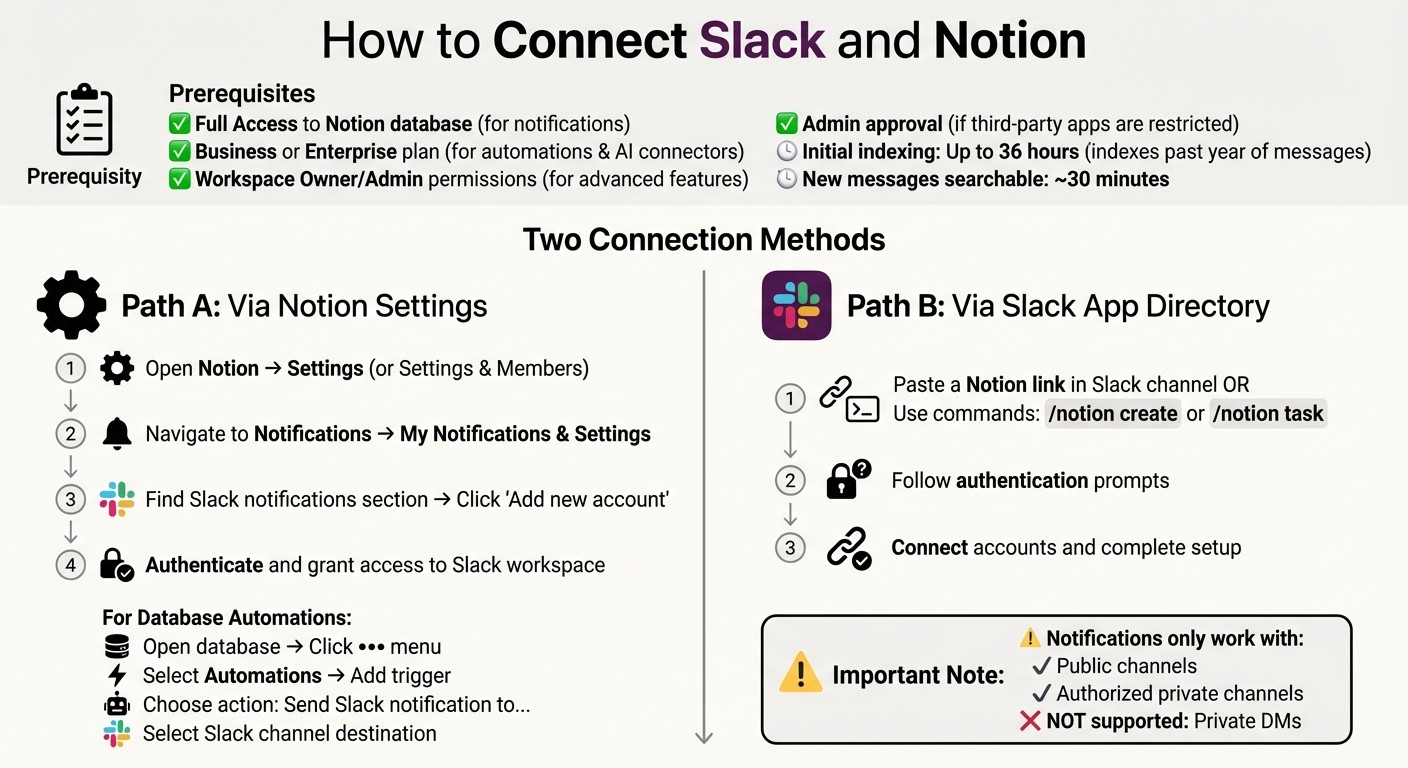
Setting up a connection between Slack and Notion is a straightforward process that takes just a few minutes. While basic features like sending messages to Notion or receiving database updates in Slack can be set up by most users, more advanced tools - such as the Notion AI connector - require specific permissions. To access these enterprise-level capabilities, you’ll need to be both a Notion workspace owner and a Slack workspace admin, or have approval from someone who holds these roles [2][5]. Below, we’ll walk through the steps to connect these tools, whether you’re starting from Notion or Slack.
What You Need Before Starting
Before diving in, ensure you manage data access by role and have the right account setup. For database notifications, you’ll need "Full Access" to the Notion database you plan to work with [1]. If you only have "View" access, you’ll be able to see notifications but won’t be able to create new ones.
Additionally, Notion automations and Slack AI connectors require a Business or Enterprise plan [1][2]. If your Slack admin has restricted third-party app installations, you’ll need to secure their approval before proceeding [1]. For features like unfurling private links or searching Slack messages via Notion AI, individual team members must connect their personal accounts [1][2].
It’s worth noting that the Slack AI connector has an initial indexing phase that can take up to 36 hours to complete [2]. During this time, the connector will index Slack messages from the past year. After the initial setup, new messages typically become searchable within about 30 minutes [2].
Connecting via Notion Settings
To connect Slack through Notion, start by navigating to Settings (or Settings & Members) in the Notion sidebar. From there, go to Notifications or My Notifications & Settings [1][3]. In the Slack notifications section, click Add new account. You’ll then be prompted to authenticate and grant Notion access to your Slack workspace.
If you want to set up database-specific connections, open the database in Notion and click the ••• menu at the top. Select Automations, then choose Add trigger. You can set actions like Send Slack notification to... [1]. If your accounts aren’t yet connected, Notion will guide you through authentication and let you select the Slack channel where notifications should be sent.
Connecting via Slack App Directory
Alternatively, you can start the connection process from Slack. Simply paste a Notion link or use commands such as /notion create or /notion task in Slack to trigger the authentication process [1][3]. These commands will prompt you to connect your accounts and set up the integration.
Keep in mind that these commands are limited to channel-level actions [1]. Notifications triggered by Notion automations or database settings can only be sent to public channels or authorized private channels. Private direct messages (DMs) aren’t supported as destinations for notifications [1].
Real-World Uses and Automation
Automating repetitive tasks helps capture important knowledge before it gets lost and cuts down on manual effort. Below are some practical examples of how automation can simplify workflows and keep teams in sync.
Sending Notion Updates to Slack Automatically
Notion's database automations allow you to send updates straight to Slack channels whenever changes occur. To set this up, open the ••• menu at the top of a Notion database, select Automations, and click Add trigger. You can choose events like "Page added" or "Property edited" - for instance, when a task's status changes to "Complete" - and configure the action to Send Slack notification to... [1][3].
These notifications can be tailored with rich text, hyperlinks, and dynamic variables such as @trigger.person to identify who made the update [1]. This is especially useful for centralizing requests. For example, when a new design request is added to your Notion intake database, a message can automatically notify your #design-team channel in Slack [3].
For more precise alerts, you can add Button properties to database entries. When someone clicks a button - like marking a project as "Ready for Review" - Notion sends a pre-written message to a specific Slack channel [1]. This ensures teams get instant updates without needing to check Notion manually. Note that this feature requires Full Access and a paid Notion plan [1].
Saving Slack Messages to Notion
Slack threads often hold key information that's difficult to find later. Using native slash commands or the three-dot menu, you can turn Slack messages into Notion entries [1][3].
When saving these messages, use the Add property option to immediately assign details like status, priority, or category. This makes the entries easier to search and act on [1]. For additional context, include the original Slack link in the Notion page or use the Paste as Preview feature to retain the entire conversation thread [1][3]. Some teams take this further by mapping specific Slack channels to corresponding Notion databases. For example, messages from #engineering-bugs can be routed directly to a Bug Tracker database [3]. For more advanced workflows, third-party tools can expand these capabilities.
Building Custom Automations with Zapier
For tasks that go beyond native integrations, tools like Zapier and n8n enable more complex, multi-step automations. For example, you can set up emoji triggers - like a 📝 reaction - to automatically create a Notion to-do item [8]. This keeps your database organized and avoids unnecessary clutter.
Slack Workflow Builder, available with paid Slack plans, provides a no-code solution for creating intake forms that generate Notion pages [6][9]. This ensures requests are submitted in a standardized format, capturing all necessary details upfront. For instance, an IT help desk form in Slack can create a structured ticket in Notion with fields like department, urgency, and requester name already filled out.
While native integrations are great for one-way notifications, tools like Zapier and n8n allow for two-way syncs, offering more advanced options for users with intermediate technical skills. Meanwhile, Slack Workflow Builder simplifies intake processes for non-technical users. Together, these tools enhance the connection between Slack and Notion, enabling smoother workflows and better knowledge management [7][8].
Adding AI-Powered Knowledge Access with Question Base
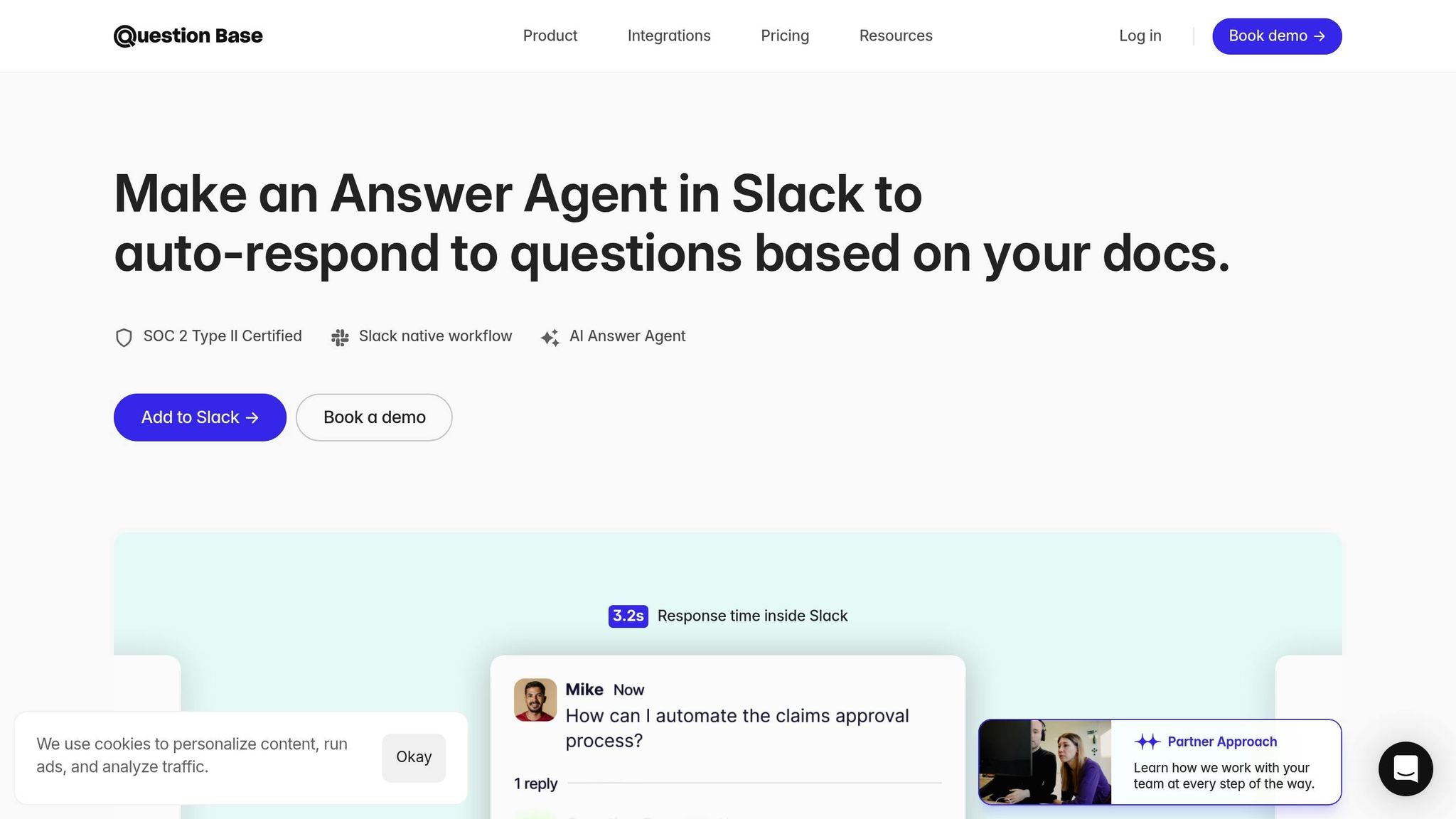
Efficient data transfer is only part of the equation - retrieving the right information when you need it is just as important. That’s where Question Base comes in. While automations can move data between Slack and Notion, the challenge of locating the right information still exists. Question Base solves this by pulling verified answers directly from your documentation into Slack. By combining the smooth data flow between Slack and Notion with this AI-driven knowledge retrieval, teams can access the answers they need instantly.
How Question Base Stands Out from Slack AI
Slack AI focuses on summarizing past conversations, but Question Base takes a different approach - it delivers accurate, document-sourced answers verified by experts. It integrates seamlessly with systems like Notion, Confluence, Salesforce, and Google Drive, ensuring that responses are based on trusted documentation rather than chat logs [4][10].
Feature | Question Base | Slack AI |
|---|---|---|
Core Focus | Verified answers from trusted sources | Chat-based conversation summaries |
Data Sources | Notion, Confluence, Salesforce, Google Drive | Slack messages and shared files |
Verification | Expert-led validation workflows | AI-generated from chat history |
Knowledge Management | Tracks cases, detects duplicates, identifies gaps | Summaries and AI search |
Analytics | Resolution rates and automation effectiveness | Basic usage statistics |
For teams managing HR policies, IT guides, and operational playbooks, these differences matter. Question Base acts as a "bridge" between your tools - pulling answers from Notion into Slack while also exporting useful Slack discussions back into Notion as structured documentation [4][10].
Setting Up Question Base with Slack and Notion
Getting started with Question Base is straightforward. First, install the app from the Slack App Marketplace and invite it to your channels using the command /invite @questionbase. Then, head to the Question Base dashboard, open Settings, and select Knowledge Sources to connect Notion [4][11].
The integration uses Ragie.ai to securely link to your Notion workspace [4][10]. You can choose specific Notion pages, databases, or folders to sync, including tables, pages, and to-dos [4]. Slack messages are indexed and searchable within around 30 minutes [2], while Notion content syncs with timestamps showing the last update [4]. Once set up, employees can ask questions directly in Slack and receive answers pulled from your Notion documentation. Additionally, the "Export to Notion" feature allows you to send valuable Slack insights back to Notion, keeping your knowledge base up to date [4].
Why Enterprises Rely on Question Base
For large organizations, speed isn’t enough - accuracy, accountability, and control over knowledge are essential. Question Base meets these needs with SOC 2 Type II compliance and optional on-premise deployment for enhanced security. Its analytics dashboards provide insights into resolution rates, automation performance, and knowledge gaps, helping leaders identify areas where documentation can be improved [11].
Unlike general-purpose AI tools, Question Base is designed specifically for internal support teams - HR, IT, and operations departments that handle repetitive questions at scale. When employees ask something the AI can’t answer, the system flags these gaps and escalates them to experts, ensuring the knowledge base evolves to meet the team’s needs. By combining verified answers, enterprise-grade security, and tools for continuous improvement, Question Base offers a practical solution for organizations managing large teams across multiple departments.
Conclusion
Integrating Slack with Notion eliminates the hassle of switching between tools while keeping your team’s knowledge well-organized and easy to access. By cutting down on context switching, employees can seamlessly file tasks, log bugs, and capture feedback in Notion - all without leaving their Slack conversations. Real-time database automations ensure everyone stays updated, transforming scattered discussions into searchable, actionable documentation.
Automation takes care of repetitive tasks. For instance, database triggers can send Slack notifications when a Notion property changes to "Complete", helping teams stay on track. Link previews further enhance efficiency by providing instant context, allowing team members to access critical information without toggling between apps. These features free up more time for teams to focus on execution rather than searching for information.
Beyond these streamlined workflows, advanced solutions take enterprise operations to the next level. The real game-changer for enterprise teams lies in effective knowledge management. While basic integrations simply transfer data between Slack and Notion, Question Base is purpose-built for enterprise support teams. It ensures verified answers from your Notion documentation are instantly accessible in Slack, flags unanswered questions in Slack, and offers analytics to track resolution rates and automation efficiency. Question Base transforms knowledge management into a scalable, reliable process tailored for enterprise needs.
FAQs
What permissions do I need to set up the Slack and Notion integration?
To integrate Slack with Notion, you’ll need a few permissions in place. First, ensure you have Slack workspace owner or admin access to install apps. Similarly, you’ll need Notion workspace owner or admin rights to approve external connections. Both platforms must also be on a Business or Enterprise plan. Double-check that your team meets these requirements to ensure the setup process goes off without a hitch.
How does Question Base improve Slack and Notion integration for enterprise teams?
Question Base turns Slack and Notion into a unified knowledge hub for enterprise teams. It automatically captures important Slack messages and organizes them into searchable Notion pages, making sure essential information is always within reach. Plus, the bot delivers expert-verified answers directly in Slack, cutting down on the need to manually sift through Notion.
Key features include creating FAQs from repeated Slack discussions, syncing documentation effortlessly, and tracking resolution rates. Unlike Slack AI, which depends on chat history, Question Base taps into trusted tools like Notion, Confluence, and Salesforce. This ensures precise, auditable, and tailored answers that comply with enterprise standards. It’s a game-changer for HR, IT, and operations teams aiming to stay coordinated while saving valuable time.
How can automating Slack and Notion integration benefit my team?
Automating the integration between Slack and Notion takes the hassle out of managing your team’s knowledge. When key messages - like decisions, answers, or tasks - are shared in Slack, automation can convert them into Notion pages or database entries automatically, saving you from the tedious task of manual copying. This keeps information organized, searchable, and accessible to everyone who needs it.
Real-time syncing ensures your team can reduce tool-switching and stay focused. Slack notifications keep you updated on changes in Notion, and you can even handle actions like creating tasks or submitting feedback directly within Slack. This streamlined approach leads to faster workflows, fewer missed updates, and a centralized knowledge hub that grows with your organization.