∙
Cooper
∙
Reading time:
13 min

The Slack Google Drive integration connects your conversations in Slack with your files in Google Drive, saving time and reducing workflow interruptions. It allows you to share, search, and manage Google Drive files directly within Slack, eliminating the need to switch between platforms.
Key Features:
File Sharing: Instantly share Google Drive files in Slack using
/google-driveor upload shortcuts.Automated Permissions: Slack checks and adjusts file access permissions for channel members automatically.
Search: Find Google Drive files by name or content directly in Slack.
Notifications: Get real-time updates on file changes, comments, and access requests.
Benefits for Teams:
Simplifies collaboration by reducing tool-switching with agile integrations.
Speeds up file sharing and access management.
Improves search efficiency with Slack indexing file content.
Keeps everyone informed with integrated notifications.
Setup Overview:
Admins install the Google Drive app from the Slack App Directory.
Team members connect their Google accounts to Slack.
Use
/google-driveto share or create files, adjust permissions, and enable notifications.
While this integration improves file sharing and collaboration, it doesn’t fully address broader knowledge management challenges. Tools like Question Base expand on Slack’s capabilities by providing verified, cross-platform answers to streamline enterprise workflows. Learn more about how Question Base can enhance your Slack experience.
How To Connect Google Drive To Slack 2025! (Full Tutorial)
How to Set Up Google Drive in Slack
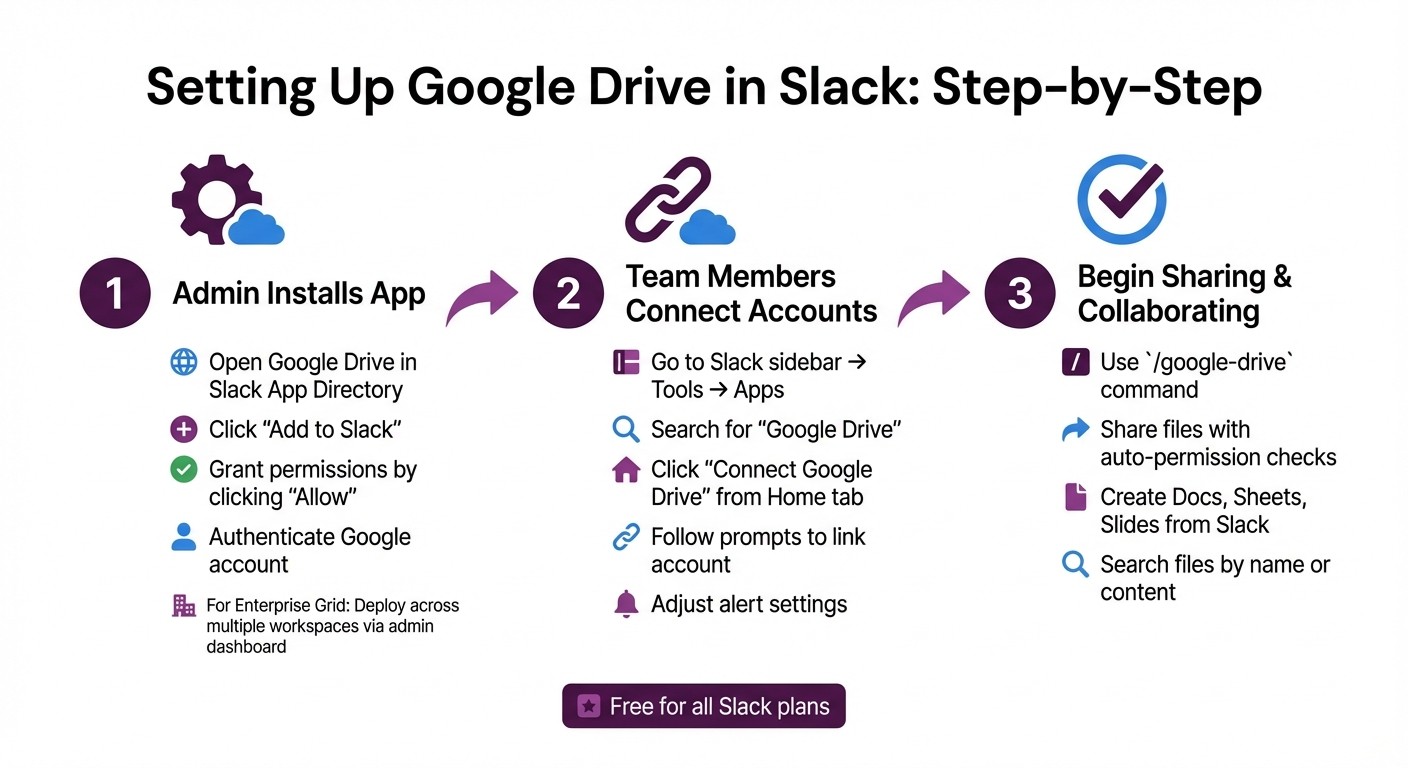
How to Set Up Google Drive Integration in Slack: 3-Step Process
Setting up Google Drive in Slack is a quick process, but the steps depend on your role. Workspace Admins or Owners handle the initial app installation, while individual team members connect their own Google accounts afterward.
What You Need Before Starting
Before diving in, confirm you have admin permissions. Workspace Admins (or Org Admins for Enterprise Grid users) are responsible for installing the app across workspaces.
You'll also need a Google account - either a personal Gmail or a Google Workspace account. The setup works best through a desktop browser or the Slack desktop app. If your admin has enabled domain-wide authentication, your Google account may automatically connect without requiring manual steps.
It’s important that an admin installs the Google Drive app first. Once that’s completed, team members can link their individual Google accounts, unless domain-wide authentication is already in place.
Installing the Google Drive App
The Google Drive app is free to install and is available in the Slack App Directory. Here’s how to add it to your workspace:
Open the Google Drive listing in the Slack Marketplace and click Add to Slack.
Select Add Google Drive app.
Click Allow to grant Slack access to your Google Drive.
Authenticate your account by selecting the Google account you want to connect and clicking Allow.
For Enterprise Grid organizations, admins can deploy the app across multiple workspaces through the admin dashboard, simplifying the process for larger teams. Once installed, individual users will still need to link their Google accounts.
Connecting Your Google Drive Account
After the app is installed, team members need to connect their personal Google accounts. To do this, go to your Slack sidebar and click Tools (or More > Apps if you don’t see Tools). Then:
Select Apps and search for Google Drive.
From the app's Home tab, click Connect Google Drive.
Follow the prompts to link your account.
Adjust alert settings for comments, access requests, and shared files as needed.
When you share files through this integration, they remain stored in Google Drive. However, Slack makes them fully searchable, including both file titles and the text within the documents. This capability is a key part of building knowledge management integrations for Slack to surface information across the organization.
Feature | Slack Free Plan | Slack Paid Plans |
|---|---|---|
Google Drive App Cost | Free | Free |
File Access Duration | 90 days | Unlimited |
Max File Upload Size | 1GB | 1GB |
Installation | Workspace level | Workspace or Org level |
How to Use Slack Google Drive Integration
This integration streamlines your workflow by connecting your conversations with your documents, reducing the need to switch between platforms.
Sharing Files in Slack Channels
To share a file, simply type /google-drive or use the file upload shortcut to pick a recent file. When you share a file, Slack automatically checks if everyone in the channel has the appropriate access. If someone doesn’t, you’ll get a notification right away with a drop-down menu to adjust permissions - whether it’s view, edit, or comment - without ever leaving Slack.
"The moment you share a Drive file in Slack, it quickly checks privileges for every member in that channel. You'll get an instant notification if there's a problem, along with a drop-down menu to let you change permissions with one simple click." – Slack
All shared files are searchable, including their titles and text within the documents. To keep essential files easy to find, hover over the message and click "Pin to channel." For more detailed previews, you can enable "File Previews" in the Google Drive app's Home tab.
Next, let’s look at how you can create Google Drive files directly within Slack to further enhance your workflow.
Creating Google Drive Files from Slack
With the /google-drive command, you can create Docs, Sheets, or Slides directly in Slack. After selecting the type of file you want, you can set a title and adjust sharing settings right away. If you're not ready to share yet, just uncheck the "Share this document" box.
These files are saved directly to Google Drive and remain searchable within Slack. Creating documents in the relevant project channel ensures that the file stays connected to the ongoing conversation, making it easier to track decisions and gather input from your team. This is a key part of Slack knowledge base setup for better information management.
Once your files are created, staying on top of updates is just as simple.
Setting Up File Update Notifications
After linking your account, Slack will keep you informed about file comments, access requests, and shares. You can even reply to comment notifications right in Slack, and your responses will sync back to the Google Drive file.
To manage these notifications, head to Slack's Google Drive app settings. Go to Tools or automate tasks in Slack using the sidebar, select Apps, choose Google Drive, and then toggle notifications on or off in the Notifications section. You can also customize updates directly in Google Drive. This setup helps you stay informed about important file activities without overwhelming your notifications.
Managing Permissions and Finding Files
Controlling File Access and Permissions
When you share a Google Drive file in Slack, the integration automatically checks if everyone in the channel has the necessary access to view or edit it. If someone lacks the appropriate permissions, Slack immediately notifies you and provides a drop-down menu to adjust their access level - whether it’s view, comment, or edit - without requiring you to open Google Drive [1].
This feature eliminates unnecessary delays that can disrupt team workflows. With just one click, you can resolve access issues, ensuring everyone stays on the same page. For administrators, Google Workspace offers more advanced controls, such as the ability to whitelist the Slack app for specific platforms (web, Android, iOS) or completely disable the Drive API scope to limit third-party access [5].
However, it’s crucial to be cautious when sharing files in public Slack channels. If the file permissions are set to "Anyone with the link", you might unintentionally expose sensitive documents to unauthorized users. Always double-check sharing settings before posting confidential materials in open channels.
Beyond managing permissions, Slack’s search capabilities make locating files a breeze.
Searching for Google Drive Files in Slack
Once permissions are sorted, finding your files becomes a seamless process. Slack allows you to search for file titles and even the content within documents. Its advanced filtering options make it easy to locate Google Drive files, even if you don’t remember their exact names.
Slack indexes both file titles and document content, enabling you to search by keywords or phrases. To refine your results, you can click the Files tab in the search results and filter specifically for "Google Drive" as the file type [1]. This functionality ensures quick access to the files you need, saving time and keeping your workflow uninterrupted.
This feature is especially valuable for teams juggling hundreds of shared documents across multiple channels. According to Slack, 68% of workers lose at least 30 minutes daily switching between tools [4]. The ability to search Google Drive files directly within Slack eliminates that inefficiency.
"Every time you share a Google Drive file in Slack, Slack indexes not only the title but also text content within those files. So when you search for something in the future, Slack will locate results based on both titles and content." – Slack [1]
Limitations and How Question Base Helps
Native Integration vs. Question Base
Slack’s native tools and Google Drive integration work well for straightforward file sharing, but they’re not built to handle the complexities of managing enterprise-level knowledge. For example, while Slack AI can summarize conversations, it doesn’t distinguish between outdated discussions and up-to-date, official policies - a critical gap for large teams [2].
Another challenge is visibility. If your organization relies on platforms like Confluence, Notion, or Zendesk for documentation, Slack AI won’t pull information from those sources. This forces employees to juggle multiple tools, wasting time and increasing frustration [2].
Feature | Native Slack + Google Drive | Question Base |
|---|---|---|
Primary Function | File sharing and keyword search | AI-powered verified answers |
Knowledge Scope | Slack and Google Drive only | Cross-platform (Notion, Confluence, Zendesk, Salesforce, etc.) |
Quality Control | None; treats all messages as equal | Prioritizes official docs over chat |
Testing | None; no pre-deployment testing | Simulation mode using past data [2] |
Customization | Default Slack persona | Fully customizable AI persona and tone |
Analytics | Basic usage stats | Resolution rate, knowledge gap tracking, automation metrics |
These shortcomings explain why many enterprises seek more advanced solutions like Question Base.
Why Enterprises Choose Question Base
Question Base bridges the gaps left by native tools, delivering verified answers from multiple trusted sources. Instead of sifting through endless files, employees can simply ask questions in Slack and get instant, accurate responses drawn from platforms like Google Drive, Notion, and Confluence [3].
With Question Base, you maintain control over what the AI accesses. For instance, you can restrict it to specific folders, such as "IT Policies" or "Employee Handbooks" in Google Drive, ensuring responses come from vetted documents only [2]. Plus, its simulation mode lets you test how the system will respond before going live - something native Slack tools can’t do [2].
Beyond answering questions, Question Base also tracks unanswered queries and flags gaps in your knowledge base. Its analytics dashboard offers insights like resolution rates, automation metrics, and high-demand topics, enabling teams to continuously improve their knowledge management.
"The bot's responses are tailored to your specific documents, making it feel like having a knowledgeable assistant who's read and understood everything in your connected folders." – Yana Tornoe, Question Base Documentation [3]
The Pro Plan is available for $8 per user per month (billed monthly) and includes premium support, integrations with tools like Google Drive, and coverage for up to 200 pages per user [6]. For organizations with advanced security needs, Enterprise plans provide on-premise deployment, white-labeling, and multi-workspace support.
Conclusion
The Slack Google Drive integration simplifies file sharing, manages permissions seamlessly, and makes document searches more efficient. As the Slack Blog aptly describes:
"Drive and Slack go together like bread and jam, and thanks to recent updates, working between the two is easier than ever" [1].
With features like automated permissions, comment notifications, and advanced search tools, this integration helps reduce the usual hurdles of collaboration.
However, while these tools improve workflows, file sharing alone doesn’t address the broader challenge of managing knowledge effectively. Teams often need verified answers from multiple trusted sources - not just links to files. Slack AI, while helpful for summarizing past conversations, depends heavily on chat history and may miss the most up-to-date official guidelines.
This is where Question Base steps in. It enhances native integrations by enabling employees to ask questions in Slack and receive precise answers sourced from platforms like Google Drive, Notion, and Confluence. The Question Base Pro Plan - priced at $8 per user per month - includes premium support and covers up to 200 pages per seat [3]. For organizations with advanced needs, Enterprise plans offer features like on-premise deployment and white-labeling.
FAQs
How does the Slack and Google Drive integration manage file permissions?
When you share a Google Drive file in Slack, the integration takes care of adjusting the file’s permissions automatically. It ensures that the members of the Slack channel or direct message where the file is shared have the proper access. This way, everyone involved can view or collaborate on the file without needing to manually update permissions.
This streamlined approach not only saves time but also ensures secure and effortless sharing directly within Slack.
How can I set up the Google Drive app in Slack for team collaboration?
To integrate the Google Drive app with Slack and streamline your team's collaboration, follow these steps:
Locate the App: Head to the Slack App Directory and search for Google Drive. Click on Add to Slack to initiate the installation.
Connect Your Account: Log in with your Google account and approve the required permissions to link Google Drive with your Slack workspace.
Adjust Settings: Fine-tune the integration by choosing which channels the app can interact with and setting default permissions for file sharing.
Test the Setup: Verify the connection by typing
/drivein a Slack channel or sharing a Google Drive file. This ensures everything is functioning as expected.
Once installed, your team can effortlessly create, share, and collaborate on Google Drive files directly within Slack, making workflows smoother and boosting efficiency.
How does Question Base improve Slack's integration with Google Drive for enterprise teams?
Question Base takes Slack's Google Drive integration to the next level, turning it into a dynamic knowledge hub tailored for enterprise needs. By linking your Google Drive account, Question Base enables instant, natural-language searches across all your documents. Whether it’s a policy, a guide, or a specific file, employees can locate exactly what they need - without leaving Slack or wasting time hunting through folders or chat histories.
What sets Question Base apart from Slack’s standard integration is its enterprise-focused features. These include expert-reviewed answers, tracking unanswered questions, spotting duplicate queries, and delivering analytics on resolution rates. It doesn’t stop at Google Drive either - Question Base also connects with other trusted platforms like Notion, Confluence, and Salesforce, ensuring reliable and auditable knowledge management. Designed for teams such as HR, IT, and Operations, it respects Google Drive’s permission settings while simplifying the way organizations manage and share knowledge at scale.