∙
Cooper
∙
Reading time:
17 min

Repetitive questions and scattered information waste time. Integrating Slack with enterprise search tools solves this by centralizing knowledge, making it easy for employees to find answers without leaving Slack. Here's how to do it in five steps:
Assess Your Needs: Identify data sources (e.g., Google Drive, Confluence) and set permissions to ensure secure, relevant access.
Connect Tools: Configure Slack with apps like Jira, Salesforce, and GitHub, and authenticate user access.
Customize Settings: Fine-tune filters and permissions for accurate and secure search results.
Test the System: Validate functionality and permissions through real-world queries. Following search UX best practices ensures the interface remains intuitive for all users.
Train and Monitor: Teach employees how to use the system effectively and track analytics to improve results.
For teams needing verified answers, tools like Question Base offer a more precise solution by pulling trusted data from platforms like Notion or Zendesk. Whether you choose Slack's native features or an external tool, these steps streamline workflows and reduce interruptions, saving time for everyone.
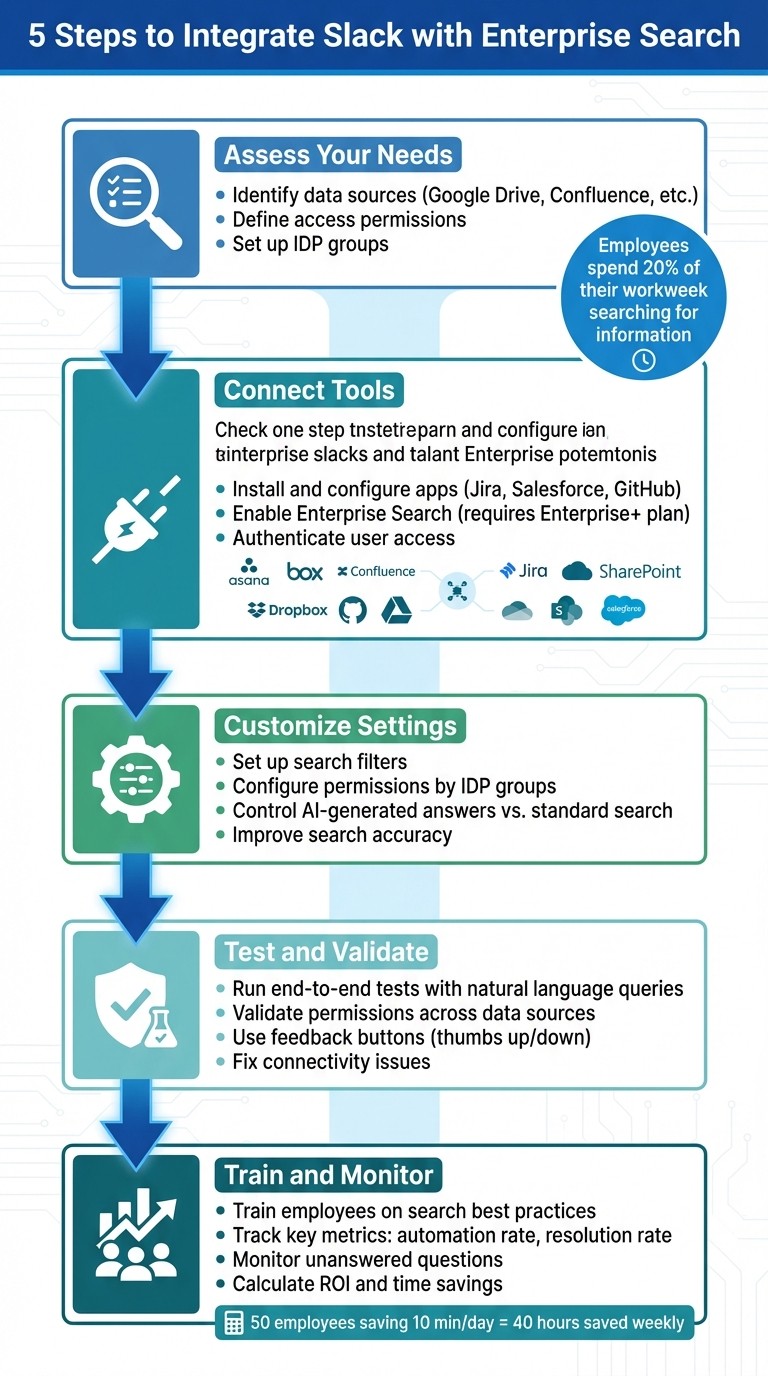
5 Steps to Integrate Slack with Enterprise Search
How to Use the GoSearch AI Slackbot
This video demonstrates how to streamline your workflow using AI-powered Slack search to find information instantly.
Step 1: Assess Your Integration Needs
Take stock of your current tools and clarify who has access to them. This step helps prevent issues like inaccessible documents or overlooked data sources. By starting with a clear understanding of your setup, you can ensure a smoother and more secure integration process.
Identify Your Data Sources
Compile a list of all the platforms where your team stores information. Popular options often include file storage systems like Google Drive, Microsoft OneDrive, SharePoint, Box, and Dropbox; customer relationship management (CRM) tools such as Salesforce; and project management platforms like Jira Cloud, Asana, and GitHub. Keep in mind that Slack Enterprise Search requires an Enterprise+ plan. If you're exploring other solutions, Question Base offers seamless integration with platforms like Notion, Confluence, Google Drive, Salesforce, Zendesk, Intercom, and more - without requiring a specific Slack plan.
Define Access Permissions
Set up permission controls that align with your organization's security policies. A federated approach ensures that updates - such as revoking Google Drive access - are immediately reflected in Slack search results. This is crucial, given that employees spend nearly 20% of their workweek searching for information across disconnected systems [1].
To streamline access, use IDP (Identity Provider) groups to assign teams to specific data sources. Admins can manage permissions at a high level, while employees connect their personal accounts to get results tailored to their access rights.
As Slack highlights:
"Each time you ask a question, the results will be provided based on your access and permissions to that data at that exact time, so if your access to that data changes, the information stays secure" [4].
Step 2: Connect Slack to Your Enterprise Search Tools

After mapping out your data sources and setting up permissions, the next step is to connect those data sources and ensure your apps are configured to align with the permissions you've established.
Install and Configure the Necessary Apps
To enable Slack Enterprise Search, Org Owners or Admins on Enterprise Grid or Enterprise+ plans need to activate the feature. Navigate to Organization settings > Settings > Enterprise search [2][5]. From there, you can add data sources such as Asana, Box, Confluence Cloud, Dropbox, GitHub, Google Drive, Jira Cloud, Microsoft Teams, OneDrive/SharePoint, and Salesforce.
Some platforms require specific setup steps:
Confluence or Jira Cloud: Provide your subdomain (e.g., companyname.atlassian.net).
GitHub: Install the "Slack enterprise search for GitHub" app directly within your GitHub organization.
Box: Activate the "Box Connector for Slack Workflows" in your Box enterprise settings and set it to "Available for all users" [2].
For teams looking for a simpler alternative, Question Base offers an easy-to-use solution that doesn’t require an Enterprise+ plan. You can install the app directly from the Slack App Marketplace. Then, invite the bot to the necessary channels using the /invite @questionbase command. With Question Base, you can connect platforms like Notion, Confluence, Google Drive, Salesforce, Zendesk, and Intercom - without needing to configure subdomains or perform complex setups.
Authenticate and Authorize Data Access
Once admins enable the data sources, individual users must authorize access. In Slack's search interface, users can click the plus icon next to each data source and follow the prompts to complete the authorization process [6][7]. This ensures that only authorized users can view specific content.
Admins can further control access by assigning permissions to specific IDP (Identity Provider) groups or individuals during the "Add a data source" workflow [2][5]. This group-based management approach is more scalable than handling individual permissions and ensures compliance with your organization's security policies. Additionally, modern enterprise search tools offer real-time indexing, meaning if a user’s access is revoked in the source system, their access to that content in Slack is immediately removed [5].
Step 3: Customize Search Settings
Now it’s time to fine-tune your search settings by setting up filters and permissions. This ensures your team gets relevant, secure results tailored to their needs.
Set Up Search Filters and Permissions
Admins have detailed control over how each data source is presented in Slack. Through the admin dashboard, you can decide whether content from a specific source - like Salesforce or GitHub - should appear in standard search results, AI-generated answers, or both [2]. This approach is especially helpful for limiting AI-generated responses to verified documentation while keeping broader search capabilities available for collaboration.
The most efficient way to manage permissions is by leveraging role-based data access through Identity Provider (IDP) groups. Instead of assigning access rights to individual users, align your existing IDP groups (e.g., Sales, Engineering, or HR) with specific data sources [2][5]. For example, you could allow your HR team to access internal wikis and employee handbooks while restricting Salesforce data to your sales and customer success teams. If a user's access is removed in the source system - like when they switch teams or leave the company - their ability to search that content in Slack is automatically revoked.
Once filters are in place, you can further refine your setup to improve search accuracy.
Improve Search Accuracy
Delivering accurate search results starts with properly configured data sources. Double-check that each platform’s required settings are correctly applied to maintain consistent, high-quality results.
For teams that rely on verified and precise answers, Question Base offers a tailored solution. While Slack Enterprise Search excels at retrieving documents across apps, Question Base directly connects to your trusted documentation sources and delivers AI answers that are verified by humans. It also supports SOC 2 compliance and provides optional on-premise deployment, making it an ideal choice for organizations prioritizing accuracy, auditability, and control over knowledge access. Unlike general-purpose tools, Question Base is purpose-built for HR, IT, and operations teams, ensuring you maintain ownership and reliability of your knowledge base.
Step 4: Test and Validate the Integration
Once your search settings are configured, it's time to ensure everything works as intended. Testing helps confirm that your team gets the right results and that permissions are correctly enforced across all connected data sources.
Run End-to-End Tests
Start by running natural language queries like "What is the latest hotel policy?" to check if the AI understands the intent and delivers accurate results [1]. Test searches across various data sources - such as Google Drive, Confluence, and Salesforce - to verify that content appears properly in Slack.
Pay close attention to permission validation during this phase. Users should only see results for content they have explicit access to in the source application. The AI must also respect these same permission rules when generating answers [2]. Once an admin enables a data source, individual users will need to connect their accounts (e.g., Google Drive, GitHub) to view relevant results [2].
Use the feedback buttons (thumbs-up or thumbs-down) on search results to help train the AI. This feedback loop refines how information is ranked and presented over time, improving accuracy [1].
If search results aren't appearing as expected, it's time to troubleshoot connectivity and permissions or review Slack knowledge base best practices to ensure your setup is optimized.
Fix Permissions or Connectivity Issues
When testing uncovers issues, addressing common configuration errors should be your first step. For instance, check the integration settings for tools like Jira Cloud or Confluence Cloud to ensure the correct subdomain (e.g., "companyname.atlassian.net") is entered in Slack's integration setup [2]. For GitHub, verify that the "Slack enterprise search for GitHub" app is installed in the appropriate organization. Similarly, for Box, make sure the "Box Connector for Slack Workflows" is set to "Available for all users" in the Box admin settings [2].
If a user can't access results from a specific source, review the "Who can use" dropdown in the Enterprise Search settings. Confirm that their Identity Provider (IDP) group is included [2]. Slack's real-time permission syncing ensures that changes to document access in source apps like Google Drive or SharePoint should quickly reflect in search results [2].
Data Source | Common Configuration Requirement | Troubleshooting Step |
|---|---|---|
GitHub | Organization Name & App Installation | Confirm GitHub organization name and app installation [2] |
Jira / Confluence | Subdomain | Ensure the correct cloud subdomain is entered [2] |
Asana | Organization Name | Locate the name in the Asana admin console settings tab [2] |
Box | Individual Integration Controls | Enable "Box Connector for Slack Workflows" for all users in Box admin settings [2] |
Step 5: Train Your Team and Monitor Usage
For any integration to deliver results, employees need to use it effectively, and its impact should be closely monitored.
Train Employees on Search Best Practices
Start by teaching employees how to connect their accounts within Slack for tools like Google Drive, Confluence, or GitHub. This ensures the search engine only retrieves results they’re authorized to access [2].
Next, show them how to phrase full, natural questions and apply filters to refine their results. For instance, typing "What's our remote work policy?" is far more effective than just "remote work" [1]. Filters can further enhance precision - narrowing searches to only Jira tickets or Confluence pages often yields more relevant results [1]. If your integration includes slash commands (like /qb for Question Base), make sure everyone knows how to use them [3].
Once training wraps up, use analytics to fine-tune the system and address any gaps.
Use Analytics to Track Performance
Analytics are your best tool for measuring both adoption and effectiveness. Focus on key metrics like automation rate (the percentage of queries resolved without human intervention) and resolution rate (how often searches return useful answers). These metrics provide a clear picture of how well the system is working.
Pay close attention to unanswered questions on a weekly basis. If employees frequently search for terms like "expense reimbursement timeline" and find no results, it’s a sign that your documentation needs updating. Set alerts to flag responses marked as unhelpful, so subject matter experts can quickly refine the source material.
To estimate ROI for knowledge base audits, calculate the time saved per search and multiply it by your team’s hourly rate. For example, if 50 employees each save 10 minutes daily by finding answers in Slack instead of asking colleagues, that adds up to about 40 hours saved weekly. Conduct quarterly audits of your most accessed resources, assigning owners to verify their accuracy. Use role-specific dashboards to identify which departments - like HR or Engineering - are using the tool most effectively, and provide extra training for teams that may be falling behind.
Metric | Purpose | Impact on Productivity |
|---|---|---|
Automation Rate | Percentage of queries resolved by AI alone | Reduces workload for support teams and experts |
Resolution Rate | Success rate of searches returning useful answers | Highlights system accuracy and content gaps |
Unanswered Questions | Identifies missing or outdated content | Helps prioritize new documentation efforts |
User Feedback | Tracks user input on search results | Improves AI accuracy and ranking over time |
Expert Time Savings | Measures reduction in repetitive questions | Frees senior staff for higher-value work |
Comparison: Slack Enterprise Search vs. Question Base
Continuing from our earlier discussion on integration challenges, one major difference between these tools lies in how they source and validate information. Slack's enterprise search is designed to excel at digging through chat history and connected apps, retrieving data in real time while respecting permissions [4]. Slack AI enhances productivity by summarizing conversation threads, making it easier for individuals to keep up. Meanwhile, Question Base offers an alternative approach, focusing on pulling verified information directly from your documentation.
Question Base stands apart by prioritizing accuracy. Instead of relying on chat histories, it connects to trusted documentation platforms such as Notion, Confluence, Salesforce, and Zendesk. When a team member asks a question, Question Base retrieves verified data from these authoritative sources, with expert reviews ensuring the answers are accurate and reliable. This approach is especially critical for areas like HR policies, IT workflows, and operational guidelines, where precision matters.
Willem Bens, Manager of Sales North EMEA at DoIT International, described the tool as "having an extra person answering questions in Slack," helping sales reps access product and pricing information instantly [3]. Beyond just answering queries, Question Base identifies unanswered questions, revealing gaps in your documentation - a feature Slack’s native search lacks, as it focuses on summarizing existing conversations rather than flagging missing content.
This comparison highlights how the two tools cater to different needs, as summarized below.
Feature Comparison Table
Feature | Slack Enterprise Search / AI | Question Base |
|---|---|---|
Primary Data Source | Slack chat history and connected apps | Notion, Confluence, Salesforce, Zendesk, Google Drive, and more |
Answer Accuracy | AI-generated from past conversations | Expert-verified answers from trusted documentation |
Knowledge Management | Summarizes existing threads | Tracks unanswered questions, identifies content gaps, and captures Slack insights |
Analytics | Basic usage stats | Tracks automation rate, resolution rate, and unhelpful answers |
Enterprise Focus | General productivity and chat navigation | Tailored for HR, IT, Ops - SOC 2 compliant with customizable workflows |
When to Choose Question Base
Here’s how to determine which tool aligns better with your team’s needs.
Question Base is ideal if your team depends on highly accurate, expert-verified answers for areas like HR, IT, or Ops, especially when platforms like Notion or Zendesk are integral to your workflow [3]. It’s particularly effective for onboarding new hires with AI, offering immediate, verified responses to common questions without pulling senior staff away from their tasks [3]. Teams that aim to maintain a living FAQ, conduct regular content reviews, or track knowledge gaps will also benefit from its analytics and knowledge management capabilities.
Slack AI, on the other hand, shines when your main priority is summarizing lengthy conversations or quickly navigating Slack’s chat history. It’s a strong choice for improving general productivity - helping team members catch up on missed discussions or locate decisions buried in Slack threads. For those seeking a combination of both, Question Base enhances Slack AI by layering verified answers onto your Slack workspace, turning it into a robust internal knowledge assistant.
Conclusion
Bringing Slack and enterprise search together changes the way teams access information, transforming scattered data across various platforms into a single, searchable system. By following five key steps - evaluating your needs, linking data sources, tailoring settings, conducting thorough testing, and training your team - you create an environment where employees can quickly find what they need without stepping out of their usual workflow.
For example, new hires can instantly access historical context and policy details, making onboarding faster and smoother. Integrating tools like Jira, GitHub, and SharePoint directly into Slack eliminates the constant back-and-forth of asking colleagues for resources or locations.
For teams that require verified answers instead of just document links, Question Base provides an extra layer of intelligence. It captures internal knowledge and converts it into expertly verified, searchable documentation[3]. This addition ensures your search system not only boosts general productivity but also supports more specific needs, such as internal support and troubleshooting.
Whether you’re refining Slack's native search or adding a smart agent, these steps lay the groundwork for a strong knowledge-sharing system. By implementing this approach, you make sure the right information reaches the right people at the right time - keeping workflows smooth and minimizing interruptions for team experts.
FAQs
What are the benefits of integrating Slack with enterprise search tools?
Integrating Slack with enterprise search tools elevates it from a simple messaging app to a robust knowledge hub. This setup allows teams to quickly and accurately locate the information they need without ever leaving Slack. By indexing content from messages, files, and external tools like Notion, Confluence, or Google Drive, employees gain instant access to context-aware responses. The result? Improved productivity and fewer repetitive questions.
Here are some standout advantages:
Time efficiency: Employees no longer waste precious minutes hunting for documents or answers, streamlining their workflows and eliminating unnecessary delays.
Reliable, centralized information: Enterprise search draws from trusted sources, providing accurate and up-to-date answers that go beyond Slack’s chat history.
Strong security measures: With enterprise-grade encryption, SOC 2 compliance, and detailed access controls, sensitive data remains protected and compliant with industry standards.
This integration transforms Slack into more than a communication tool - it becomes a secure, efficient platform for knowledge sharing and team coordination.
How does Question Base improve search in Slack compared to Slack's built-in features?
Question Base takes Slack’s basic search capabilities and elevates them into a robust knowledge engine tailored specifically for enterprise use. While Slack’s built-in search primarily pulls from chat history and a limited range of integrations, Question Base connects directly to reliable sources like Notion, Confluence, Salesforce, and Google Drive. This means users get verified, expert-approved answers rather than just a collection of past messages.
What sets Question Base apart is its suite of enterprise-focused features. These include per-channel knowledge settings, tools to detect duplicate questions, and analytics that help teams track resolution rates and pinpoint gaps in their content. The setup requires no coding, and the platform offers full customization, making it ideal for HR, IT, and operations teams that rely on accurate, actionable answers at scale. While Slack AI is useful for summarizing conversations, Question Base takes it a step further by delivering trusted, source-backed information right where teams work - in Slack.
What challenges can arise when integrating Slack with enterprise search, and how can they be solved?
Integrating Slack with enterprise search tools often comes with a few hurdles. One major challenge is connecting and indexing the right data sources. It’s not always straightforward to link third-party platforms like Google Drive, Notion, or Confluence, and keeping updates indexed in real time adds another layer of complexity. Another issue is managing permissions and security. To safeguard sensitive information, administrators need to implement enterprise-level compliance measures such as SOC 2 standards and encryption protocols. Lastly, ensuring relevance and usability can be a sticking point. Without proper organization, users can get bogged down by duplicate content or irrelevant search results.
To overcome these obstacles, start by mapping your knowledge ecosystem to pinpoint essential data sources. Tools like Question Base can help you pull verified content directly into Slack without the need for custom coding. Next, set up granular access controls that align seamlessly with Slack’s existing permissions framework. Lastly, enhance usability by clearly organizing channels, cutting down on duplicate information, and using analytics to fine-tune search relevance. These steps can make enterprise search within Slack far more efficient and user-friendly.